
You are here:
Edit Splits Layouts
Choose the fields for sales reps to use when managing opportunity splits and opportunity product splits.
| Available in: Lightning Experience and Salesforce Classic |
| Available in: Performance and Developer Editions and Enterprise and Unlimited Editions with the Sales |
| User Permissions Needed | |
|---|---|
| To edit multiline layouts and page layouts: | Customize Application |
- In the Object Manager, use the Quick Find box to find Opportunity Split or Opportunity Product Split. Complete these steps for each object.
- Click Page Layouts, and then select a layout to edit.
-
Open the Multi-Line Layout editor.
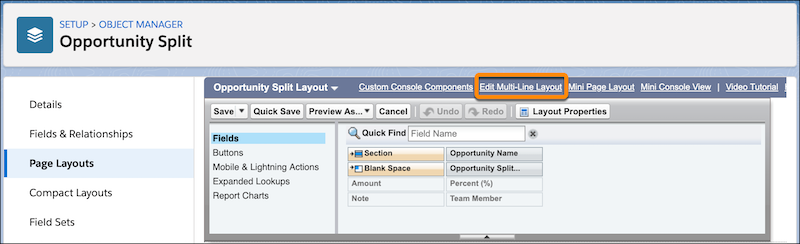
-
In the editor, select fields for sales reps to use when managing splits.
 Important The multi-line layout for Opportunity Split and Opportunity Product Split doesn’t support rich text fields, multi-select picklists, time, or formula fields. Users can edit those fields on each team member’s splits pages.
In Lightning Experience, considerations for editing inline in a list view also apply to editing splits in the multi-line view.
- Save your work.
Did this article solve your issue?
Let us know so we can improve!
