
You are here:
Add Unit Attributes to Alignments Created from Segments
Enhance the information in live alignments that are managed in CRM Analytics and created using segment data sources in Territory Planning. Set up attribute fields in a CRM Analytics connection and recipe, then include those attributes in your alignment.
Required Editions
| Available in: both Salesforce Classic (not available in all orgs) and Lightning Experience |
| Available in: Professional, Enterprise, Performance, Unlimited, and Developer Editions with Web Services API enabled |
| User Permissions Needed | |
|---|---|
| To manage and create a recipe: | Edit CRM Analytics Dataflows OR Edit Dataset Recipes |
| To add attributes to alignments: | Sales Planning Ops Analyst permission set AND Query for Datapipelines User for Sales Planning permission set AND SF Maps Territory Planning for Sales Planning permission set |
Manage the Connection and Recipe in CRM Analytics
To get started, include the attribute fields in a CRM Analytics data connection and recipe.

Note For details about setting up a CRM Analytics data connection and recipe for Sales Planning, see Create Datasets for Sales Planning and Transform and Enrich Data for Sales Planning.
- From the App Launcher, find and select Data Manager.
-
Modify a connection to include the attribute fields.
- Select Connections.
- Select the object that specifies the fields that you want to include as attributes.
- Select the fields to include, and save your changes.
- Sync the connection.
-
Modify a recipe to include the attribute fields.
- Select Recipes.
- Open the recipe that includes your dataset.
-
Select the object node, then click Change columns.
For example, if your recipe is based on accounts, click the Account node.
- Select the fields that you want to include as attributes and click Next.
- Verify that the fields that you added appear in the Preview pane, and then run the recipe.
- Sync the connection again.
Add Attributes to the Sales Plan
After the CRM Analytics recipe runs, add the attribute fields to your sales plan.
- Return to Sales Planning, and click the Sales Plan Settings tab.
- Select Data Sources.>
- Open the data source that’s used with your CRM Analytics connection and recipe.
- From the Available list, select the attribute fields that you added in CRM Analytics and move them to the Selected list.
- Save your changes.
Add Attributes in Territory Planning
Finally, add the attribute fields to the alignment in Territory Planning.
- Open the alignment that you want to modify.
- In alignment builder, click the gear icon to open the settings window.
-
Select Attributes (1) and click Add from Segment (2).
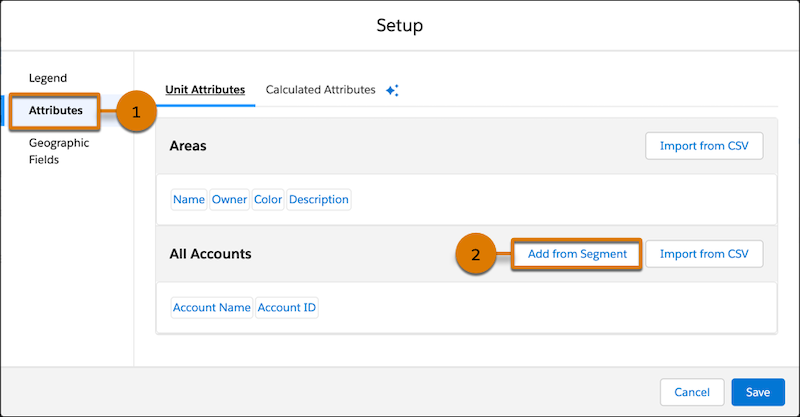
- Select the fields that correspond to the attributes that you added, and save your changes.
Did this article solve your issue?
Let us know so we can improve!
