
You are here:
Filter Boundary Sets in an Alignment
Optimize your territory planning workspace by removing specific boundaries that you don’t plan to use in a territory.
Required Editions
| Available in: both Salesforce Classic (not available in all orgs) and Lightning Experience |
| Available in: Professional, Enterprise, Performance, Unlimited, and Developer Editions with Web Services API enabled |
| User Permissions Needed | |
|---|---|
| To modify alignment options: | Sales Planning Ops Analyst permission set AND Query for Datapipelines User for Sales Planning permission set AND SF Maps Territory Planning for Sales Planning permission set |
For example, maybe a boundary set for the United States uses the three-digit postal code, but you only want to work with a specific state in this territory plan. You can remove all states except the state that you want to work with.
Manage Boundary Filters for Live Data
For alignments created with live data, manage boundary set filters on the alignment.
- Click Alignments and open an alignment.
-
In the alignment builder, click Settings (
 ).
).
-
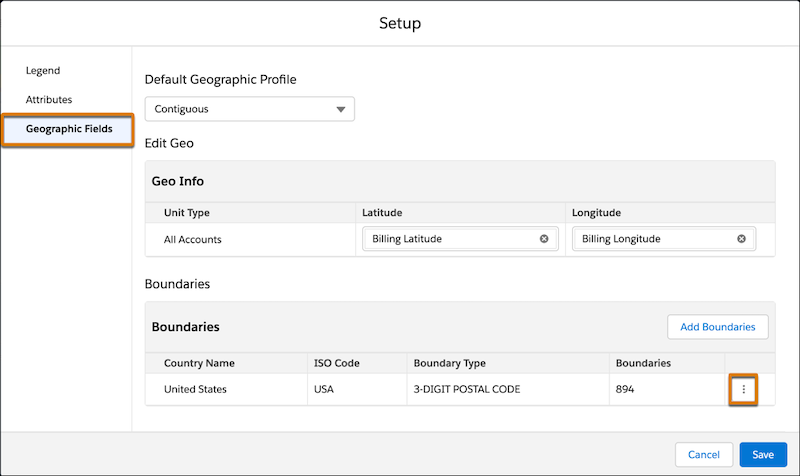
In the Setup window, select Geographic Fields, scroll to the Boundaries section, click the three dots button, and select Edit.
-
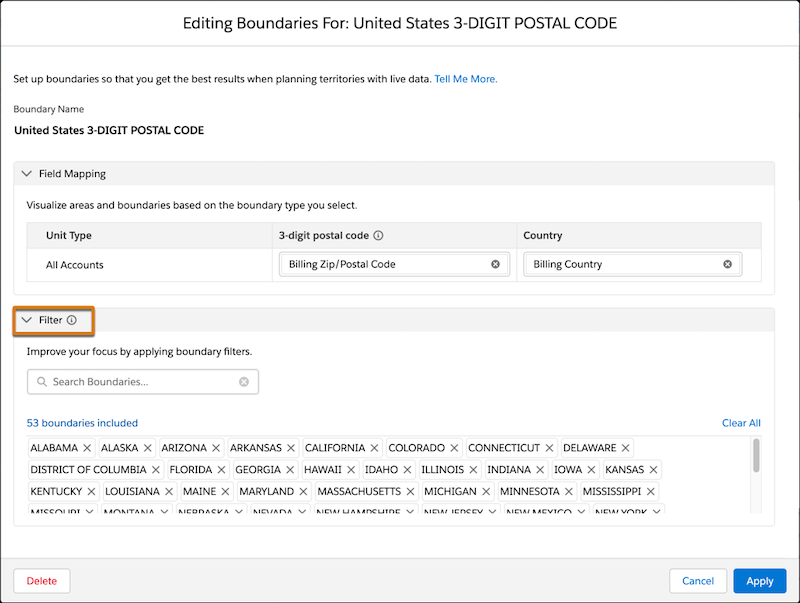
Scroll to the Filter section, remove the boundaries that don’t want to include, and click Apply.
- Save your changes.
Manage Boundary Filters for Copied Data
For alignments created with copied data, manage boundary set filters when you create a dataset.

Note The option to apply boundary filters isn’t available when you later edit a dataset that was saved.
- Click Datasets and click Create.
- Select Plan territories with copied data and click Next.
-
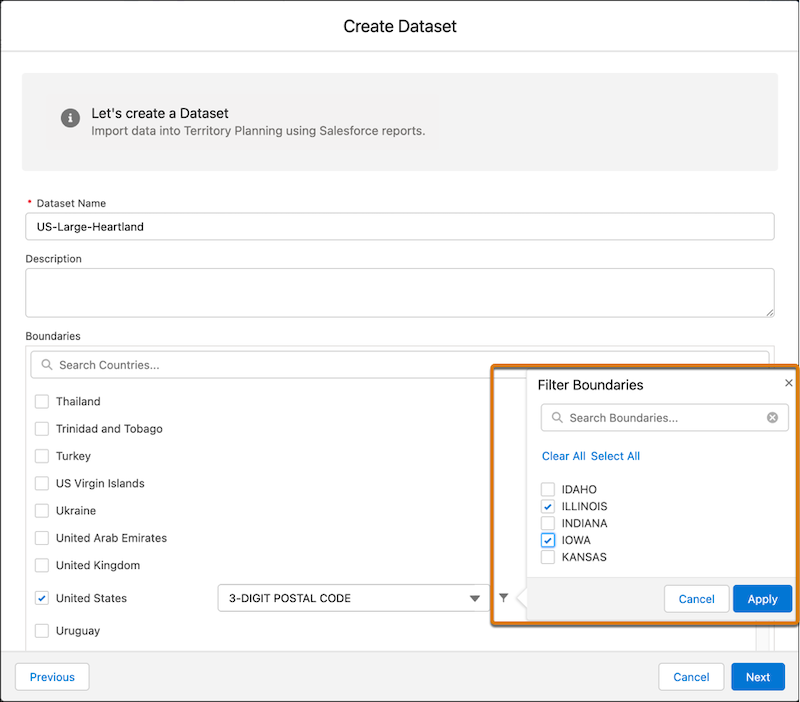
In Boundaries, select countries, fields, and boundary filters, and then click Apply.
- Continue creating the dataset. See Creating Datasets.
Did this article solve your issue?
Let us know so we can improve!
