
You are here:
Publish Alignments to Sales Territories
Update Salesforce territory models and their assignment rules when you publish the alignments that you create in Territory Planning to Sales Territories.
Required Editions
| Available in: both Salesforce Classic (not available in all orgs) and Lightning Experience |
| Available in: Professional, Enterprise, Performance, Unlimited, and Developer Editions with Web Services API enabled |
| User Permissions Needed | |
|---|---|
| To publish alignments: | Sales Planning Ops Analyst permission set AND Query for Datapipelines User for Sales Planning permission set AND SF Maps Territory Planning for Sales Planning permission set |
-
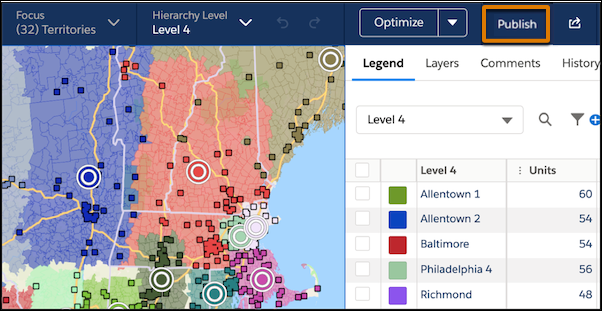
From the map, click Publish.
-
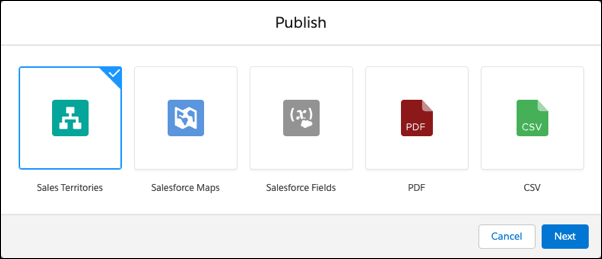
Select Sales Territories, and click
Next.
-
Select a Publish Scope.
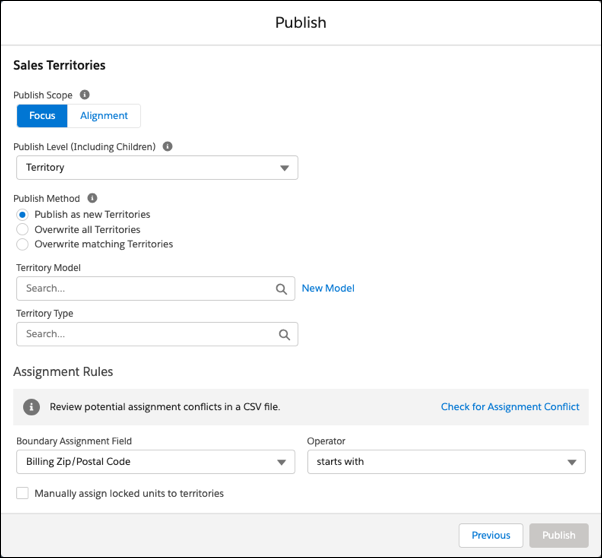
- To publish your current focus when you change one area and want to publish those changes, select Focus.
- To publish the entire alignment when you create hierarchies for the first time or transition to a new planning model, select Alignment.
-
Select a Publish Level.
This action also publishes children of the selected level. For example, your hierarchy is Region | District | Territory. When you publish a district, you also publish its territories.
-
Select a Publish Method.
The method that you select has a dependency on the Territory Model and Parent Territory that you select next.
- To add territories to the selected Parent Territory, select Publish as new Territories.
- To overwrite all child territories of the selected Parent Territory, select Overwrite all Territories.
- To overwrite any child territories that match a specified name under the selected Parent Territory, select Overwrite matching Territories. Overwritten territories update standard fields and rules created in Territory Planning. Custom fields and rules remain unchanged. If there are no matches, this option creates a new territory. If there are multiple matches within the selected Publish Scope, this option fails.
- Select a Territory Model.
- Select a Parent Territory.
- Select a Territory Type that specifies the default type for each territory in the Publish Scope.
-
Select the assignment rule field and operator that match the territory boundary of the
alignment.
The most common combination for the US is Billing Zip and
starts with.For postal code boundaries, use only the code (90210). For non-postal boundaries, include the country prefix, such as USA_California.. -
To publish accounts that don’t match geographic assignment rules, select
Manually assign locked units to territories.
For example, another rep owns an account in the assignment rule ZIP code, so you manually assign that account to a territory.
-
Click Publish.
If a territory exceeds assignment rule limits, Territory Planning prompts you to select an option for handling the assignment rules.
- To avoid publishing assignment rules for this territory, select Skip Assignment Rules.
- To publish the minimum required values by editing assignment rules, select Simplify Rules.
- To divide the territory into as many child territories as necessary to capture its assignment rules and publish the child territories with the original names and users, select Publish as child territories.
Did this article solve your issue?
Let us know so we can improve!
