
You are here:
Create Datasets That Include High Account Volumes
Import high volumes of accounts while staying within dataset allocations. Aggregate records as a single unit within each territory boundary in Territory Planning.
Required Editions
| Available in: both Salesforce Classic (not available in all orgs) and Lightning Experience |
| Available in: Professional, Enterprise, Performance, Unlimited, and Developer Editions with Web Services API enabled |
| User Permissions Needed | |
|---|---|
| To create datasets in Territory Planning: | Sales Planning Ops Analyst permission set AND Query for Datapipelines User for Sales Planning permission set AND SF Maps Territory Planning for Sales Planning permission set |
-
If you plan to use SOQL queries as data sources for your datasets, it’s best to enable Bulk
API, which speeds the import process and reduces the likelihood of you encountering Salesforce
governor limits. Otherwise, skip to Step 2.
From Setup, in the Quick Find box, enter Installed Packages, and then select Installed Packages. Next to the Salesforce Maps package, click Configure. Under Territory Planning, select Data Management, and then select Bulk API.
-
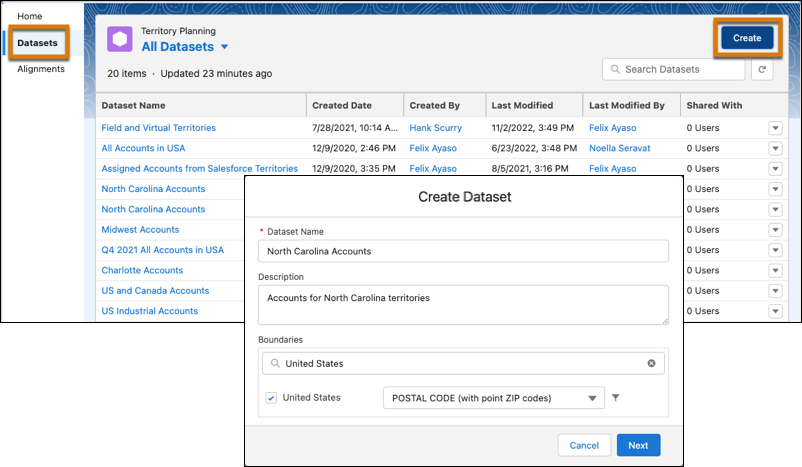
In Territory Planning, click Datasets, then click
Create. Enter a name for the dataset.
-
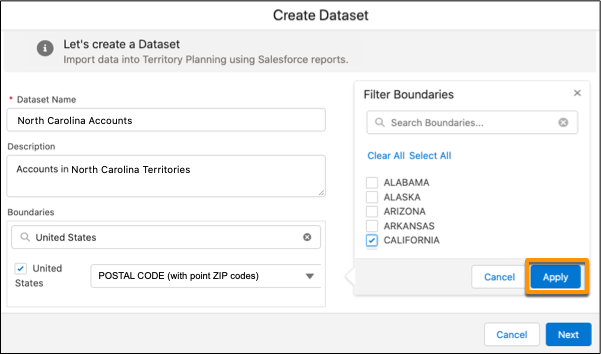
Select territory boundaries and filter them as needed, then click Apply | Next.
-
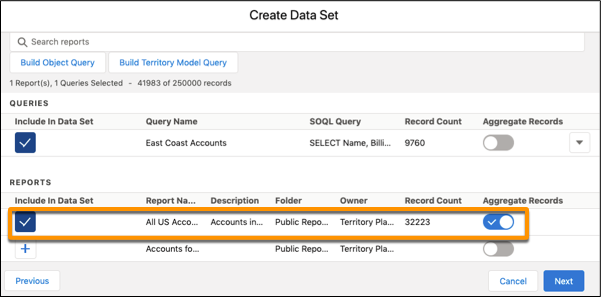
Include any combination of reports and SOQL queries as your sources. If you expect to
exceed the 250,000 record allocation for your dataset, select Aggregate
Records for any of your sources. While aggregating records reduces granularity for
some records, it helps you stay within the dataset’s 250,000 record allocation.
- Click Next.
-
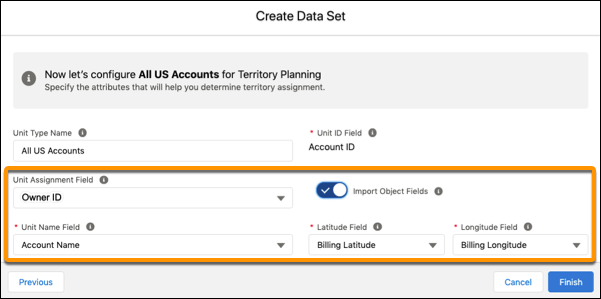
If you don’t see the options you need for unit assignment, latitude, or longitude, turn on
Import Object Fields, then select a unit assignment field such as Owner
ID.
-
To supplement your data with attributes from external sources in CSV files, click
Import from CSV, then add the CSV files that you want.
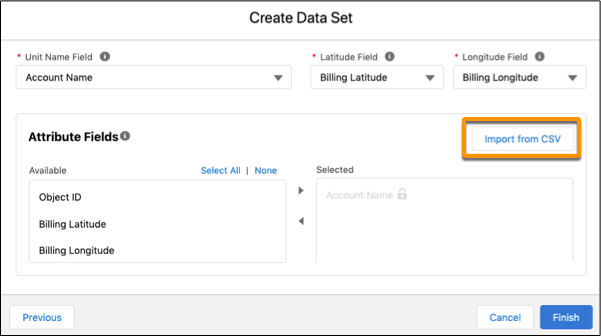
- Click Finish.
Did this article solve your issue?
Let us know so we can improve!
