
You are here:
Assign Units to Their Respective Areas
Ensure that every unit belongs to its rightful owner. Resolve assignment exceptions and inconsistencies in cross-hatched areas when you assign the units in them to their respective areas in Territory Planning.
Required Editions
| Available in: both Salesforce Classic (not available in all orgs) and Lightning Experience |
| Available in: Professional, Enterprise, Performance, Unlimited, and Developer Editions with Web Services API enabled |
| User Permissions Needed | |
|---|---|
| To modify alignment options: | Sales Planning Ops Analyst permission set AND Query for Datapipelines User for Sales Planning permission set AND SF Maps Territory Planning for Sales Planning permission set |
After you open an alignment and set the focus, click a cross-hatched area. Select an option for assigning units in the cross-hatched area.
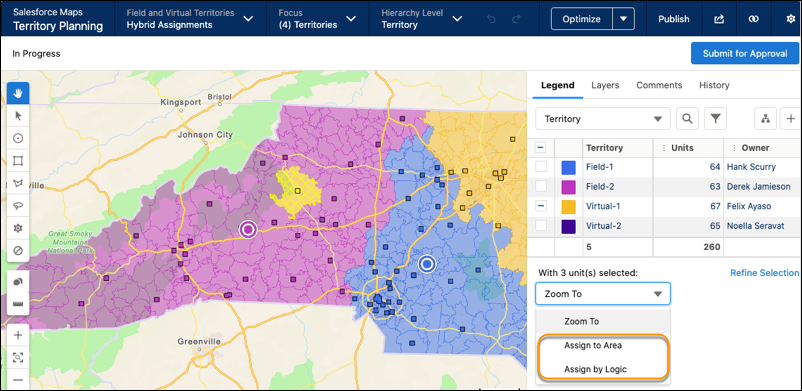
Option 1: Assign to Area
Assign units to a specific area.
- Select Assign to Area.
- Select the area that you want to assign the units to.
- Click Apply.
Option 2: Assign by Territory or Owner
Assign units based on territory or owner fields that correspond to areas in your hierarchy.
This option is available only when the currently selected hierarchy level in the alignment builder is the bottom level.
- Select Assign by Logic and then click Apply.
- In the Assign by Logic window, select Assign by Territory or Owner, and click Preview.
-
Select which field to use for assigning.
- Area Name
- Owner ID
- Owner Name
- From the Corresponding Unit Field dropdown, select which field from your units you want to use for matching.
- Save your changes.
- Click Apply again to accept the changes.
Option 3: Assign to Nearest Center’s Area
Assign units to the area with a center that’s nearest to the units.
This option isn’t available in these scenarios.
- The current hierarchy level is not the bottom level.
- No area centers are in focus.
- You’re in chart view.
- Select Assign by Logic and then click Apply
- In the Assign by Logic window, select Assign to Nearest Center’s Area, and click Preview.
- Click Apply again to accept the changes.
Option 4: Assign Based on the Most Units
Assign boundaries to the same areas as their units.
This option isn’t available in these scenarios.
- The current hierarchy level is not the bottom level.
- No boundaries are in focus.
- Select Assign by Logic and then click Apply
-
In the Assign by Logic window, select Assign based on the most units, and click Preview.
- If the boundary has units assigned, the area with the most unit assignments within the boundary is selected. If there’s a tie, the first area from the list of areas is selected.
- If the boundary doesn’t have units assigned, the distance from the center of each area to the center of the boundary that doesn’t have assigned units is calculated. The boundary is assigned to the area with the shortest calculated distance.
- Click Apply again to accept the changes.
Option 5: Assign to Container’s Area
Assign units to the same areas as the boundaries.
This option isn’t available in these scenarios.
- The current hierarchy level is not the bottom level.
- No boundaries are in focus.
- Select Assign by Logic and then click Apply
- In the Assign by Logic window, select Assign to Container’s Area, and click Preview.
- Click Apply again to accept the changes.
