Encrypt New Files and Attachments
For another layer of data protection, encrypt files and attachments. If Shield Platform Encryption is on, the body of each file or attachment is encrypted when it’s uploaded.
Required Editions
| Available in both Salesforce Classic (not available in all orgs) and Lightning Experience. |
| Available in: Enterprise, Performance, and Unlimited Editions with the Salesforce Shield or Shield Platform Encryption licenses. |
| Available for free in Developer Edition. |
| User Permissions Needed | |
|---|---|
| To view setup: | View Setup and Configuration |
| To encrypt files: | Customize Application |

- From Setup, in the Quick Find box, enter Encryption Settings, and then select Encryption Settings.
- In the Encryption Policy section, turn on Encrypt Files and Attachments.

Users can continue to upload files and attachments per the usual file size limits. Expansion of file sizes caused by encryption doesn’t count against these limits.
Turning on file and attachment encryption affects new files and attachments. It doesn’t automatically encrypt files and attachments that are already in Salesforce. Apply your active key material to existing data with on the Encryption Statistics and Data Sync page.
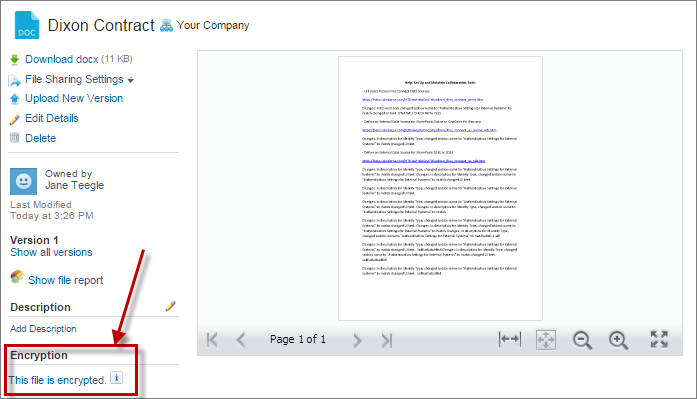
To check whether a file or attachment is encrypted, look for the encryption indicator on the detail page of the file or attachment. You can also query the isEncrypted field on the ContentVersion object (for files) or on the Attachment object (for attachments).
Here’s What It Looks Like When a File Is Encrypted