
You are here:
Add IVR to Your Omni-Channel Flow in Agentforce Contact Center
Manage the high volume of inbound calls and automate responses to repetitive inquiries with Interactive Voice Response (IVR). IVR lets your callers use self-service options for simple tasks like making appointments, checking balances, or resetting passwords.
Required Editions
This article applies to:
Salesforce Voice (Native Telephony)
| View supported editions. |
| User Permissions Needed | |
|---|---|
| To manage a recording: | Agentforce Contact Center Admin (Salesforce Voice) permission set. Learn how to view permissions in this permission set. |
For IVR features to work as intended in your Omni-Channel flows, make sure you’ve enabled Enhanced Omni-Channel in your org.
- From Setup, in the Quick Find box, enter Flows, and then select Flows.
- Click the Omni-Channel flow that you want to modify. To create an Omni-Channel flow, follow these steps.
-
In the section that you want to add IVR, click
 , and then select Play Prompt.
- Enter a name, description, and timeout length.
- In the Prompt section, create the record ID and mark it as available for input.
- To enter text read by an AI voice profile, select Message. To use a prerecorded prompt, select Media.
- For the text message, select a language and voice profile from the dropdown. Each language in the dropdown has a default voice profile. If you select a language and don’t select a voice profile, then the system selects the default voice profile for the language. To preview the voice profiles that are available out-of-the-box, click Preview Voice. For details on the available voice profiles in Salesforce Voice, see Voice Profiles.
-
You can also add language and voice profiles by using flow variables by clicking New
Resource.
- Create a variable and mark it as available for input.
- Add an assignment before the Play Prompt invocable action that assigns a value to language and voice profile flow variables. Enter a value for the language flow variable and the voice profile flow variable based on the table in Voice Profiles.
- Use the variable in the Play Prompt invocable action to create the message.
-
If you select a text message, you can have either:
- A static text message that you can directly add. The message doesn’t contain any variables to customize it for the caller, for example, “Welcome to Astro Pop”.
- A dynamic text message that contains variables to customize the message for your caller, for example, “Hi Dan, welcome to Astro Pop”.
- To add a dynamic text message, add a Get Records element before the Play Prompt element so the flow can get record details to be added in the customized text message.
- From Prompt, create a Text Template resource and add your customized text message. For examples of customized messages with SSML, see Voice Control Options.
-
For Media prompts, select the media you want to play. .
- To add your media to the org, follow the instructions here. You can then select this media from the drop-down.
-
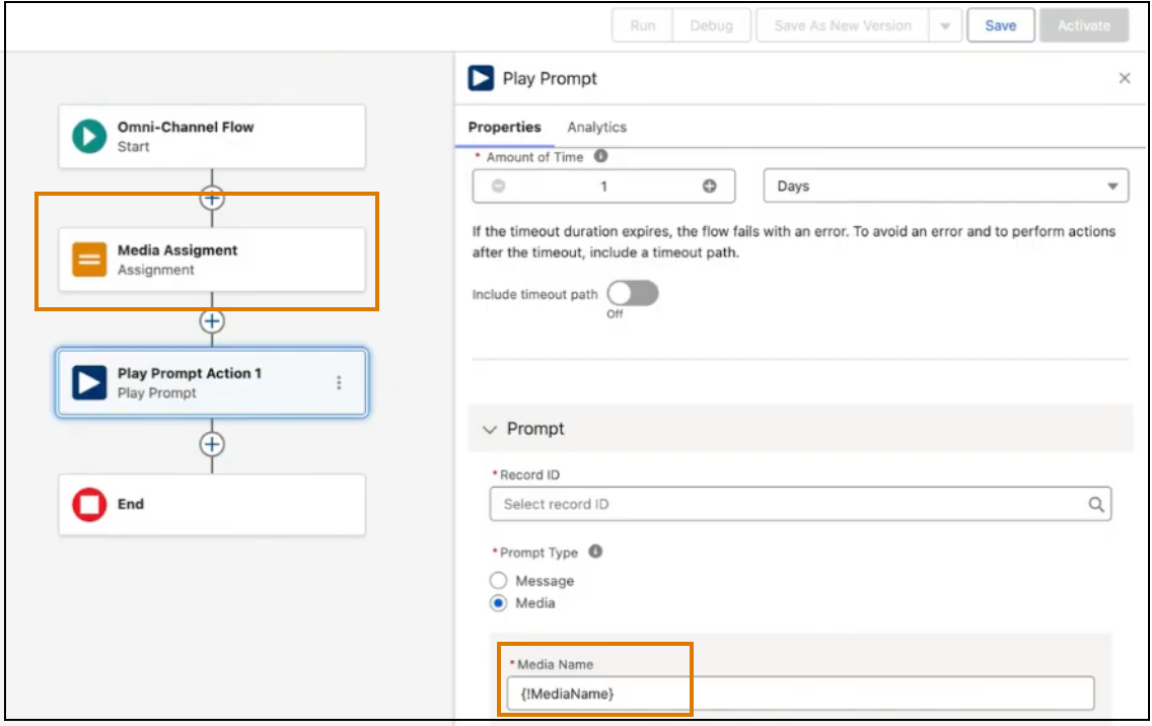
You can also use variables to add custom media. Use an assignment element in your flow to assign
custom media to a variable, Then use this variable in the Play Prompt action to add
custom media.
-
To manage user response, from the Response Details section turn on User Response
Settings.
- Enter Dual-Tone-Multi-Frequency (DTMF) Response Values that match the instructions from your prompt. For more information on how to set DTMF values, see this article.
- Enter a minimum and maximum input value length. This value corresponds to the DTMF values. For example, if your DTMF value is in single digits, the maximum and minimum input value length is 1.
- To let the caller end their input early, set a response delimiter.
- To set the amount of time available to the caller to enter their input, set the response timeout. If the customer doesn’t provide any input within this duration, the system plays the IVR prompt again.
- To set the maximum amount of time the customer has between selecting consecutive digits as input, set a digit timeout response. After this time has lapsed, the system treats any input digits as complete.
-
To give customers another chance to enter input, from the Response Retry section, turn on
User Response.
- To select how many chances the customer is offered to provide input, enter a Retry Count.
- To customize the message played, select Customize retry message. Enter a static message or use flow variable to create a message. The system plays this message before repeating the main prompt. For example, “We couldn’t quite catch that.”
- To test the message, click Preview Voice.
- Save your changes.
- Set DTMF Values
At a high level, DTMF response values control whether the Play Prompt validates the caller’s DTMF input or simply captures it. The Play Prompt compares the caller’s input with the configured Response Value to decide whether to proceed or retry. - Voice Control Options
Manipulate how text is spoken using Speech Synthesis Markup Language (SSML) tags and text normalization. This helps you configure prompts that align with brand tone and clarity, while accommodating multilingual and regulated enterprise scenarios. - Languages and Voice Profiles
Engage better with your customers by customizing your IVR messages by using different voice profiles that are available out-of-the-box.
Did this article solve your issue?
Let us know so we can improve!
