
You are here:
Transfer a Call
Transfer calls to another rep or queue so customers are connected to the right person who can help.
Required Editions
This article applies to:
Salesforce Voice (Native Telephony)
| View supported editions. |
| User Permissions Needed | |
|---|---|
| To make transfers: | Agentforce Contact Center Rep (Salesforce Voice) permission set. Learn how to view permissions in this permission set. |
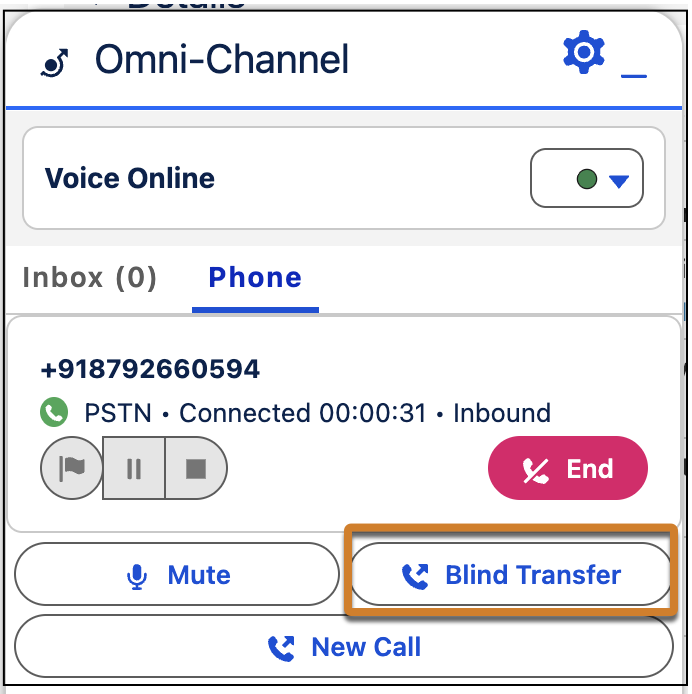
- Make a Blind Transfer
Transfer a call to another contact center rep or queue without giving context to the next rep. - Make a Warm Transfer
Transfer a call to another contact center rep or queue. Discuss the situation with another rep before connecting them with the customer, and then leave the call.
Make a Blind Transfer
Transfer a call to another contact center rep or queue without giving context to the next rep.
Make a Warm Transfer
Transfer a call to another contact center rep or queue. Discuss the situation with another rep before connecting them with the customer, and then leave the call.
-
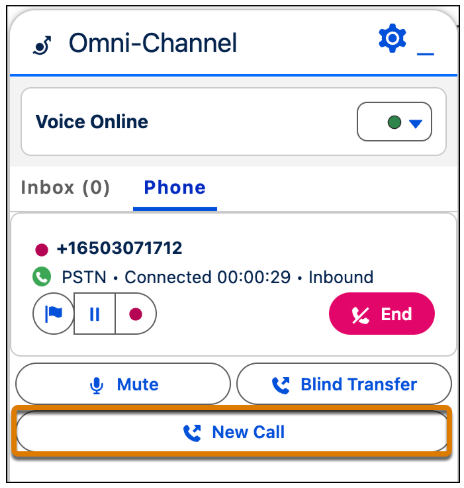
While on a call, click New Call.
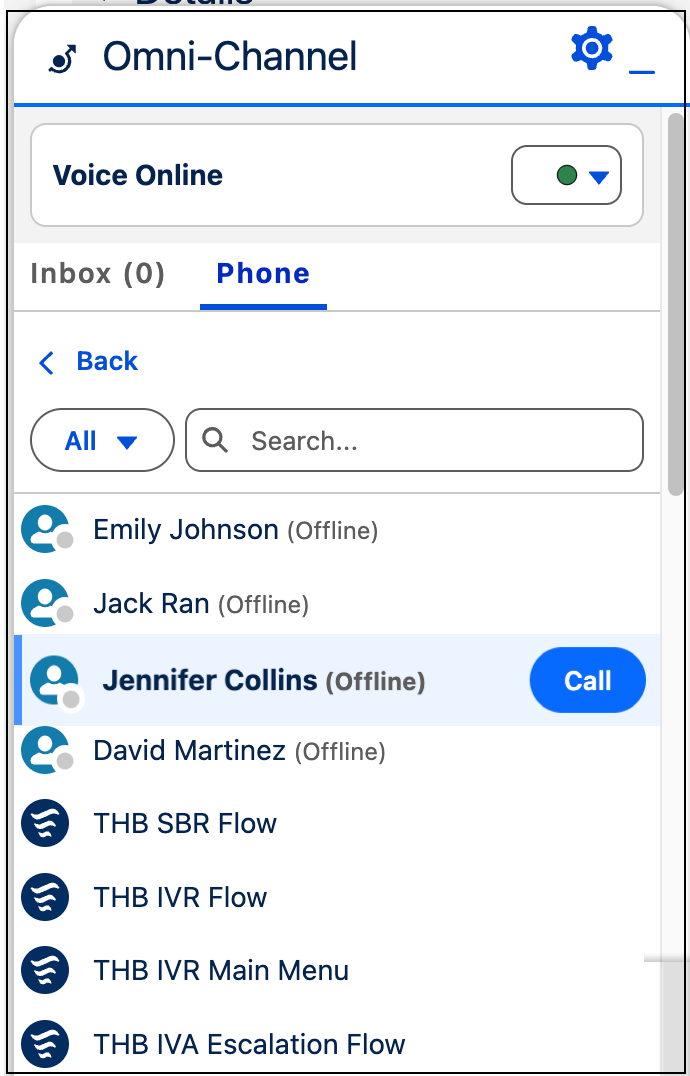
- To add another rep to the call, enter a rep or queue name or scroll through the list of transfer destinations to see who’s available.
-
Select a destination and then click Call. After the second rep is
connected, the Merge button is displayed on the Phone tab in the
Omni-Channel utility.
- Share necessary information with the second rep before combining the calls.
-
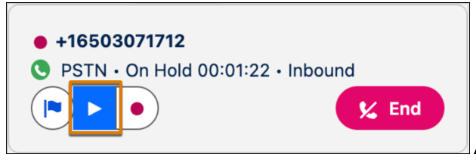
To swap between calls, resume the call with the customer. This puts the second rep on hold.
To swap back, resume the call with the second rep.
- To combine both calls into a single call, click Merge. Continue the call as needed with three participants.
- To complete the warm transfer and exit the call, click Leave Call. You’re disconnected, but the call continues with the remaining participants.
- To become available for new calls, close the voice call tab or click All Done in the After Conversation Work (ACW) component.

Did this article solve your issue?
Let us know so we can improve!
