
You are here:
Connect a Standard Bot to Channels
Einstein Bots can connect to many different end points, expanding the ways that you can deliver bots to your customers. Use the Connections section to view and add standard channels to your bot, or to connect standard and enhanced bots to the Einstein Bots API. To manage routing for enhanced bots, use Omni-Channel flows.
Required Editions
| View supported editions. |
| User Permissions Needed | |
|---|---|
| To build and manage Einstein Bots: | Customize Application OR Modify Metadata OR Manage Bots |
| To add, edit, or delete channels | Customize Application |

Note In orgs created in Summer ’23 and later, Salesforce automatically
enables enhanced Omni-Channel routing. Enhanced Omni-Channel routing doesn’t support standard
bots or channels. If enhanced Omni-Channel routing is enabled for your org, we recommend cloning your standard bots as
enhanced bots. But if you still want to use standard bots, you can switch to standard
Omni-Channel routing.
Einstein Bots Standard Channel Specifications:
- Standard bots support standard channels such as Chat (In-App and Web) and Messaging (SMS, Facebook Messenger, and WhatsApp channels only). Standard bots don’t support enhanced channels.
- Chat:
- The Utterance field on the UtteranceSuggestion object is available for encryption with Shield Platform Encryption. This field includes customer suggestions to add to the Intent Model, and contains data when admins select Store Einstein Bots conversation data on the Bot Overview page. This field only supports case-insensitive deterministic encryption. To encrypt this field, check Encrypt on the Encrypt Field page in Setup. Learn more about Shield Platform Encryption at How Shield Platform Encryption Works.
- Einstein Bots doesn’t support menus and quick replies in custom Chat windows.
- Einstein Bots in Chat channels are now HIPAA and SOC2 compliant. Beta and Pilot features aren’t compliant. Learn more at Learn About Einstein Bots Compliance.
- Messaging:
- Before the Spring ’21 release, the bot sent a “We’re transferring you to an agent” message before transferring to a service rep. This message has been removed, and admins can configure the Error Handler system dialog to manage transfers. Learn more about the Error Handler at Understanding System Bot Dialogs.
- Bots with multiple outbound messages in the same dialog are combined into one message.
- Bots using Messaging channels don’t use the Bot Response Delay between messages.
- Facebook Messenger: Facebook Messenger allows for third-party bots to be connected
to Facebook, which can pass information to Salesforce. To connect your third-party
bot, customers must get approval from Facebook for their page to access version 2 of
Facebook’s Handover Protocol. After it’s approved, developers must send a
pass_thread_controlwebhook event and your org must be in a standby state to hear it. More information about the Facebook Handover Protocol is on the Facebook Developer portal. Salesforce doesn’t support third-party bot integration. - In SMS channels, multiple outbound bot messages are combined into one message up to 960 characters. To learn more about character limits, see Considerations for Long Code Messaging Channels.
- In WhatsApp conversations, users must select options from the most recent menu presented by the bot. Selecting options from earlier menus or sending unrelated messages can interrupt the dialog flow and prevent the conversation from progressing.
-
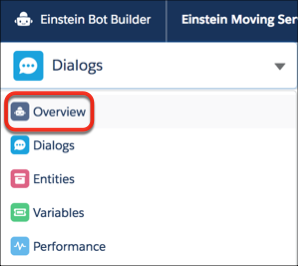
From the Bot Builder menu, click Overview.
-
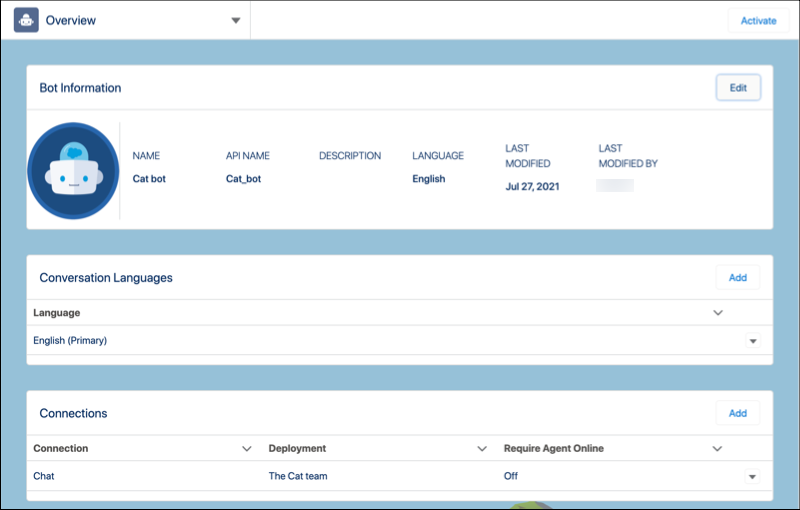
In the Connections section, click Add.
-
Select the channel and search for the deployment for your bot.
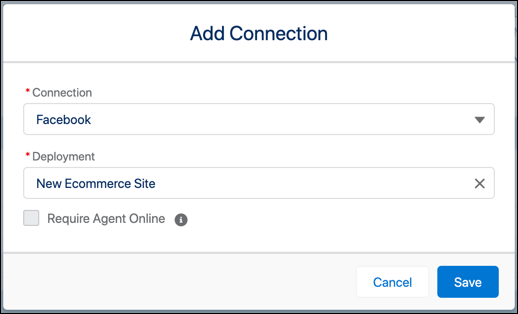 Note Chat users can enter the name of their chat deployment in the Deployment field, and Messaging users can enter their channel name. Bots search for active Messaging channels.
 - To disable the chat button when no service reps are available for escalation, select Require Agent Online.
Did this article solve your issue?
Let us know so we can improve!
