Loading
Salesforce now sends email only from verified domains. Read More
Agentforce Contact Center
Table of Contents
Select Filters

          No results
          No results
          Here are some search tips

          Check the spelling of your keywords.
          Use more general search terms.
          Select fewer filters to broaden your search.

          Search all of Salesforce Help
          Manage External Routing Queues for a Partner Contact Center

          Manage External Routing Queues for a Partner Contact Center

          Although you can define routing logic using Salesforce queues, if you’re using external routing for your contact center, the partner system uses its own queues to process routing. To route messages and voice calls to a contact center queue, map a Salesforce queue to a partner queue. Messages and calls assigned to an unmapped queue aren’t routed at run time. The way you manage and map an externally routed queue for a contact center depends on whether your CCaaS vendor supports Queue Management for their integration.

          Required Editions

          View supported editions.
          Checkmark This article applies to: Bring Your Own Channel for CCaaS
          X icon This article doesn’t apply to: Enhanced In-App Chat, Enhanced Web Chat v1, Enhanced Web Chat v2, Enhanced WhatsApp, Standard and Enhanced Facebook Messenger, Standard and Enhanced SMS, Enhanced Apple Messages for Business, Enhanced LINE, and Bring Your Own Channel for Messaging
          User Permissions Needed
          To map CCaaS provider queues to Salesforce queues: Customize Application, Contact Center Admin, or Contact Center Admin (Partner Telephony)

          Map Salesforce Queues to Partner Queues

          If your contact center vendor doesn’t support Queue Management, you must create the queue in your partner system first, then map the queue to a Salesforce queue on the contact center details page.

          If you haven’t already done so, enable Omni Channel, create a Service Channel, and create a Salesforce queue with the routing configuration set to external routing before this step.

          1. In Setup, enter Contact Centers in the Quick Find box, then select Partner Contact Centers or Partner Telephony Contact Centers, depending on your setup.
          2. Click the contact center name for which you want to map queues.
          3. In the Queue Mapping section, click Add.
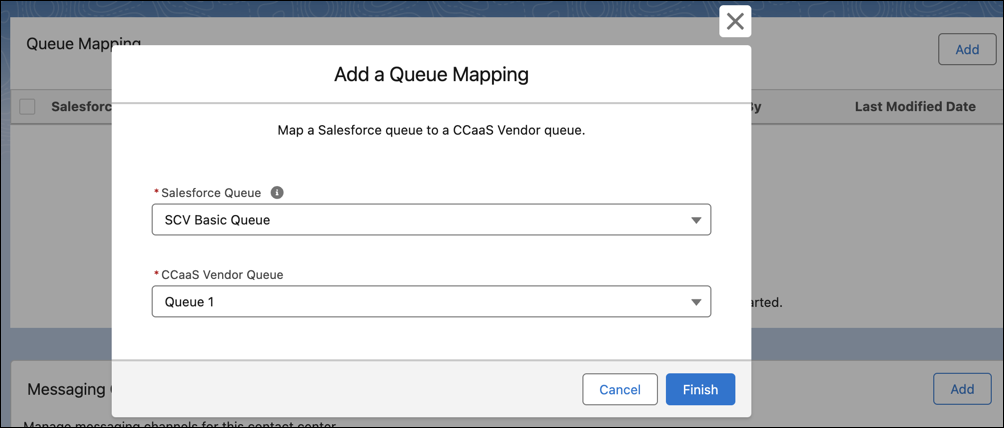
          4. Map the Salesforce queue to the CCaaS provider’s queue. The Salesforce Queue dropdown shows queues that support the Messaging Session object or Voice Call object, use a routing configuration with the external routing model, and aren’t mapped yet. Each Salesforce queue can be mapped to one external queue.
            Add Queue Mapping for an externally routed queue

          This process is similar to how you map queues specifically for telephony provider queues. For partner contact centers, you can map one Salesforce Messaging, Voice, or combined Messaging and Voice queue to one queue on the partner's side.

          Add a Queue to Your Partner Contact Center

          If your contact center vendor supports Queue Management, manage and map queues on the contact center details page under Contact Center Queues.

          If you haven’t already done so, enable Omni Channel, create a Service Channel, and create a Salesforce queue with the routing configuration set to external routing.

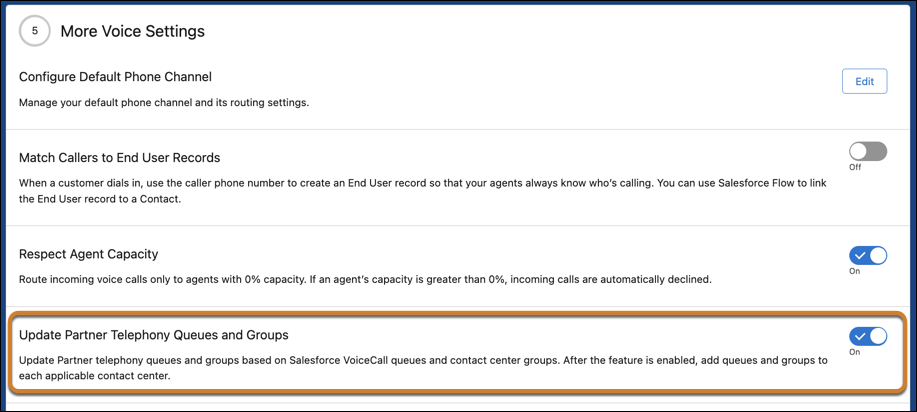
          Also, enable the queue management setting in the Service Cloud Voice setup before these steps. From Setup, enter Partner Telephony Setup in the Quick Find box, and then select Partner Telephony Setup. Enable Update Partner Telephony Queues and Groups.

          Enable the Update Partner Telephony Queues and Groups setting
          1. From Setup, enter Contact Centers in the Quick Find box, and then select Partner Contact Centers or Partner Telephony Contact Centers, depending on your setup.
          2. Click the contact center name for which you want to add and map queues.
          3. In the Contact Center Queues section, click Add.
          4. Select the Salesforce queue that you want to add to the contact center.
          5. Choose to automatically create the corresponding queue in the CCaaS partner system (recommended) or select a preexisting CCaaS partner queue.
          6. Add members of the contact center to the queue.
          7. Select Finish.
           
          Loading
          Salesforce Help | Article