
You are here:
Add the Close Case Button to Lightning Experience
Make the process of closing cases easier for your service reps and save time by adding the Close Case button to the case details page. This way, your service reps can close the case directly from the case details page.
Required Editions
| View supported editions. |
| User Permissions Needed | |
|---|---|
| To set up cases for Lightning Experience: | Manage Cases AND Customize Application |
If you're a new customer, the Close Case button is enabled by default and will be visible on the case details page. If you’re an existing customer, perfomr the following steps.
- Go to Setup and select Object Manager.
- In Object Manager, search for Case Page Layouts and select it.
- From Mobile and Lightning Actions, drag the Close Case button into the Salesforce Mobile and Lightning Experience Actions section. Select Save.
- You can configure whether the Close Case button appears on the Case Details page directly or in the dropdown menu on the Case Details page.
- After you select the Close Case button, it opens the Close Case page. You can configure the fields that are displayed in the Close Case page.
- To configure the fields, go to Setup and select Object Manager.
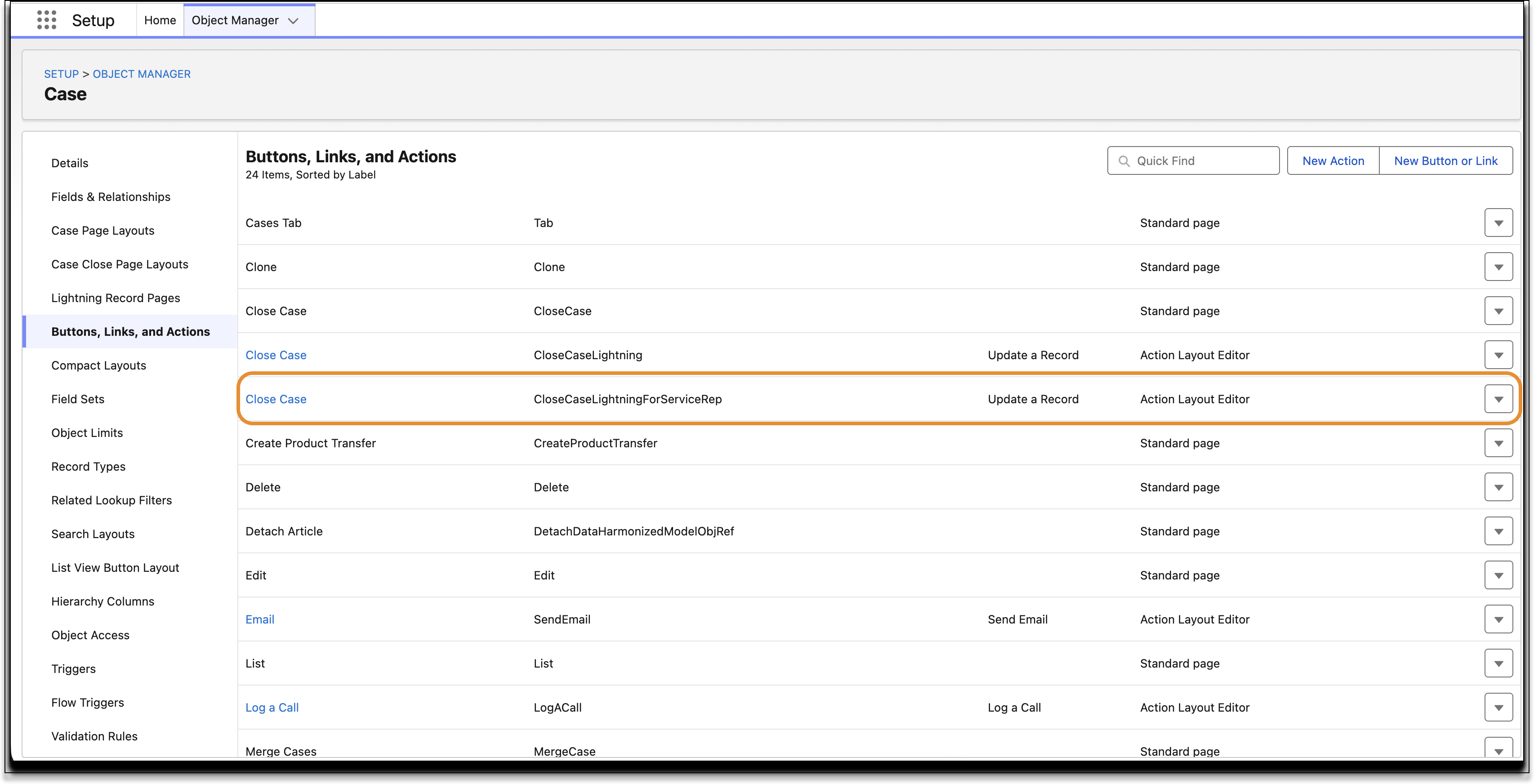
- In Object Manager, search for Buttons, Links, and Actions.
- Select Close Case with the API name CloseCaseLightning and select Edit.
- Choose the fields you need and select Save.The selected fields will be available on the Close Case page.
- The fields Status, Case, and Reason are available by default. In the Status field, only options related to closing a case are listed.
Customize Close Case Actions by Record Type
You can create close case actions for different record types.
- In Setup, in the Object Manager search for Case and select Case.
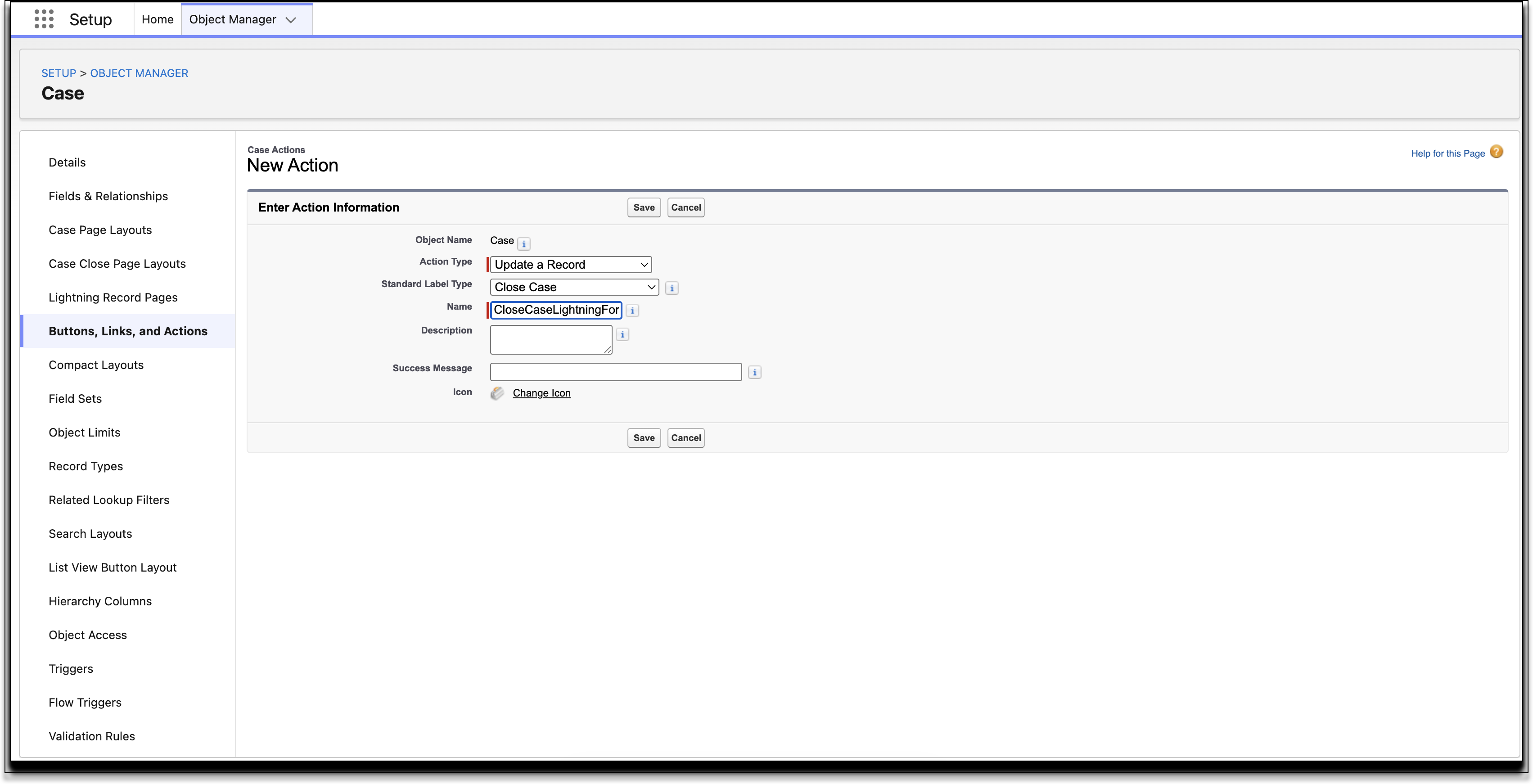
- In Case select Buttons, Links, and Actions, and select New Action.
- In the New Action window, in Action Type select Update a Record.
- In Standard Label Type select Close Case.
- In Name, use the prefix CloseCaseLightning. Select Save.
- Add the close case action to the required record type or layout.

-
The Close Case page layout is different in Salesforce Classic and Lightning Experience. Salesforce Classic uses the Close Case Page Layout which is the standard layout. Lightning Experience uses the Quick Actions Page Layout.
-
Lightning Experience doesn't support notifying the case contact via email after the case is closed.
-
In Lightning Experience, the API name of the Close Case action is CloseCaseLightning and it is editable. If you change the API name to anything other than CloseCaseLightning, the Close Case action will become a custom quick action. The Close Case page will show all the picklist values.
-
In Lighting Experience, you can delete the Close Case action. You can re-create it by creating a new custom action with the API name CloseCaseLightning.
-
In Salesforce Classic, the Close Case quick action is not supported. It's available in the Quick Actions Page Layout, but it isn't recommended.
-
The Related Record component doesn’t support the Close Case quick action.
- Similar to the standard Close Case action, all Close Case quick actions appear in the highlights panel.
- Using CloseCaseLighting API name for a close case action will override picklist values. The picklist will show only the close behavior statuses.
