You are here:
Create an Actions & Recommendations Deployment
Capture component settings in a deployment that you define in Setup. Specify which type of content to display, such as flows and quick actions, or Next Best Action recommendations. Create default lists of actions for each channel, and select which actions users can start from the list as needed. If you include recommendations, configure strategies and display settings.
Required Editions
| Available in: Lightning Experience |
Available in: Essentials, Professional, Enterprise, Performance, Unlimited, and Developer Editions Lightning console apps are available for an extra cost to users with Salesforce Platform user licenses for certain products. Some restrictions apply. For pricing details, contact your Salesforce account executive. |
| User Permissions Needed | |
|---|---|
| To manage deployments in Setup that include flows and quick actions: | Customize Application |
| To manage deployments in Setup that include recommendations: | Modify All Data OR Manage Next Best Action Strategies |
Each item listed in the Actions & Recommendations component is a RecordAction junction object. A RecordAction associates an action, such as a screen flow, a field service mobile flow, an autolaunched flow, or a quick action, with the parent record. A RecordAction is also created when a user accepts a recommendation from the component. In this case, the RecordAction associates the flow in the recommendation with the record.

- From Setup, in the Quick Find box, enter Actions & Recommendations, and select Actions & Recommendations.
-
Click New Deployment.
- Name your deployment.
-
Select at least one type of guidance to show, for example, Flows and quick
actions. To display actions and offers that result from filtering
recommendations with your Next Best Action strategies, select
Recommendations.
Note If you edit a deployment and deselect a type of guidance, we delete the related settings.
-
Select up to 10 objects that provide context for object-specific quick actions and Next
Best Action strategies.
You can associate quick actions and strategies with specific object types, giving them an object-specific, rather than global, context. When a page for a selected object opens, the component lists the global and object-specific actions and recommendations. On other pages, it displays only the global items.For example, you define an object-specific quick action for the Contact object. To show this quick action in the component on Contact pages, add Contact as a context object. Or, to filter recommendations with a strategy that uses case fields, add the Case object as a context object. Then, in strategy settings, select a strategy that filters recommendations for cases.Note To use object-specific quick actions in a deployment, add them to record page layouts for those objects. The component shows quick actions that are available in the page layout.
-
If you selected the option to show flows and quick actions, configure a default list for
each channel.
 Important
- The component shows channel defaults only when no other RecordActions exist and the record page is opened in that channel. For example, if you set up a process in Process Builder that creates RecordActions for a record page, the component shows the RecordActions from your process instead of the channel defaults that you configure here.
- If a default action is added to an existing deployment, users see the action in the Actions & Recommendations component on new records only.
-
Click a tab to configure settings for that channel.
- Chat
This channel works with Chat in Lightning Experience. Use this channel to specify default actions for when agents chat with customers. To use this channel, add the component to the chat transcript record page.
- Phone
This channel works with Open CTI. Use this channel to specify default steps for when customers call and records are shown to the agent. To use this channel, update your softphone screen pop settings for no matching records and single-matching records.
- Default
Use this channel to specify default actions for when records open from list views or related records.
The Chat and Phone channels display even if you don’t have these features in your org.
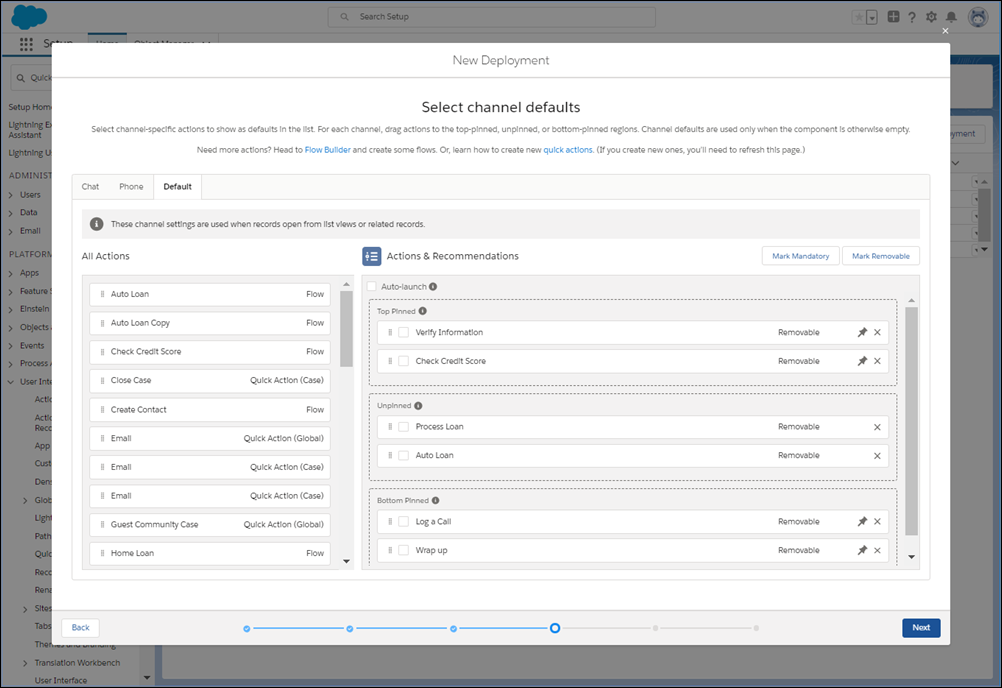
You can configure multiple channels. For example, if you use Open CTI, you can configure actions for the Phone and Default channels. That way, agents can select actions from the list when a caller’s contact record is popped. Agents can also navigate to a contact record manually, such as when they open a record from a list view. Then they see the actions that you set up in the Default channel.
Note For information about Chat and Open CTI integration, see Integrate Chat with Lightning Flow for Service and Integrate Open CTI with Lightning Flow for Service. - Chat
-
On each channel, drag actions from All Actions to the preview
area.
The preview area has three regions: Top Pinned, Unpinned, or Bottom Pinned. Use the pinned regions to specify actions that you want your users to complete first and last. The Unpinned region is for actions that you want your users to complete during the record’s life cycle.
-
Select actions that are important, and click Mark Mandatory.
When a user tries to close a flow that’s marked as mandatory without completing it, a reminder appears.Note You don’t see a reminder for quick actions or autolaunched flows that are marked as mandatory.
- Select actions that you don’t want users to remove at run time, and click Unmark Removable. By default, all actions are removable.
- Specify whether to auto-launch the first action when the record page opens.
- Click Save.
- If you selected the option to show flows and quick actions, narrow the list of actions that users can launch at run time. When the user clicks Add, the component shows the subset of actions that you configure here.
-
If you selected the option to show recommendations, configure display settings and Next
Best Action strategies.
-
On the General Settings tab, set up how recommendations display, and select a default
strategy.
Set the maximum number of recommendations to a value from 1 to 4.
-
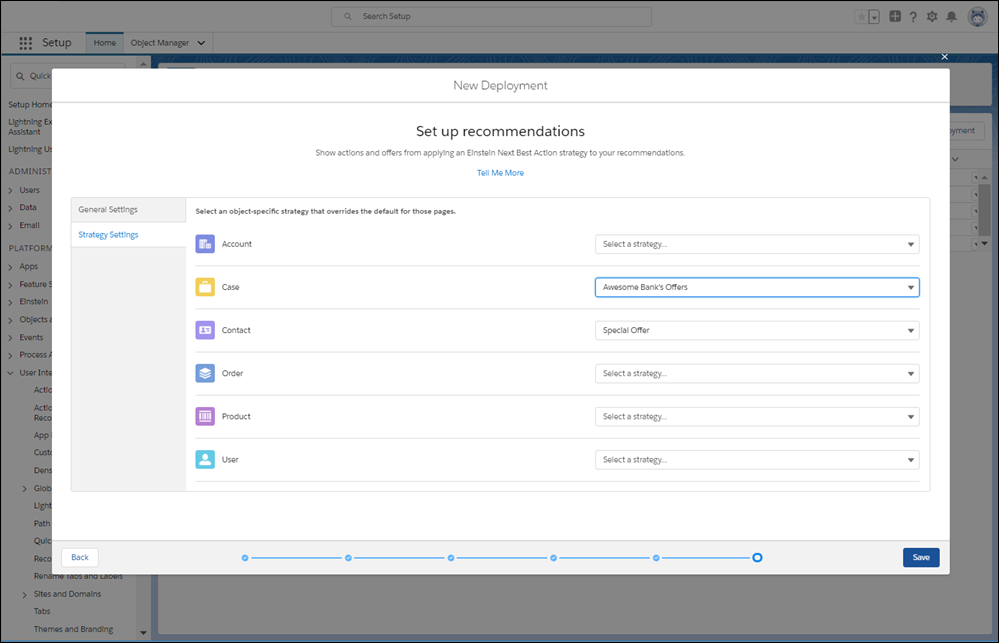
On the Strategy Settings tab, you can select object-specific strategies that override the
default strategy on those pages.
Note For the component to display recommendations, select a default or an object-specific strategy. A strategy loads and filters recommendations so that your users can see the best next steps.
- Click Save.
-
On the General Settings tab, set up how recommendations display, and select a default
strategy.
- In Lightning App Builder, add the Actions & Recommendations component to a page, and select the deployment.
