You are here:
Use the List in the Actions & Recommendations Component
Learn how the Actions & Recommendations component can walk you through multiple-step procedures. The list of items helps you complete work quickly and consistently with less guesswork.
Required Editions
| Available in: Lightning Experience |
Available in: Essentials, Professional, Enterprise, Performance, Unlimited, and Developer Editions Lightning console apps are available for an extra cost to users with Salesforce Platform user licenses for certain products. Some restrictions apply. For pricing details, contact your Salesforce account executive. |
| User Permissions Needed | |
|---|---|
| To run flows from the list: | Run Flows OR Flow User field enabled on the user detail page OR Manage Flow |
| To run an action strategy or recommendation: | Run Flows OR Flow User field enabled on the user detail page OR Manage Flow |
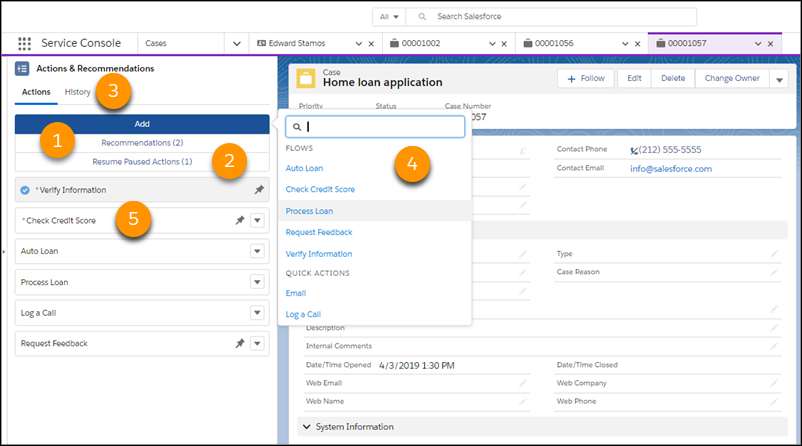
The Actions tab on the component shows actions associated with the current record page. Clicking a screen flow, for example, starts it in a subtab in a console app or in a window for a standard navigation app. After you confirm the start of an autolaunched flow, it runs in the background without user input. Quick actions run in a window.
The component displays:
- Recommendations that result from applying an Einstein Next Best Action strategy, if the component is configured to show them (1)
- Paused flows associated with the current record, even if they weren’t started from the component (2)
- A history of actions for the current record (3)
- Other actions that you can start as needed when you click Add (4)
- Flows that are marked as mandatory (5). Closing a tab or window without completing a screen flow that’s mandatory causes a warning message to appear. You can dismiss the reminder and complete the flow, or finish it later.
Keep these things in mind.
- If you select auto-launch when you configure the deployment, the first step in the list opens when the record page loads.
- Each list item has a dropdown menu. If an action is configured as removable, you can delete it from the list using this menu. Also, you can use this menu to reorder items within each pinned or unpinned region.
- Stages display only for in-progress flows that are in focus.
- For console apps, when a step is completed, the subtab closes. If other subtabs are open, you’re taken to the next subtab. If no other subtabs are open, you’re returned to the workspace tab with the component.
- For standard navigation apps, when an action is completed, the window closes.
- Completed actions are in gray and can’t be relaunched. A page refresh removes completed actions. When all actions are completed, a page refresh adds all actions from the deployment to the component again.
- Choose a Recommendation from Einstein Next Best Action
Consider actions and offers that result when you filter recommendations through Next Best Action strategies. If your admin has set up a deployment to show recommendations, the best ones display in a tab on the Actions & Recommendations component. - Resume Paused Flows from the Actions & Recommendations Component
If paused flows are associated with the record, they appear under the Resume Paused Actions tab on the Actions & Recommendations component. Paused flows are shown only if you have permission to run flows. - Find Another Action
Sometimes a customer interaction requires a step that doesn’t appear in the Actions & Recommendations component. You can look for more actions when you need them. - Complete Mandatory Actions on the Actions & Recommendations Component
When you see an asterisk next to an action, it’s a step that’s important to complete. When you try to close a flow that’s mandatory before completing it, a reminder appears that it’s a required step. - View the History of Actions
The History tab on the Actions & Recommendations component shows the life cycle of actions for the record. In a handoff, the history can help you identify gaps and what step to take next.
