
You are here:
Set Up Your Service Console for Swarming
Optimize the support rep swarming experience and keep swarming front and center with swarming page layouts, tabs, and related lists.
Required Editions
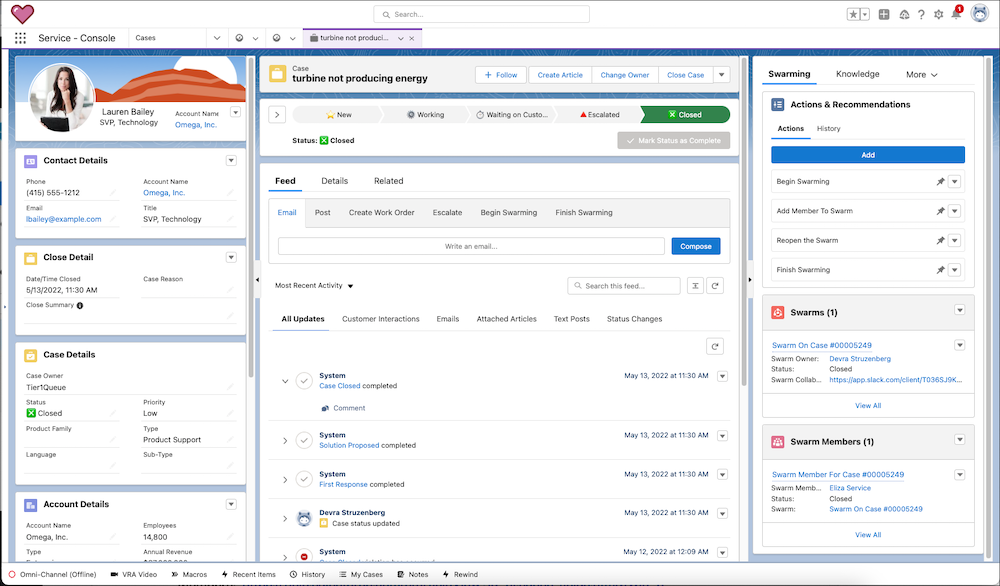
Add Swarming Objects to the Service Console Lightning Console App
To make it easier for swarm collaborators to find their ongoing swarms, add Swarming objects to your console app’s navigation items.
- From Setup, in the Quick Find box, enter Swarming, then select Swarming.
- Under Set Up the Service Console for Swarming, select Go to App Manager.
- Click the dropdown next to Service Console and select Edit.
-
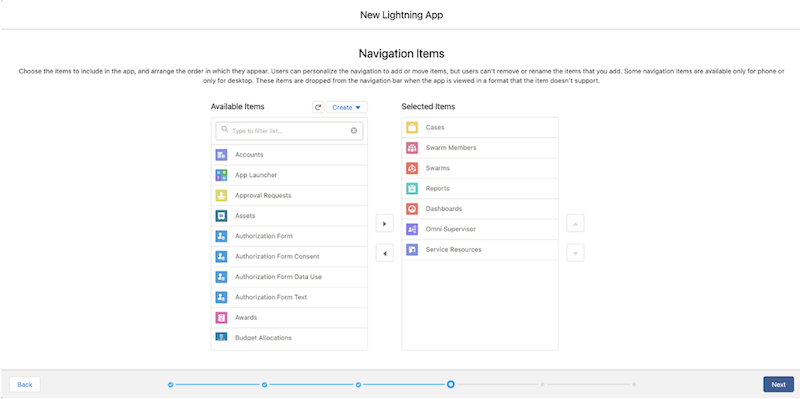
Under Navigation Items, add the following navigation items:
- Swarms
- Swarm Members
- Cases
- Reports
- Dashboards
- Omni Supervisor (required to use Expert Finder)
- Service Resources (required to use Expert Finder)
-
Save your changes.
-
Assign the Lightning console app to Swarming user profiles.
- From the App Manager, select User Profiles.
- Add the Swarming user profile to the Selected Profiles and save your changes.
Add Swarms and Swarm Members Related lists to Page Layouts
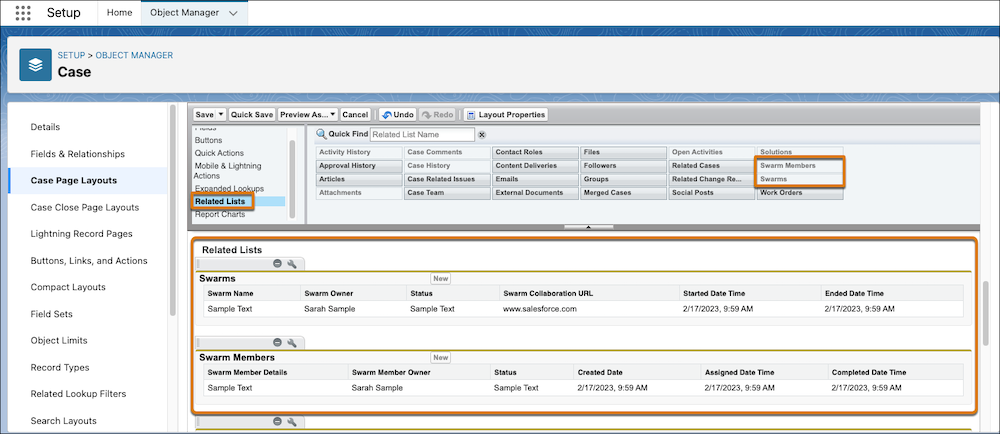
To see the swarms and its swarm members that are related to an issue in Salesforce, add the Swarms and Swarm Members related lists to the page layout.
- From Setup, enter Swarming, then select Swarming.
- Under Set Up the Service Console for Swarming, select Go to Object Manager.
- Select the object that you want to configure the page layout of. For example, to add swarm related lists to case records, configure the Case page layout.
-
Go to the object’s Page Layouts, then add the Swarms and Swarm
Members related lists.
- Save your changes.
-
Create a Swarming tab on your record pages to see Swarms and Swarm Members related lists
from a record.
- From the object in Object Manager, select Lightning Record Pages.
- Select the record page you want to add Swarming related lists to, for example the Case record page, and click Edit.
-
From the Components panel, add a tab, choose the custom name option, and name it
Swarming.
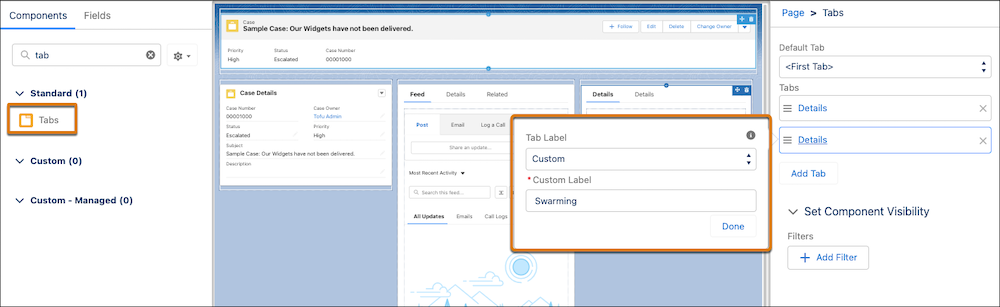
- Include the Swarm and Swarm Member related list components.
-
Show a swarm members list for a record.
- From the Lightning App Builder, add the Related List - Single component to the Console page layout under the Swarming tab.
- Select Swarm Members as the Related List.
- Save your changes.
-
Show a swarms list for a record.
- From the Lightning App Builder, add the Related List - Single component to the Console page layout under the Swarming tab.
- Select Swarms as the Related List.
- Save your changes.
- Activate the Lightning record page and set it as the app default.
Did this article solve your issue?
Let us know so we can improve!
