
You are here:
Create Data Streams for Conversation Transcripts
To analyze conversation transcripts, it’s important that you have conversation-related data in Data 360. To import this data, you can create data streams using Conversation, Conversation Participant, Participant, Messaging Session, Voice Call, Conversation Entry, and Related Records objects. Methods below describe how you can access these objects to get conversation-related data and create data streams.
Method 1: Create Data Streams Using Data Kit
If you aren't using enhanced channels, use this task to get your data. The conversation-related data is present in Conversation, ConversationParticipant, Participant, MessagingSession, and VoiceCall objects. To create data streams, use these objects.

- In Data Cloud, go to the Data Streams tab.
- Click New and then select Salesforce CRM.
- Click Next.
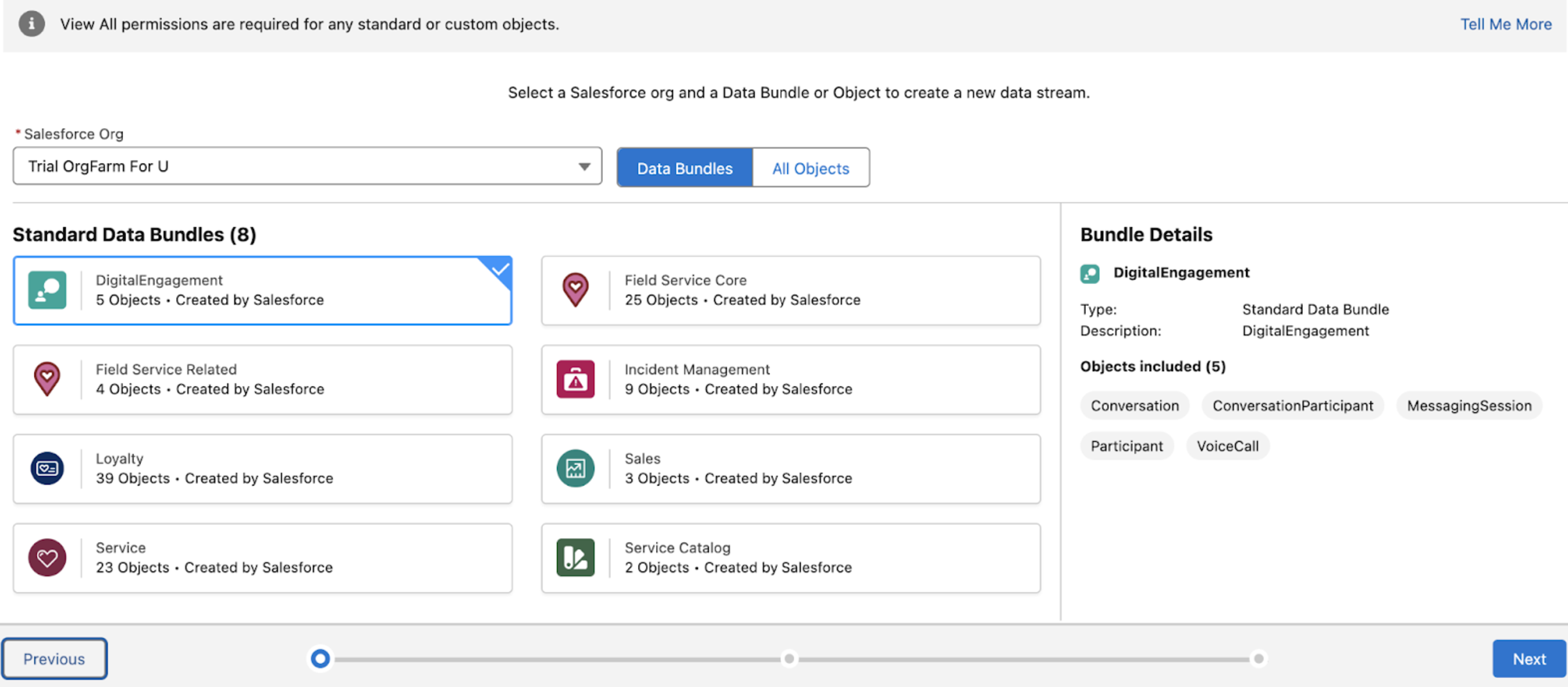
- Click Digital Engagement Bundle and then click Next.
- Select the fields of digital engagement objects as required. The fields you require are from Conversation, Conversation Participant, Participant, Messaging Session, or Voice Call.
- Click Next.
- Hover over the data stream name and click the pencil icon to change the name. By default, the selected digital engagement objects are suffixed with _home to name the data stream.
-
Click Deploy.
The data streams for selected objects are deployed and are visible under the Data Streams tab. For each data stream, you can review the data mapping to verify their correctness.

Method 2: Create Data Streams for Conversation Entry and Related Record
If you are already using enhanced channels, the actual messages exchanged in a conversation are stored in the Conversation Entry object. To create data streams, use Conversation Entry and Related Record objects to get conversation-related data.
- From Setup, in the Quick Find box, enter Conversation Transcripts and select Conversation Transcripts on Data Cloud.
-
From the dropdown, select the appropriate data space to which you want to associate
Data Streams in Data 360 for sharing conversation transcripts. For more information on
data spaces, see Data Spaces.
If you don't select any value from the dropdown, the default data space gets selected automatically.
-
Click Enable.
A message indicates that conversation transcript access is enabled, and the required data streams have been created successfully in Data 360.
Verify and View Data
- From the App Launcher, find and select Data Cloud.
- Click the Data Streams tab to view the data streams created.
- Verify that two data streams with name CONVERSATION_ENTRY_<your_org_id> and RELATED_RECORDS_<your_org_id> appear.
Your transcript is available as part of the entry_payload field/column in
CONVERSATION_ENTRY_<your_org_id> Data Lake Object (DLO), or as the payload field/column
in the Conversation Data Model Object (DMO) that contains a stringified JSON. Inside this
JSON, the Object["abstractMessage"]["staticContent"]["text"] key,
contains your transcript. In the below example, I AM THE TRANSCRIPT represents your
transcript.
{"entryType":"Message","id":"b2a140c2-a50f-426b-92ae-aafd3faf2d68","abstractMessage":{"messageType":"StaticContentMessage","inReplyToMessageId":null,"id":"b2a140c2-a50f-426b-92ae-aafd3faf2d68","references":null,"staticContent":{"formatType":"Text","text":"I AM THE TRANSCRIPT"}},"messageReason":null}To view conversation transcripts in Data 360, you can use either of these methods:
