
You are here:
Analyze Conversation Transcripts Using Data 360 Reports
To analyze conversation transcripts, leverage Data 360 reporting.
- Verify that you completed the prerequisites listed in Analyze Conversation Transcripts in Data 360, and that you created data streams for your conversation data.
- From the App Launcher, find and select Data Cloud.
- Click the Reports tab. If you don’t see the Reports tab, from the App Launcher, find and select Reports to create a Reports tab in Data Cloud. You need Data 360 reporting permissions to view the Reports tab.
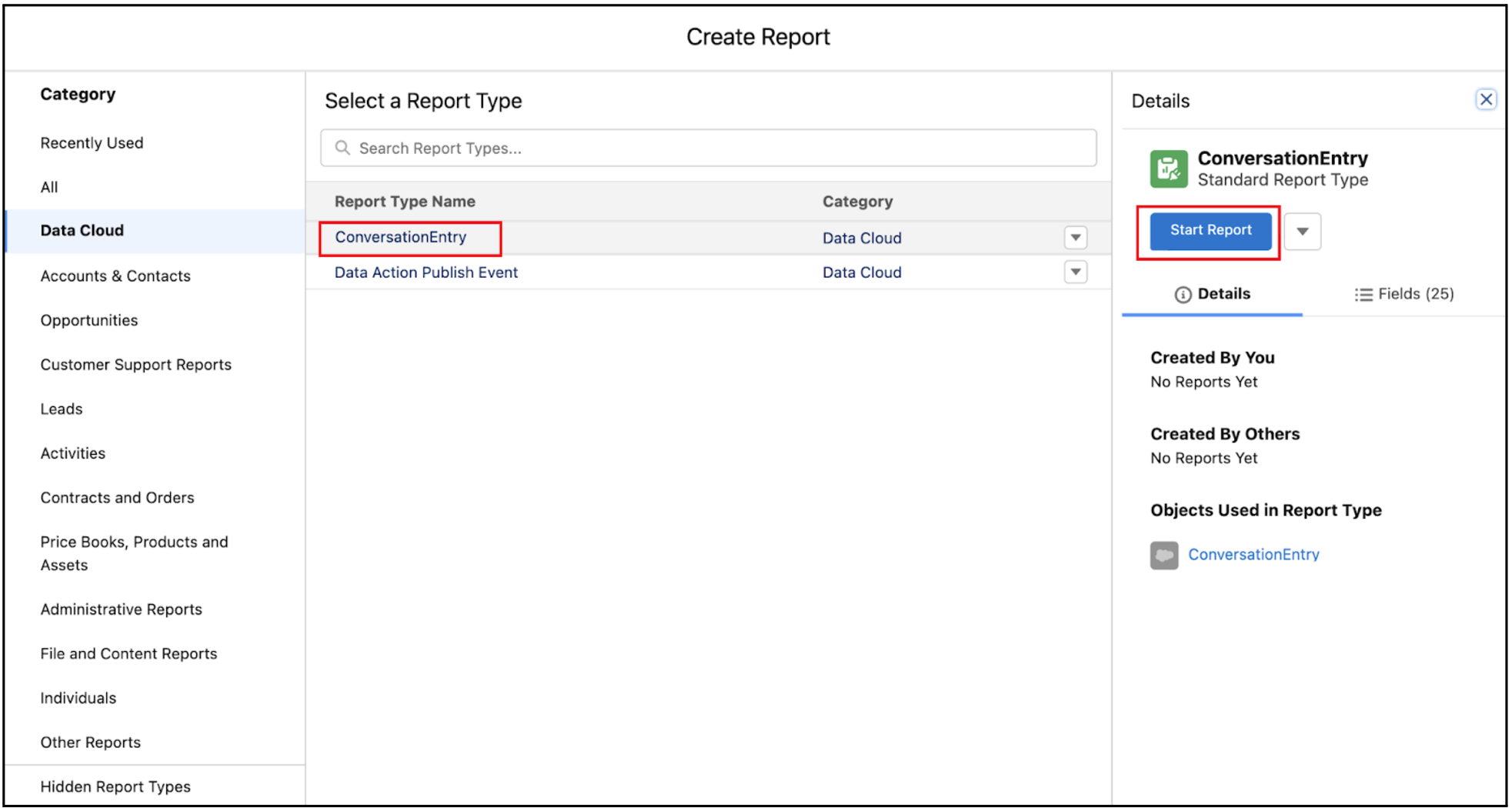
- Click New Report.
- Under Category, click Data Cloud and then select ConversationEntry as the report type.
- Click Start Report.
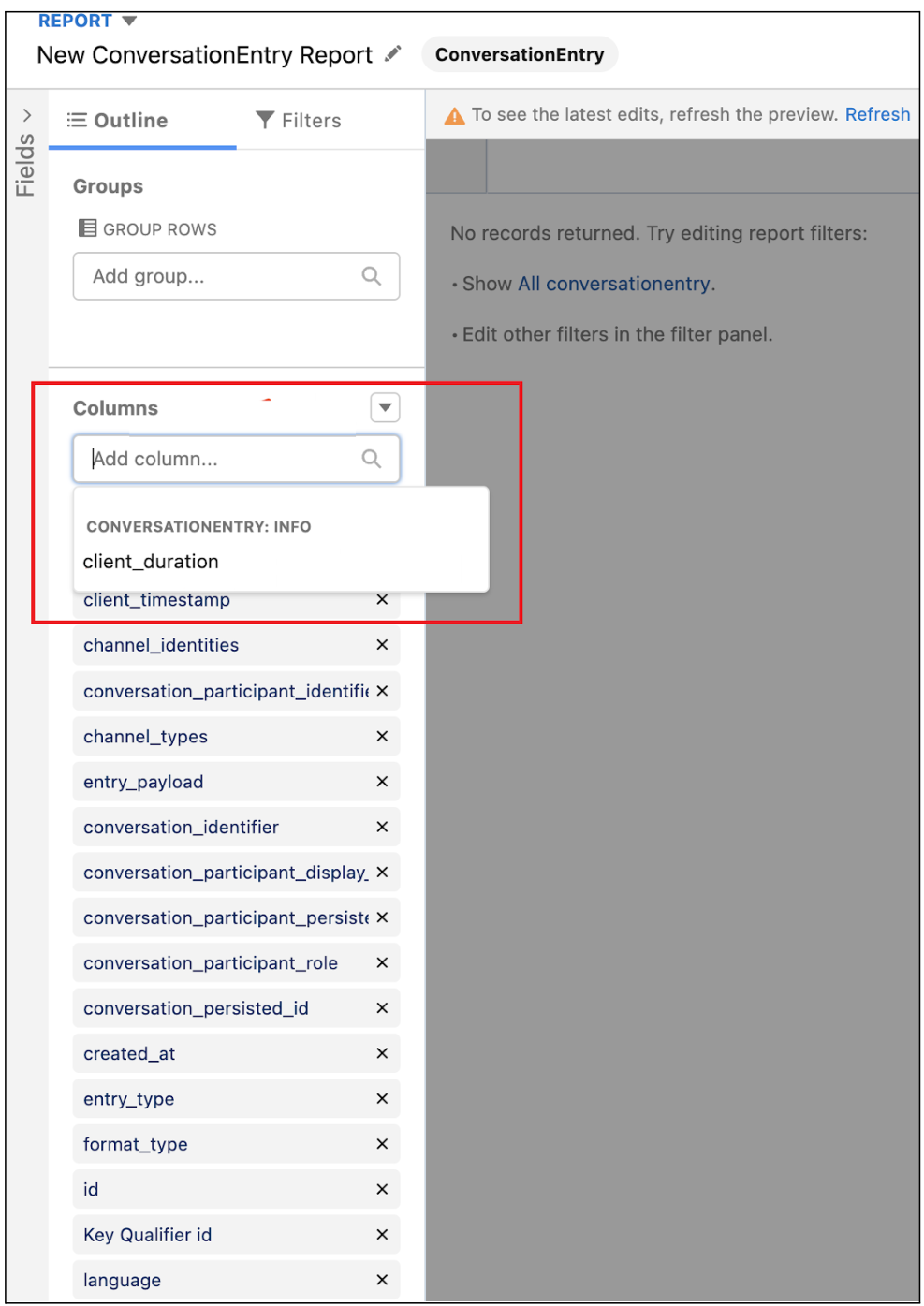
- Click Add column to add columns that you want in the report.
- Click Run. The results are displayed in a tabular format. You can save the report with the desired name and also export it in .xls, .csv, .xlsx formats with multiple character encoding formats.
Did this article solve your issue?
Let us know so we can improve!
