
You are here:
Update to Lightning Threading for Email-to-Case
Lightning threading is a secure method used by Email-to-Case to associate emails with related cases. To switch to Lightning threading from Ref ID threading, you’ll enable a release update, update your Email-to-Case settings, and update any email templates and custom code that rely on older threading methods.
Required Editions
| View supported editions. |
| User Permissions Needed | |
|---|---|
| To view release updates: | View Setup and Configuration |
| To enable or disable release updates: | Manage Release Updates OR Customize Application |
| To enable and set up Email-to-Case: | Customize Application |
| To edit public email templates: | Modify All Data, Manage Public Lightning Email Templates permission, or template ownership |
| To define, edit, and delete Apex classes: | Author Apex |
We recommend first following these steps in your sandbox, and then repeating them in production.
If you like learning via audio, this podcast-style audio tour explains how email threading works in Salesforce and how to upgrade to Lightning threading: Audio Tour: Email-to-Case Threading. The audio features an AI-generated conversation between two Salesforce admins.
Step 1: Enable the Release Update
First, make the official change to switch to Lightning threading. When taking this step in production, do so outside of business hours to minimize disruption to users and test the change in your sandbox first.
- In Setup, enter Release Updates in the Quick Find box, and then select Release Updates.
-
On the update named Disable Ref ID and Switch to Lightning Threading, click Get
Started and install the release update.
If you don’t see this release update, you’re not using Ref ID threading and can skip to Step 2.
Step 2: Update Your Email-to-Case Settings
Turn on key settings in Setup related to threading.
- From Setup, enter Email-to-Case in the Quick Find box, and then select Email-to-Case.
-
Verify that these settings are selected:
- Use email headers for threading: Turns on the header-based component of Lightning threading.
- Insert email threading token in email subject, Insert email threading token in email body, or both: Turns on the token-based component of Lightning threading.
- Save your changes.
Step 3: Update Your Email Templates
To ensure that incoming emails are associated with the right case, check your email templates for the Case Thread ID merge field. This merge field relies on the Ref ID threading method and doesn’t work with Lightning threading.
- From the App Launcher, go to the Email Templates tab.
- Search the body and subject of each email template for the {{{Case.Thread_Id}}} merge field.
- If you find the merge field, remove it. Here’s an example of a template that contains it.
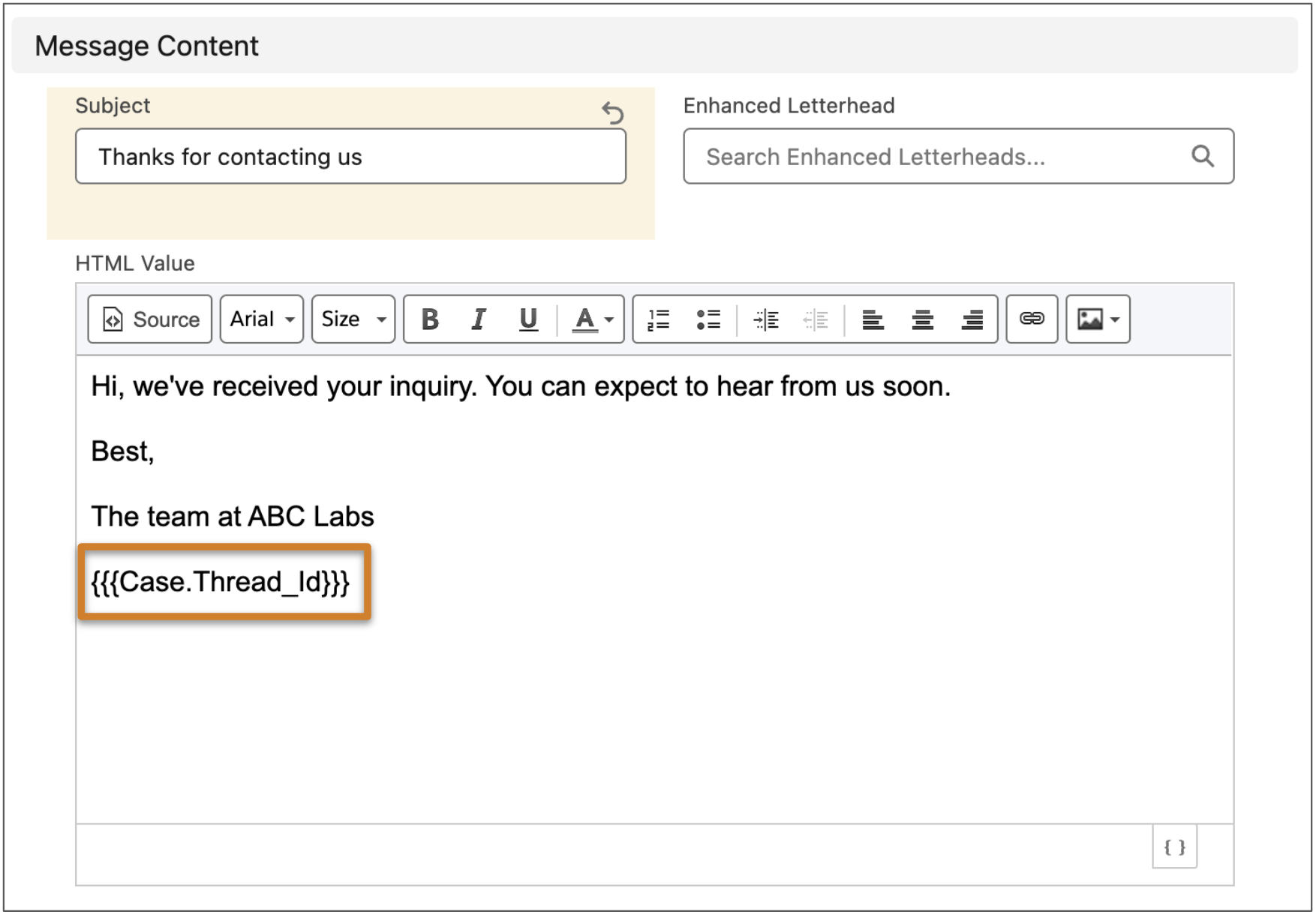

If you chose not to select the settings in Step 2: Update Your Email-to-Case Settings, you can replace the {{{Case.Thread_Id}}} merge field in your templates with the {{{Case.Thread_Token}}} merge field. Using merge fields to add threading tokens to emails is a manual alternative to the Lightning threading settings in Setup.
Step 4: Update Your Custom Code
If you have custom code that depends on the Ref ID threading behavior, update it to add support for Lightning threading.
- From Setup, enter Apex Classes in the Quick Find box, and then select Apex Classes.
- Click Compile all classes. If any Apex classes fail as a result of the update, the failures appear.
-
Update any failed Apex classes to remove references to Ref ID threading.
- Remove references to the deprecated Apex method getCaseIdFromEmailThreadId.
- For incoming emails, include the EmailMessages.getRecordIdFromEmail or Cases.getCaseIdFromEmailHeaders methods to retrieve the Case ID from email tokens or email headers, respectively. The method documentation includes code samples.
- For outgoing emails, use the EmailMessages.getFormattedThreadingToken or Cases.generateThreadingMessageId methods to include a threading token or email header-based threading information, respectively, in outgoing emails. Email-to-Case can then thread replies to the right cases.
After the release update is enabled, incoming emails are matched to cases using tokens rather than Ref IDs in the email subject or body. If no matching case is found, email header-based threading is used. Outgoing emails no longer contain a Ref ID, and emails continue to thread to existing cases using header-based threading, providing a smooth transition.
