Loading
Salesforce now sends email only from verified domains. Read More
Agentforce Contact Center
Table of Contents
Select Filters

          No results
          No results
          Here are some search tips

          Check the spelling of your keywords.
          Use more general search terms.
          Select fewer filters to broaden your search.

          Search all of Salesforce Help
          Branding Elements Guide for Enhanced Chat

          Branding Elements Guide for Enhanced Chat

          Use branding tokens to match the look of your chat window to your website. Choose colors and fonts, and upload logos and avatars without any engineering effort.

          Required Editions

          View supported editions.
          Checkmark This article applies to: Enhanced In-App Chat and Enhanced Web Chat channels
          X icon This article doesn’t apply to: Enhanced WhatsApp, Standard and Enhanced Facebook Messenger, Standard and Enhanced SMS, Enhanced Apple Messages for Business, Enhanced LINE, and Bring Your Own Channel
          User Permissions Needed
          To set up Omni-Channel Flow and Messaging: Customize Application
          To modify permission sets and profiles: Manage Profiles and Permission Sets

          Customize Colors, Fonts, Images, and Window Size

          Make your selections on the Embedded Service Deployment Settings page. Learn more about the selections that you can make further down in this help topic.

          1. From Setup, in the Quick Find box, enter Deployments, and select Embedded Service Deployments.
          2. To the right of your deployment, click the downward arrow, and select View. Click Select Branding.
          3. Make your selections. See information about colors, fonts and images further down in this help topic.
          4. Save your changes.
          5. When you return to the Embedded Service Deployment Settings landing page, click Publish.

          Color Guide

          To select a color, click the dropdown and scroll through the color picker or enter a hex code into the # field. Save your changes and republish your deployment.

          Colors Elements Example
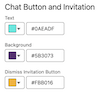
          Chat button and invitation colors
          • Text: The words inside the notification pop-up.
          • Background: The chat button and the notification pop-up.
          • Dismiss Invitation Button: The X on the notification pop-up
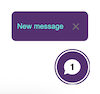
          Chat button and New message pop-up with custom colors in place
          Header colors
          • Background: The banner across the header.
          • Text and Navigation Icons: Header text,Minimize button, and Menu icon.
          Chat header with custom colors in place
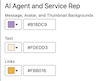
          AI Agent and Service Rep colors
          • Message, Avatar, and Thumbnail Backgrounds: The text message bubble;; the Rep, Agent or Bot avatar if an image hasn't been uploaded; and the Enhanced link background.
          • Text: Text message; rep, agent or bot initials if an image hasn't been uploaded; Enhanced link text; and text in a Form Messaging Component.
          • Links: Links sent within the text message bubble by a rep, agent or bot.
          rep-initiated text message bubble and avater with custom colors in place
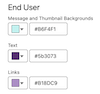
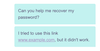
          End User colors
          • Message and Thumbnail Backgrounds: End-user-sent text message bubble; End-user-sent Enhanced link background; Form Messaging Component icon background; File Attachments Sent and File Attachments Sending notification backgrounds.
          • Text: End-user-sent message text; End-user-sent Enhanced Link text; label text for File Attachments Sent and File Attachments Sending notifications.
          • Links: A link sent by an end-user in a text message.
          end-user-initiated text message bubbles with custom colors in place
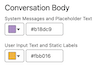
          Conversation Body colors
          • System Messages and Placeholder Text:System messages; conversation start timestamp; text information below the end-user text message bubble; placeholder text for the Send Message input field.
          • User Input Text and Static Labels: Input text for Send Message field; Input text for Pre-Chat form field; Field name and Terms and Conditions text for Pre-Chat form; progress indicator animation and text; arrow for jumping to bottom of chat thread; chat menu options; Carousel Messaging Component text; field name and field input text for Form Messaging Components; the file name of a pending file attachment.
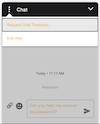
          Chat window with system messages, Send Message input text and chat menu options displayed with custom colors.
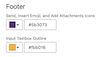
          Footer
          • Send, Insert Emoji, and Add Attachments Icons: Add attachment, emoji picker, and Send Message buttons; Carousel Messaging Component Next arrow, Back arrow, and breadcrumb; Cancel button and sending animation for pending file attachment.
          • Input Text Outline:Send Message field outline; pending file transfer outline; file attachments in progress and file attachments sent outlines.
          Chat Send Message field highlighted with custom colors. Attachment and Emoji action buttons with custom colors.
          Badges and Buttons colors
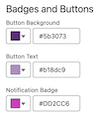
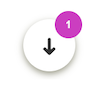
          • Notification Badge:The missed messages icon on the chat button when you've scrolled back too far; or the button that takes you back to the most recent message in the thread.
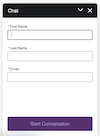
          • Button Background: The background of the pre-chat start button; post-chat primary button; Form messaging component Next button; Forms messaging component progress bar; or the Forms messaging component Selected icon.
          • Button Text: The text of the pre-chat start button; the post-chat primary button; or the Forms messaging component Next button.
          Start Conversation button on the Pre-Chat form with custom colors in place.
          Notification badge with custom color in place.
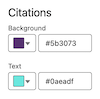
          Citations colors
          • Background: The background highlight of the source title.
          • Text:The link title of the citation source.
          Citations sources with custom colors in place

          Font Guide

          Use any of these pre-defined fonts: Arial, Salesforce Sans, Georgia, Palatino Linotype, Times New Roman, Arial Black, Comic Sans MS, Impact, Lucinda Sans Unicode, Tacoma, Trebuchet MS, Veranda, Courier New, Lucinda Console.

          To use a custom font instead, first upload it as a Static Resource. Then select Custom Font from the Font dropdown menu. In the Custom Font Family Name field that appears, enter the name of the static resource.

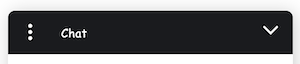
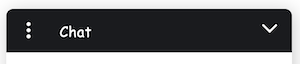
          In the Font Size field, select small, medium or large. Here’s an example of a Chat header in Comic Sans in the three font sizes:

          Size Example
          Small Chat header with small font
          Medium Chat header with medium font
          Large Chat header with large font

          After you customize your fonts, save your changes and republish your deployment.

          Image Guide

          Use an image hosting service, such as Github, to convert an image to a URL. Then add your URL to a field in the Images section. Save your changes and republish your deployment.

          Image Example
          Service Rep Appears to the left of a rep-initiated text message bubble.
          Bot and AI Agent Appears to the left of a bot or AI-agent-initiated text message bubble.
          Logo Appears in the chat header.
          Chat Button Appears in the Chat Button.

          Chat Window Dimensions

          Customize the Width and Height fields up to a maximum of 320px (width) by 480 px (height). Save your changes and republish your deployment.

           
          Loading
          Salesforce Help | Article