
You are here:
Apply the Channel Menu Code Snippet
Copy and paste the channel menu code snippet to add the button and menu to your website.
Required Editions

Important
Channel Menu code snippets created before August 8, 2025 use legacy infrastructure that’s in maintenance mode and scheduled for retirement on July 1, 2026. If you’re using a code snippet generated before August 8, 2025, we recommend updating it to avoid future disruptions. Generate a new snippet from the Get Code section under the deployment settings for your existing Channel Menu deployment and update your webpage.
| View supported editions. |
| User Permissions Needed | |
|---|---|
| To set up a channel menu: | Customize Application AND Modify Metadata |
- From Setup, enter Channel Menu in the Quick Find box and select Channel Menu.
- Click the name of the channel menu you want to edit.
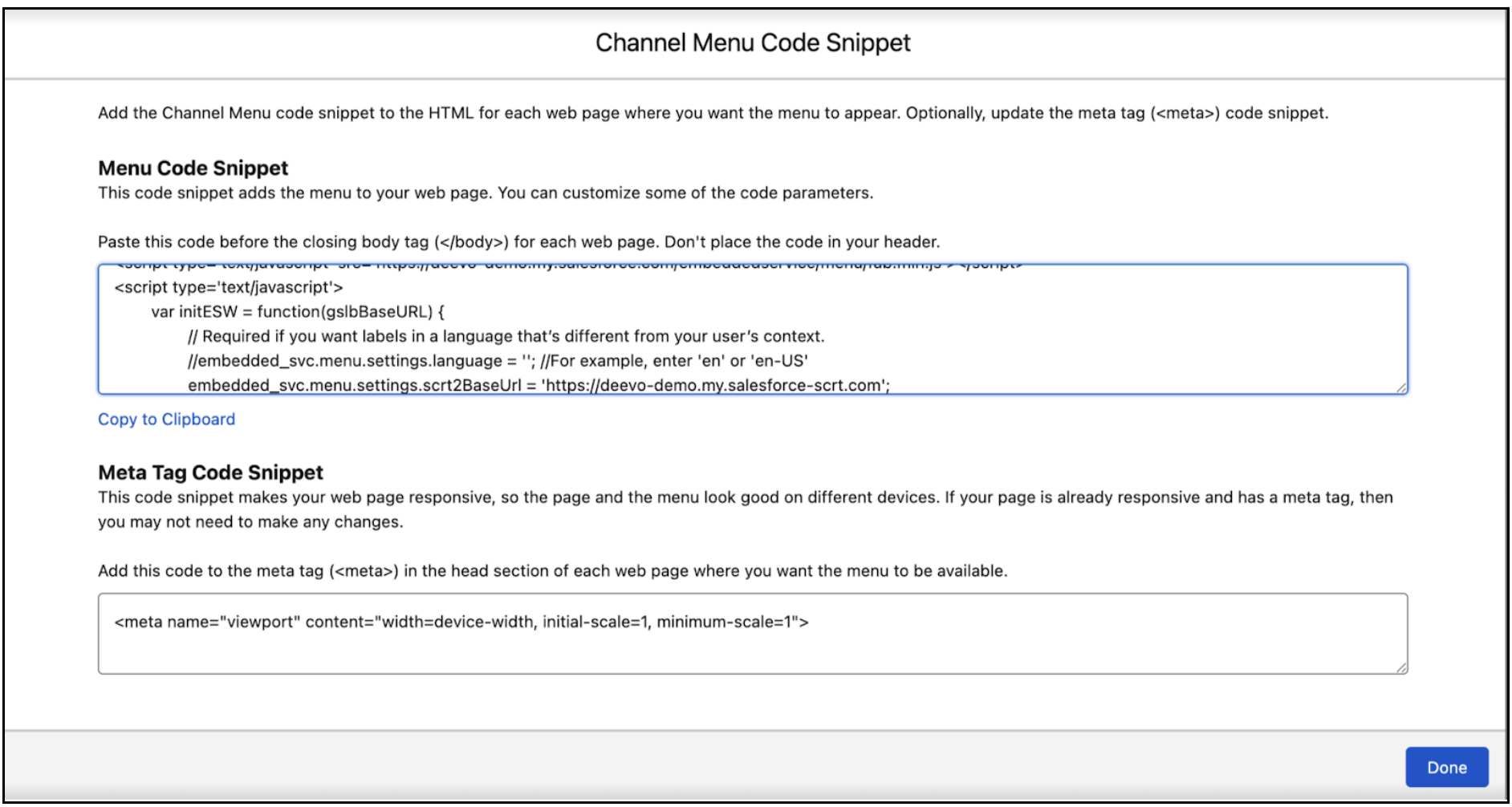
- In the Channel Menu Code Snippet section, click Get Code. If you’re replacing a snippet generated before August 8, 2025, paste the new code over the existing Channel Menu snippet on your website.
-
To activate the channel menu code snippet, copy and paste the snippet from the window
to the HTML code for each web page you want the menu to appear on. Paste this code
immediately before the closing body tag
(</body>). -
Optionally, update the meta tag
(<meta>)code snippet if it’s not already added to your web pages from Embedded Chat Setup. For mobile customers, the meta tag code snippet provides better usability. -
Click Done.
-
If your channel menu includes Enhanced Web Chat, republish your deployment.
- From Setup, in the Quick Find box, enter Embedded Service and select Embedded Service Deployments.
- Click the down arrow to the right of your deployment, and select View.
- Click Publish.
- Verify that your code snippet is in your web page markup, refresh your web page, and confirm that the Channel Menu button appears. If you change your channel menu setup, the results can take up to 10 minutes to appear on your website due to caching.
- Test each channel in your menu to confirm that customers can successfully initiate conversations.
Important If you’ve applied code settings to a website
deployment, follow the last steps in Channel Menu Code Settings to add names to your code
snippet. For Experience Cloud sites, add code setting names in the property editor and load
on a specific page.
Did this article solve your issue?
Let us know so we can improve!
