
You are here:
Set Up Article Summary in Experience Builder
Add the Knowledge Article Summary Lightning web component to the Knowledge or Article Detail page in Experience Builder and publish the site to display the AI-generated summaries on your public-facing site. This component is compatible with both Aura and LWR sites.
Required Editions
| Available in: Salesforce Classic and Lightning Experience |
| Available in: Enterprise, Performance, and Unlimited Editions |
| Available in: Aura and LWR Experience Cloud Sites |
| Available in: Available in: Enterprise, Performance, Unlimited, and Developer Editions with Foundations or Agentforce 1 Editions. Access to some standard agent actions requires additional add-on licenses. |
| User Permissions Needed | |
|---|---|
| To create and manage Agentforce Service agents: | Manage Agentforce Service Agents permission set AND Manage AI Agents To let the agent user securely access data and perform actions, see Best Practices for Agent User Permissions. |
| To create and manage prompt templates in Prompt Builder: | Prompt Template Manager permission set
|
| To create an Experience Cloud site: | Create and Set Up Experiences AND View Setup and Configuration |
| To customize or publish an Experience Cloud site: | Create and Set Up Experiences AND View Setup and Configuration AND be a member of the site OR View Setup and Configuration AND be a member of the site AND have appropriate role-based site access |
| To enable digital experiences | Customize Application |
Before you begin, make sure you've completed these steps:
- Your org has assigned CustomerCommunity or CustomerCommunityPlus licenses.
- An Experience Cloud site is active with at least one published knowledge article.
- Service AI Grounding is enabled for Knowledge data in Setup.
- An Agentforce Service Agent is configured for your site.
- The Improve Performance of Connect APIs in your LWR Sites setting is disabled in your site's Administration workspace.
Use these steps to add the Summary Component to Your Site
- From Setup, in the Quick Find box, enter Service Cloud Einstein, and then select Service AI Grounding.
- On the Service AI Grounding page, turn on Service AI Grounding.
-
Under Knowledge, select only public fields that are accessible to portal and guest users
for use in summary generation, and then click Activate.
 Note To prevent exposure of sensitive data, make sure that only public Knowledge fields are selected. If a private field was previously selected, data from those fields may still appear in Q&A and summary content for guest users, while authenticated users are not affected.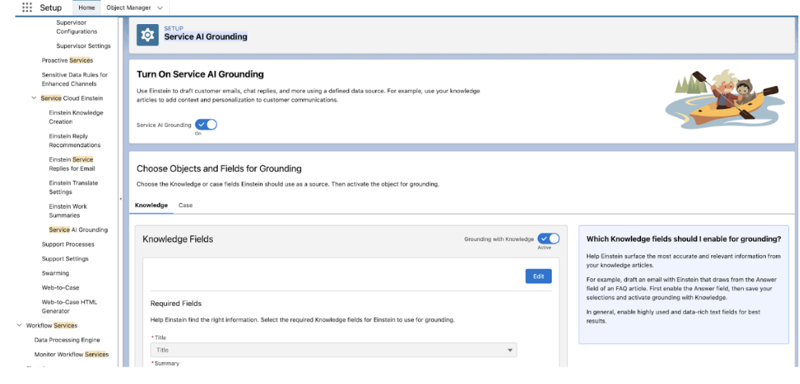
- From Setup, in the Quick Find box, enter Digital Experiences, and then select All Sites.
- Next to your experience site, click Workspaces.
- Select the Builder tile to open Experience Builder.
- Navigate to the Knowledge Detail page template for LWR sites or the Article Detail page for Aura sites.
- From the Components palette, drag the Knowledge Article Summary component onto the page.
- In the component properties panel, configure the settings as needed, such as style properties.
- Click Publish to deploy the site changes.
Did this article solve your issue?
Let us know so we can improve!
