
You are here:
Alumni Portal Features
After logging in, the Home page of Alumni Portal provides an overview of the website and easy access to the key pages of the website.
Required Editions
| View supported editions. |
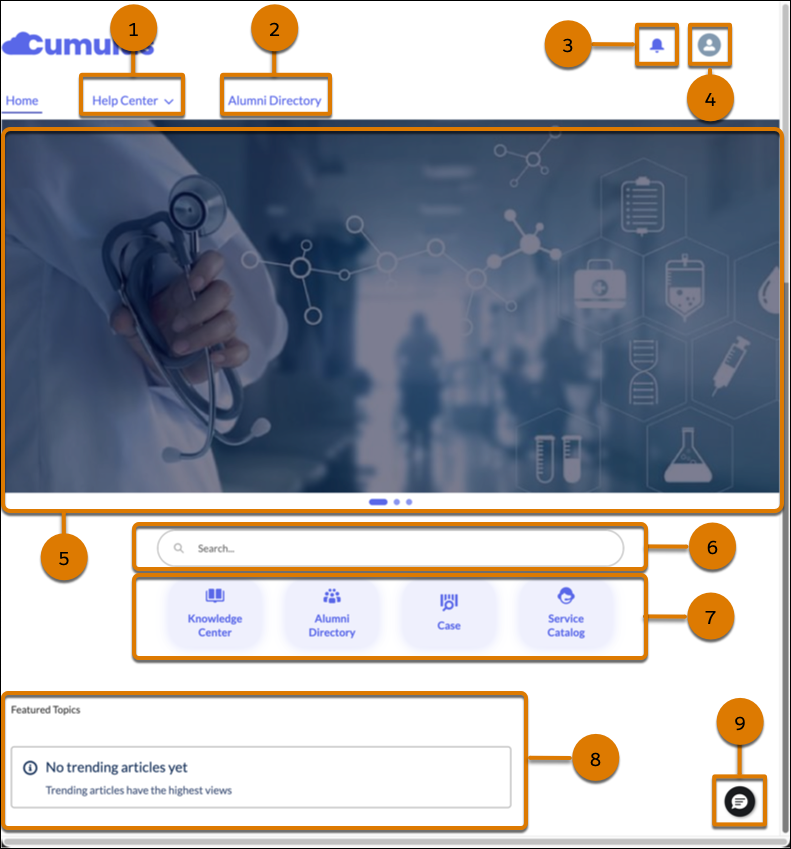
Key features of the Home page are:
- The Help Center menu (1) on the Home page helps you quickly navigate to different pages, including Knowledge Center, Service Catalog, and My Cases.
- Use Alumni Directory (2) to view the profiles of alumni and network with them.
- The notification bell (3) gives you immediate access to notifications.
- The User Profile Menu (4) gives you access to the My Profile page. It’s also used to log out of Alumni Portal.
- Click an item on the carousel (5) to view it. Click
 and
and  to move between the items on the carousel.
 - The Global Search Box (6) helps you find cases and knowledge articles.
- The type-ahead functionality autocompletes the search keywords by providing suggestions based on partial inputs, which help you find relevant results quickly. Select one of the options suggested by the type-ahead functionality.
- The search results page categorizes the results into Knowledge and Cases. Clicking a case number opens the case details page. The case details page also shows Einstein AI-generated search answer. Hovering on a knowledge article link shows the article preview in a window. Clicking a knowledge article link opens the knowledge article.
- Click a tile (7) to open the corresponding page.
- The Home page shows trending articles (8) that are sorted by topics. These articles are popular among alumni.
- Use Embedded Messaging (9) to contact support for instant help. You can access Embedded Messaging from any page in Alumni Portal. When a case management bot is configured with Embedded Messaging, you can create cases and track them through the bot, in addition to contacting a service representative for help.
Did this article solve your issue?
Let us know so we can improve!
