
You are here:
Considerations and Limitations for Enrolling Employees in Employee Enablement Programs
When you assign users to an employee enablement program, certain factors can determine how assignments behave, such as permissions, assignment and selection limits, filters, and the user’s time zone. These factors can also affect users who self-enroll in programs.
Required Editions
Permissions
For an Enablement admin to assign a program to an employee, or for an employee to self-enroll in a program, the employee needs the Employee Enablement Program Community User permission set license.
Enrollment Limits
- For an employee enablement program in Employee Portal, up to 10,000 employees can be assigned or self-enrolled. To increase this limit, submit a Salesforce Customer Support case.
- When you assign employees to a program, you can select up to 1,000 employees individually.
- After an employee completes a program, they remain assigned to or enrolled in the program. If you’ve reached the enrollment limit, remove some employees.
- You can’t assign a program to an employee who’s enrolled in that program. An employee can’t self-enroll in a program that’s already been assigned to them.
To check the enrollment status of specific employees on a program, and manage enrollment if necessary, go to the Enrolled Users related list on the Enablement Program record detail page.

Filtering Enablement Users in the Assignment Window
The assignment window displays when you select Assign Programs from the program details page or from the dropdown on the Enablement Programs page. The assignment window provides these options for filtering available employees to assign to the program.
- You can filter the available employees by account, profile, role, or public group.
- You can apply multiple filters at one time, but not multiple values of the same filter. For example, you can filter by one profile and one role, but not multiple profiles.
- You can filter only by values that you have permission to view. For example, if you enter the name of a profile that you can’t access, that profile isn’t matched.
- If you don’t have permission to view an entire filter category, a lock icon appears and the filter isn’t available. For example, the lock icon appears if you don’t have permission to view any roles.
- If you apply filters, select employees from the results, and then apply filters again, the selections you made previously are cleared. This clearing occurs even if you apply the same filters.
Selecting Employees in the Assignment Window
The assignment window provides these options for selecting employees to assign to the program.
- The assignment window first loads up to 200 employees who match the applied filters. To load more employees, in groups of 200 at a time, continue scrolling. The assignment window can show up to 1,000 employees.
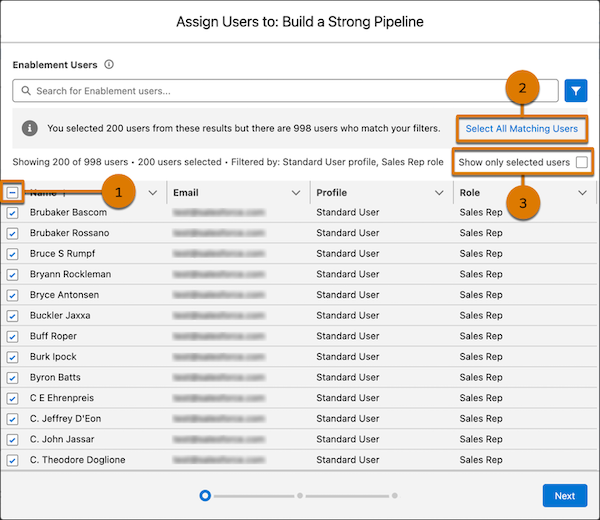
- You can select employees individually or select multiple employees. To select all employees
shown in the window, select the checkbox in the header (1). If you click the checkbox but both
of these conditions are true, a banner can appear with an option to select all matching
employees with one click (2).
- More employees are available who match your filters.
- You haven’t yet reached the enrollment limit for the program.
- If the number of matching employees exceeds your org’s enrollment limit, the banner with the option to select all matching employees doesn’t appear. You can apply filters to reduce the number of available matching employees in the results.
- After you’ve selected some employees, you can simplify the view in the assignment window to show only those employees that are selected (3).
- If you start selecting employees and you reach your org’s enrollment limit, a warning message appears.
- If you select 1,000 employees individually, a warning message appears and prompts you to finish assigning the selected employees before you can try assigning more.
Start Dates and Due Dates for Assigned Programs
After you select the employees to assign to a program, you select the program's start date. The assignment window only allows you to select a weekday. If you use an invocable action to assign employees and you select a weekend day, the start date is automatically adjusted to the next weekday.
The program’s due date is calculated based on the start date that you assign and the length of the program, excluding Saturdays and Sundays. The due date is scheduled for the end of the employee’s day, based on the time zone they specify in their personal settings. For example, if you schedule a 20-day program with a start date of Monday, January 1, the program is due end of day Friday, January 26. This projection skips the 6 weekend days that fall after Monday, January 1. An employee still gets credit for completing exercises or milestones on a Saturday or Sunday.

An employee receives an email notification at approximately 5 AM on the program’s start date, based on their selected time zone. If the start date is the same day it’s assigned, the notification is sent immediately. However, other resource-intensive activity in your org, such as scheduled Apex jobs, can affect when the notification actually arrives. The employee can open the program starting at 12 AM on the start date.
The start date and due date also determine when other notifications are sent. See Manage Notifications for Employee Enablement Programs.
Start Dates and Due Dates for Self-Enrolled Programs
When employees self-enroll in a program, the program’s start date is the day they enrolled, including weekend days.
The program’s due date is calculated based on the start date and the length of the program. If an employee enrolls on a weekend day, Day 1 of the program includes both that weekend and the following Monday. Subsequent Saturdays and Sundays are excluded when calculating the program’s due date.
Enrollment Type and Assignment Status
On the Enablement Program record detail page, the Enrolled Users related list includes these columns.
- Enrollment Type indicates whether the employee was assigned to the program or self-enrolled in the program.
- Assignment Status indicates whether an issue occurred when the Enablement admin tried to assign the program to the employee.
The Assignment Status column can show these values.
| Status | Description |
|---|---|
| Succeeded | The employee was assigned to the program and can access the program on the start date. This status also appears when an employee self-enrolls in a program. |
| Failed | The employee wasn’t assigned to the program. This result can occur when you close the assignment window before reaching the final confirmation step, no matter how many employees you try to assign. Remove the employee from the program and try assigning them again. |
| In Progress | The assignment operation isn’t completed yet. |
