Test and Troubleshoot the Agent for Handling Service Resource Absences in the Legacy Agentforce Builder
Now that your agent is ready to go, make sure that it’s working as expected.
Required Editions
Available in: Lightning Experience
Available in: Enterprise, Performance, Unlimited, and
Developer Editions with Field Service and Foundations, or Einstein 1 Field
Service Edition or Agentforce 1 Field Service Edition.
Test the Agent
From Field Service, find a service resource who has multiple service appointments.
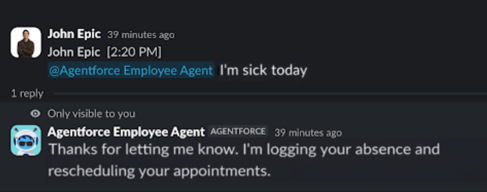
In Slack or in the Field Service mobile app, write: I’m sick today.
Note: In Slack, start the message with @Agentforce Employee Agent.
Note In Slack, start the message with @Agentforce Employee Agent.
View the created Resource Absence on the Gantt and pay attention to the appointments that
were rescheduled successfully.
For appointments that couldn’t be rescheduled, a Customer Outreach message is sent to the
customer for rebooking purposes. In the meantime, these appointments remain assigned to the
service resource.
Troubleshoot the Agent
To see why certain service appointments weren’t rescheduled with this process, use Flow
Builder to see what caused the failure. Modify your setup as required.
In Setup, find and select Flows.
Find and select the Reschedule Service Appointment flow.
In Flow Builder, click Debug.
When prompted for the serviceAppointmentId input variable, enter the ID of one of the
service appointments that failed to reschedule.
Analyze the output. Running the flow directly with the specific service appointment ID in
debug mode can reveal critical information, such as:
No Candidate Slots Found: The scheduling policy couldn’t find a suitable time or
service resource.
Scheduling Constraints Violation: Specific rules (for example, skill requirements,
travel time, operating hours, exclusion rules) prevented scheduling.
Scheduling Policy Issues: The scheduling policy used might be missing necessary
configuration.
Did this article solve your issue?
Let us know so we can improve!
Loading
Salesforce Help | Article
Cookie Consent Manager
Cookie Consent Manager
General Information
Required Cookies
Functional Cookies
Advertising Cookies
General Information
We use three kinds of cookies on our websites: required, functional, and advertising. You can choose whether functional and advertising cookies apply. Click on the different cookie categories to find out more about each category and to change the default settings.
Privacy Statement
Required Cookies
Always Active
Required cookies are necessary for basic website functionality. Some examples include: session cookies needed to transmit the website, authentication cookies, and security cookies.
Functional Cookies
Functional cookies enhance functions, performance, and services on the website. Some examples include: cookies used to analyze site traffic, cookies used for market research, and cookies used to display advertising that is not directed to a particular individual.
Advertising Cookies
Advertising cookies track activity across websites in order to understand a viewer’s interests, and direct them specific marketing. Some examples include: cookies used for remarketing, or interest-based advertising.