
Considerations for Agentforce Scheduling Supervisor View in the Legacy Agentforce Builder
Review important considerations for using Agentforce Scheduling Supervisor View.
Required Editions
| Available in: Lightning Experience |
| Available in: Enterprise, Performance, Unlimited, and Developer Editions with Field Service and Foundations, or Einstein 1 Field Service Edition or Agentforce 1 Field Service Edition. |

Note Agentforce Scheduling Supervisor View is available only when the Field Service Managed
Package is installed.
Considerations
- The view is supported only for these Field Service standard agent actions that use the
Engagement Topic object. This object links between service appointments and messaging sessions.
- Schedule Appointment for Field Service
- Cancel Appointment for Field Service
Conversations that use other agent actions aren't included and don't show up in the view.
- If you create custom agent actions that include the Engagement Topic object in the flow, you can see conversations that use these actions.
- If you remove the Get Engagement Topics for Field Service agent action from the Appointment Management for Field Service subagent, conversations don't show up in the view.
- If you remove the Engagement Topic elements from these flows, conversations don't show
up in the view.
- Field Service: Schedule Service Appointment flow
- Field Service: Cancel Service Appointment flow
- Field Service: Notify Customer flow
Here’s an example of the Engagement Topic object included in the Field Service: Cancel Service Appointment flow.
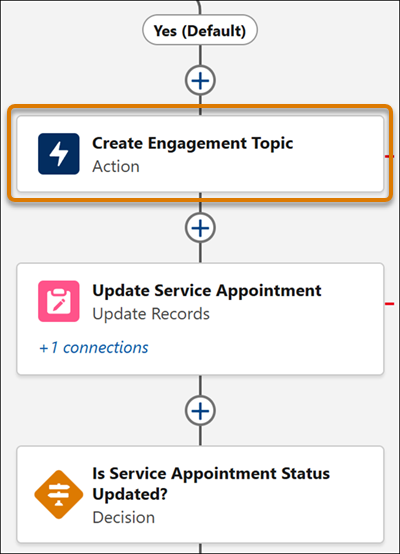
- Each messaging session that shows in this view is linked to a service appointment via the Engagement Topic object. When a messaging session references multiple service appointments, each service appointment is linked to that messaging session via a separate Engagement Topic record and shows as a separate conversation in the view.
- When a conversation includes scheduling changes to multiple service appointments and only one of the linked appointments requires escalation, the Escalated Conversations tab shows escalations for all the appointments discussed in that conversation.
- The time zone of each conversation is based on the time zone of the service appointment’s service territory.
Which Conversations Appear in the View
- The view shows conversations only from the last 72 hours.
- Each tab shows up to 1,000 conversations. If there are more than 1,000 conversations, the tab counter shows the total number. For example, if you have 2,000 conversations, the view shows the 1,000 most recent ones, but the number at the top of the tab shows 2,000.
- The view shows conversations that are linked to service appointments, and that are based on the service territories loaded on the Gantt. If none were loaded, or if the view wasn't opened directly from the Gantt, it shows conversations for all the service territories that the user has access to.
- The Conversation column of the view shows the messaging session between the agent and the customer. If the conversation was escalated, you can continue the conversation through the messaging session.
- The Conversation Status column of the view shows the messaging session’s status. This information shows only in the Live Conversations tab.
- The Owner column of the view shows the name of the user responsible for handling the escalation or the name of the queue where escalated conversations are routed to by Omni-Channel. This information shows only in the Escalated Conversations tab.
- The Appointment Status column of the view shows the service appointment’s status. The appointment status that you see is the most current one. It isn't the status at the end of the conversation. This information shows only in the Completed Conversations tab.
Did this article solve your issue?
Let us know so we can improve!
