
Work with Agentforce Scheduling Supervisor View for Field Service in the New Agentforce Builder
View real-time scheduling conversations to track scheduling requests and escalations.
Required Editions
| Available in: Lightning Experience |
| Available in: Enterprise, Performance, Unlimited, and Developer Editions with Field Service and Foundations, or Einstein 1 Field Service Edition or Agentforce 1 Field Service Edition. |

Note Agentforce Scheduling Supervisor View is available only when the Field Service Managed
Package is installed.
-
From the Dispatcher Console, click the Agentforce Scheduling Supervisor
View icon
 . Or, from the App Launcher, find and select Agentforce Scheduling
Supervisor View.
. Or, from the App Launcher, find and select Agentforce Scheduling
Supervisor View.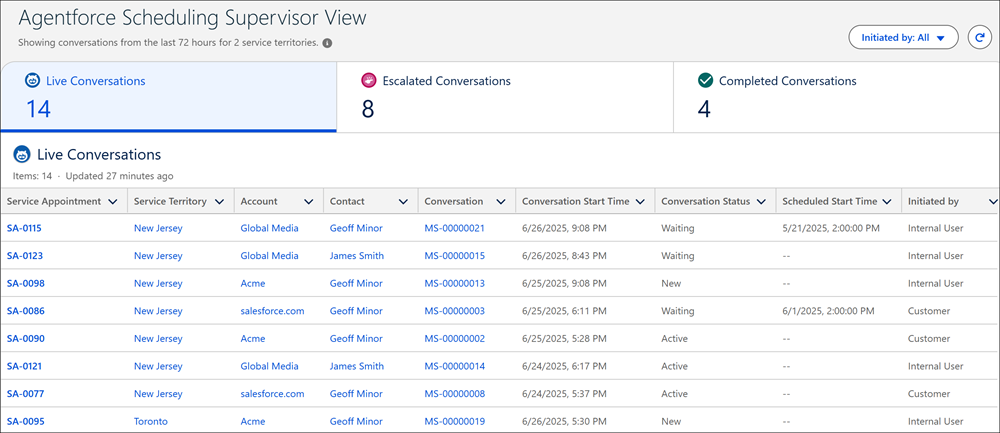
 Tip Add the Agentforce Scheduling Supervisor View tab to your app’s navigation bar through the App Manager in Setup.
 - In the Live Conversations tab, track all active and pending conversations. In this tab, you can track scheduling requests and customer responses. Conversations that were initiated by internal users and are pending longer than the time defined by your Salesforce admin are moved to the Escalated Conversations tab.
- In the Escalated Conversations tab, track all escalated conversations that require the intervention of a representative. In this tab, you can track conversations that were escalated because customers asked to speak to a representative, because agents couldn’t perform certain tasks, or because conversations that were initiated by internal users are pending longer than the time defined by your Salesforce admin. In these cases, you can step in and take over escalations. Omni-Channel also notifies you of any real-time escalations.
- In the Completed Conversations tab, track all completed conversations. In this tab, you can track conversations that were completed by agents to make sure that tasks were completed effectively. You can track conversations that representatives completed after escalations and conversations that timed out after 24 hours of inactivity. You can also view the conversation history to follow up and troubleshoot any unresolved issues.
- To filter the list of conversations by the user who initiated the conversation, select the relevant user from the Initiated By dropdown list. The user can be a customer or an internal user.
-
To see information related to the service appointment, service territory, account, or
contact linked to each conversation, click the relevant record link. To see the conversation
itself, click the relevant conversation link.

Review these considerations.
- The time zone of each conversation is based on the time zone of the service appointment’s service territory.
- The view shows conversations based on the service territories loaded on the Gantt. If none were loaded, or if the view wasn't opened directly from the Gantt, it shows conversations for all the service territories that you have access to.
- The view shows conversations only from the last 72 hours.
- Each tab shows up to 1,000 conversations. If there are more than 1,000 conversations, the tab counter shows the total number. For example, if you have 2,000 conversations, the view shows the 1,000 most recent ones, but the number at the top of the tab shows 2,000.
- The Conversation column of the view shows the messaging session between the agent and the customer. If the conversation was escalated, you can continue the conversation through the messaging session.
- The Conversation Status column of the view shows the messaging session’s status. This information shows only in the Live Conversations tab.
- The Owner column of the view shows the name of the user responsible for handling the escalation or the name of the queue where escalated conversations are routed to by Omni-Channel. This information shows only in the Escalated Conversations tab.
- The Appointment Status column of the view shows the service appointment’s status. The appointment status that you see is the most current one. It isn't the status at the end of the conversation. This information shows only in the Completed Conversations tab.
Did this article solve your issue?
Let us know so we can improve!
