
You are here:
Moderate Access to AI Accelerator
Assign the AI Accelerator permission set to let mobile users access Asset Service Prediction.
Set Up Use Case Definition for Work Order on the Asset
- From Setup, in the Quick Find box, enter Industries Einstein, and then select AI Accelerator.
- Click New Use Case.
- For the Use Case Name, enter ASP WO On Asset, and then click Save.
-
Click Edit, and then update the use case definition with these
values, and click Save.
- Recommendation Source: None (required)
- Other Fields: optional
- Under Use Case Model, click Add Model. This link is enabled when a BDT implementing a model with a predict node is activated in the org.
-
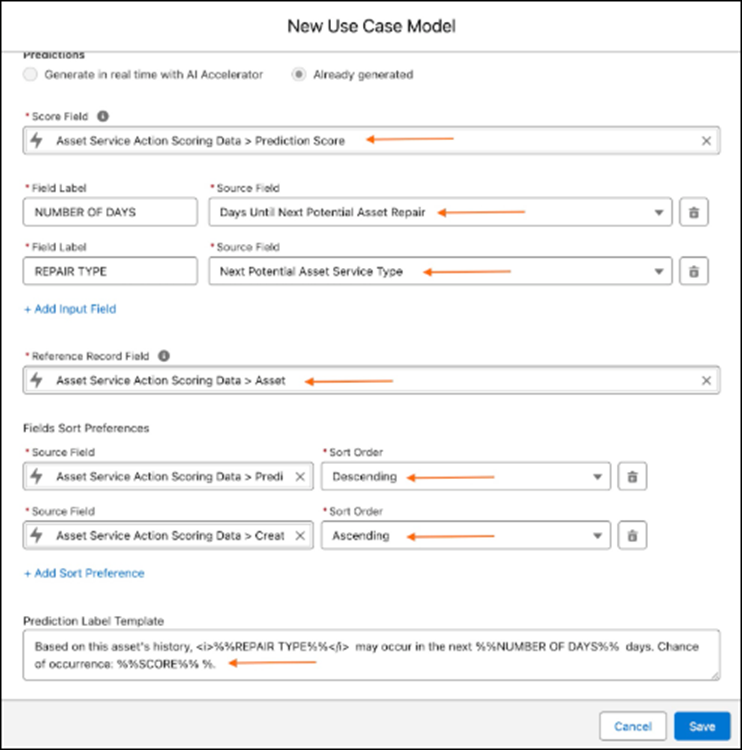
Enter these field values, and then click Save.
- Prediction Platform: EINSTEIN ON DATA CLOUD.
- Model: Asset Service Action Scoring/<model name in the org>.
- Score Field: Prediction Score/ <scoring field from Scoring DMO>.
- Input Fields: REPAIR TYPE: Next Potential Asset Service Type, NUMBER OF DAYS: Days Until Next Potential Asset Repair
- Reference Record Field: Asset Id (Based on where the card is rendered the object ID is chosen.)
- Field Sort Preference: Prediction Score: Descending, Created Date: Ascending
- Prediction Label Template: Based on this asset's history, %%REPAIR TYPE%% may occur in the next %%NUMBER OF DAYS%% days. Chance of occurrence: %%SCORE%% %.
- Click Save.
Set Up Use Case Definition for Work Order on the Work Order
- From Setup, in the Quick Find box, enter Industries Einstein, and then select AI Accelerator.
- Click New Use Case.
- For the Use Case Name, enter ASP WO On Asset, and then click Save.
-
Click Edit, and then update the use case definition with these
values, and click Save.
- Recommendation Source: None (required)
- Other Fields: Leave empty.
- Under Use Case Model, click Add Model. This link is enabled when a BDT implementing a model with a predict node is activated in the org.
-
Enter these field values, and then click Save.
- Prediction Platform: EINSTEIN ON DATA CLOUD.
- Model: Asset Service Action Scoring/<model name in the org>.
- Score Field: Prediction Score/ <scoring field from Scoring DMO>.
- Input Fields: REPAIR TYPE: Next Potential Asset Service Type, NUMBER OF DAYS: Days Until Next Potential Asset Repair
- Reference Record Field: Asset Id (Based on where the card is rendered the object ID is chosen.)
- Field Sort Preference: Prediction Score: Descending, Created Date: Ascending
- Prediction Label Template: Based on this asset's history, %%REPAIR TYPE%% may occur in the next %%NUMBER OF DAYS%% days. Chance of occurrence: %%SCORE%% %.
-
Click Save. You don't need to configure the Use Case Field
Mapping and Model Feature Extractor sections.
Configure Prediction Card
The prediction card shows the probability of an asset needing work done. To show predictions on a Lightning Experience page, add the Einstein Predictions Using AI Accelerator Lightning App Builder component to the Asset and Work Order record pages.
- Open the record page of the object selected in the AI Accelerator Setup page.
- Click the gear, and then select Edit Page.
- In Lightning App Builder, drag the Einstein Predictions Using AI Accelerator component onto your preferred location on the page.
-
In the component’s configuration panel, update these settings. Note that the
threshold score isn't available in the Salesforce Field Service mobile app, but you can
still see the prediction card.
- Use Case Definition: For the asset page, enter ASP WO On Asset. For the work order page, enter ASP WO On WO.
- Prediction Definition: Asset Service Action Scoring/ <Model in your org>
- Threshold Score: 0
- Threshold Type: Greater Than
- Save the settings, and then activate the page.
- To view the predictions for the use case in real time, open the Asset record page.
Did this article solve your issue?
Let us know so we can improve!
