
Create Service Territories for Field Service
Organize your field service workforce by creating service territories from Guided Setup or from the Service Territories tab. Tailor these territories to represent geographic regions—such as cities, counties, or neighborhoods—or functional areas such as field sales and field service, depending on your business needs. For utility customers, service territories can include specific business units such as Gas or Electric. The territory location is stored in the address section. If you plan to build out a hierarchy of service territories, create the highest-level territories first.
Required Editions
| Available in: both Salesforce Classic (not available in all orgs) and Lightning Experience |
| The Field Service core features, managed package, and mobile app are available in Enterprise, Unlimited, and Developer Editions. |
| User Permissions Needed | |
|---|---|
| To create service territories: | Create on service territories |
| To view service territories and the Service Territories tab: | Read on service territories |
| To edit service territories: | Edit on service territories |
| To delete service territories: | Delete on service territories |
| To view service territory locations: | Read on service territories |
| To create, update, or delete service territory locations: | Edit on service territories |
| To view service territory members: | Read on service territories |
| To create, update, or delete service territory members: | Edit on service territories |
Before you start, make a list of the territories you want to create and who works in each territory. To keep scheduling straightforward, try to create territories with no more than 50 mobile workers assigned to them. Review Guidelines for Creating Service Territories for Field Service.
You can organize service territories into hierarchies of up to 10,000 territories. We recommend creating the highest-level territories first. For example, create a San Francisco Bay Area territory with four child territories: Peninsula, North Bay, South Bay, and East Bay.
If the Field Service managed package is installed, use Guided Setup to quickly create your service territories.
- From the App Launcher, find and open the Field Service Admin app, and then click the Field Service Settings tab.
- Click Go to Guided Setup. When you launch guided setup, your Field Service permission sets are scanned to make sure that they’re up-to-date. You see a message if you’re missing a necessary permission.
- Click Create Service Territories.
- Create your territories one by one. Click a territory name to update its name, operating hours, address, and travel time buffer.
-
Operating hours indicate the working hours of mobile workers in the territory. Territory
members use these hours unless different hours are specified on their service territory member
records. Use the lookup to select existing operating hours, or click New Operating
Hours to create your own.
To create more complex or varying time slots, save your new operating hours and click Open Operating Hours Record below the Operating Hours field. Then, customize your time slots in the Time Slots related list.To avoid issues with appointment booking, always specify a time zone on your operating hours.
-
To account for activities other than driving, such as unloading technical gear, walking
time in a building complex, or finding parking, define a travel time buffer. Valid values are 0
to 120 minutes. When an appointment in this territory is scheduled, or when the schedule
changes, the buffer is added to the estimated travel time of the assigned resource. Defining a
value for a territory overrides the travel time buffer you define when setting up
routing.
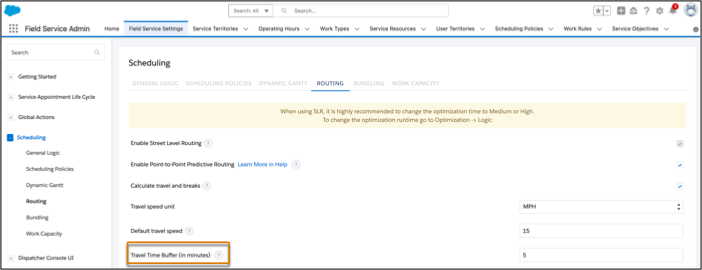
Travel time buffers are available only when you’re using Enhanced Scheduling and Optimization.
- Drag territories within the list to create a hierarchy.
- To update additional fields on a service territory or attach files, select the territory name and click Open Service Territory Record.

If the managed package isn’t installed, create and manage service territories from the Service Territories tab.
- Guidelines for Creating Service Territories for Field Service
Learn how to use service territories to track where your field service team works and to organize your field workforce.
