Create the Field Service Scheduling Agent for Customer-Initiated Scheduling in the Legacy
Agentforce Builder
Create the Field Service Scheduling agent from the template in the legacy Agentforce
Builder.
Required Editions
Available in: Lightning Experience
Available in: Enterprise, Performance, Unlimited, and
Developer Editions with Field Service and Foundations, or Einstein 1 Field
Service Edition or Agentforce 1 Field Service Edition.
User Permissions Needed
To build and manage Service Agents:
Manage Agentforce Service Agents AND Manage AI Agents
OR
Customize
Application
From Setup, in the Quick Find box, enter Agents, and then select
Agentforce Agents.
Click New Agent.
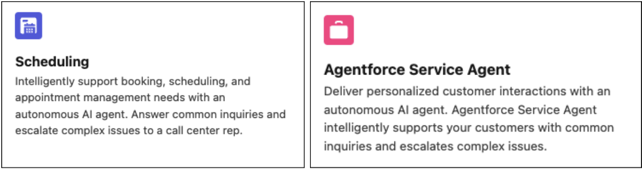
In the step for selecting an agent, select one of these templates:
Scheduling or Agentforce Service Agent.
In the step for customizing the agent, pay attention to the Agent User that's selected.
When you're finished creating the agent, you must give this user the required permissions. To
securely access data and perform actions, Service agents operate as an agent user–a Salesforce
integration user with all the permissions that the agent needs to do its job. Creating a new
agent user in the guided setup creates an agent user record with minimal access so that your
agent is secure by default. Grant the agent the additional access that it needs. See Best Practices for Agent User Permissions.
You can skip the step for selecting data sources. Optionally, select a data source to
ground your agent responses with the Answer Questions with Knowledge action. Then click
Create. If you don't want to use any of the available data sources, you
can create a library to limit Agentforce Service agents to specific articles or uploaded
fields. See Assign a Data Library to Your Agent.
Define your agent's settings, such as system messages and language settings. These settings determine how agents
behave and present themselves in conversations.
Activate your Customer-Initiated Scheduling agent.
Did this article solve your issue?
Let us know so we can improve!
Loading
Salesforce Help | Article
Cookie Consent Manager
Cookie Consent Manager
General Information
Required Cookies
Functional Cookies
Advertising Cookies
General Information
We use three kinds of cookies on our websites: required, functional, and advertising. You can choose whether functional and advertising cookies apply. Click on the different cookie categories to find out more about each category and to change the default settings.
Privacy Statement
Required Cookies
Always Active
Required cookies are necessary for basic website functionality. Some examples include: session cookies needed to transmit the website, authentication cookies, and security cookies.
Functional Cookies
Functional cookies enhance functions, performance, and services on the website. Some examples include: cookies used to analyze site traffic, cookies used for market research, and cookies used to display advertising that is not directed to a particular individual.
Advertising Cookies
Advertising cookies track activity across websites in order to understand a viewer’s interests, and direct them specific marketing. Some examples include: cookies used for remarketing, or interest-based advertising.