
Create the Notification Flow for Customer Outreach in the Legacy Agentforce Builder
Create a notification flow that sends notifications to the customer when triggered.
Required Editions
| Available in: Lightning Experience |
| Available in: Enterprise, Performance, Unlimited, and Developer Editions with Field Service and Foundations, or Einstein 1 Field Service Edition or Agentforce 1 Field Service Edition. |
| User Permissions Needed | |
|---|---|
| To open, edit, or create a flow in Flow Builder: | Manage Flow |
- From Setup, in the Quick Find box, enter Process Automation, and then select Flows.
- Open the Field Service: Notify Customer flow.
- Click Save As New Flow.
- Enter a label. The API name is populated based on the label.
-
In the Get Messaging Channel element, under Filter Messaging Channel Records, add the SMS
messaging channel’s developer name as the value of the Developer Name field.
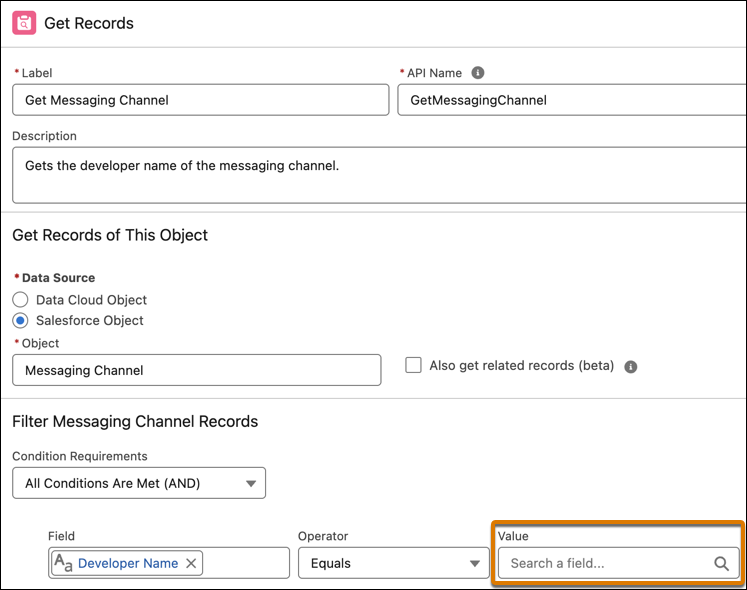
 Tip You can find the messaging channel’s developer name in Messaging Settings in Setup.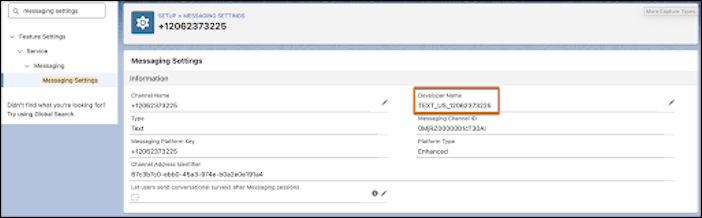
 Note The default messaging channel is SMS. To use a different channel, see the Messaging Channels for Customer Outreach section in Configure Autonomous Scheduling.
 -
For rebooking:
- After the Which Operation Type? decision element, go to the Rebook Appointment decision outcome path of the flow.
- In the Send Message to Customer element, under Select a Messaging Component, select the messaging component that you set up for the initial message that’s sent to the customer for rebooking. Add the parameters that you set up when you created the messaging component.
- In the Send Reminder to Customer element, under Select a Messaging Component, select the messaging component that you set up for the reminder message that’s sent to the customer for rebooking. Add the parameters that you set up when you created the messaging component.
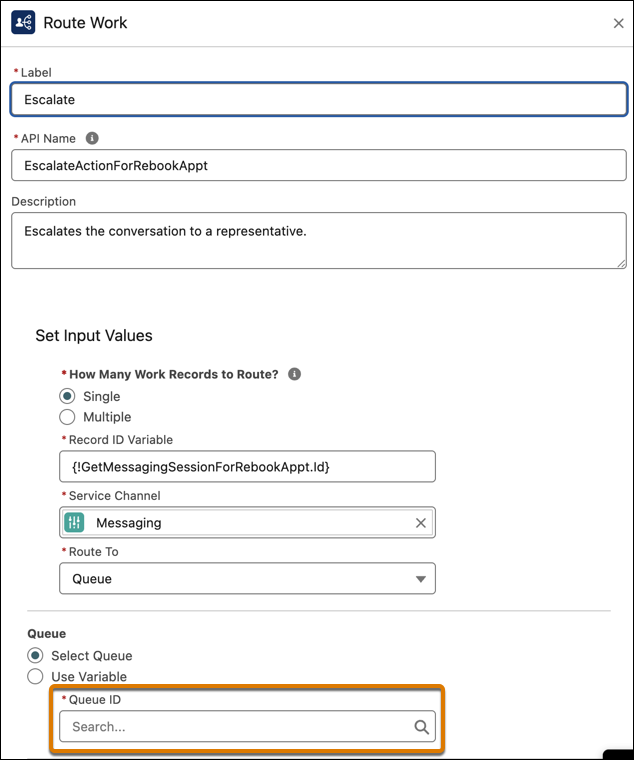
-
In the Escalate element at the end of the path, enter your Queue ID.
-
For asset maintenance:
- After the Which Operation Type? decision element, go to the Asset Maintenance decision outcome path of the flow.
- In the Send Message to Customer element, under Select a Messaging Component, select the messaging component that you set up for the initial message that’s sent to the customer for Asset Maintenance. Add the parameters that you set up when you created the messaging component.
- In the Send Reminder to Customer element, under Select a Messaging Component, select the messaging component that you set up for the reminder message that’s sent to the customer for Asset Maintenance. Add the parameters that you set up when you created the messaging component.
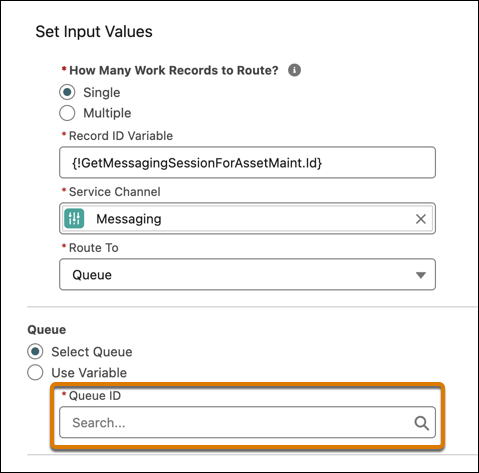
-
In the Escalate Based On Initial Message and the Escalate Based On Reminder Message
elements at the end of the path, enter your Queue ID.
- Save and activate the flow.
-
Connect the flow to your settings.
- From the App Launcher, find and select Field Service Settings.
- In Global Actions, open the Agentforce tab.
-
In Name of Notification Flow, select the flow that you created.
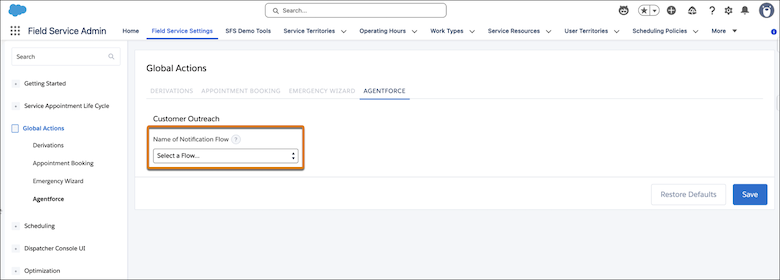
- Save your changes.
Did this article solve your issue?
Let us know so we can improve!
