
Add Permissions for Service Appointment Bundling
Add the permissions for service appointment bundling.
Required Editions
| Available in: both Salesforce Classic (not available in all orgs) and Lightning Experience |
| The Agentforce Field Service and Operations core features, managed package, and mobile app are available in Enterprise, Unlimited, and Developer Editions. |
| User Permissions Needed | |
|---|---|
| To add permissions: | Manage Profiles and Permission Sets |

Note Without these permissions, appointment bundling isn’t available.
- From the App Launcher, find and select Field Service Settings.
- From Getting Started, click Permission Sets.
-
Add these permissions.
- Field Service Admin: Required for configuring the appointment bundling
settings.
- Field Service Integration: Required for accessing the Hyperforce appointment
bundling services.
Note If the Field Service Integration card doesn’t appear, contact Salesforce Customer Support. - Field Service Admin: Required for configuring the appointment bundling
settings.
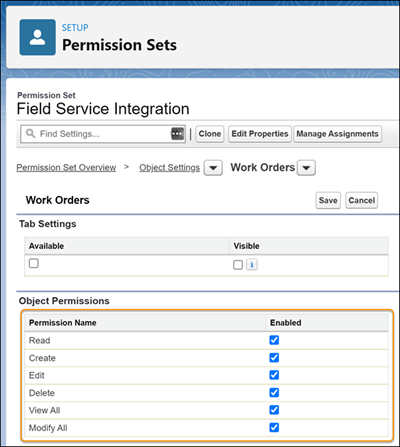
- If your org has processes that use create, update, and delete actions for the Work Orders, Service Appointments, or Skills objects, enable object permissions.
- If you use Experience Builder sites, add the appointment bundling custom permissions also to the Field Service Community Dispatcher permission set. Experience Site users don’t have the Bundle Policy field in the service appointment’s Bundle tab. See Appointment Bundling Limitations.
Did this article solve your issue?
Let us know so we can improve!
