
Set Up Path for Field Service
To guide your team as they complete field service jobs, add an interactive, color-coded progress bar to work orders, work order line items, and service appointments.
Required Editions
| Available in: both Salesforce Classic (not available in all orgs) and Lightning Experience |
| The Agentforce Field Service and Operations core features, managed package, and mobile app are available in Enterprise, Unlimited, and Developer Editions. |
| User Permissions Needed | |
|---|---|
| To set up a path: | Modify All Data |
| To create, customize, or publish an Experience Cloud site: | Create and Set Up Experiences AND View Setup and Configuration |
With Path, your team can quickly see a record’s status and how close it is to completion, and update the status by clicking the desired value on the path.
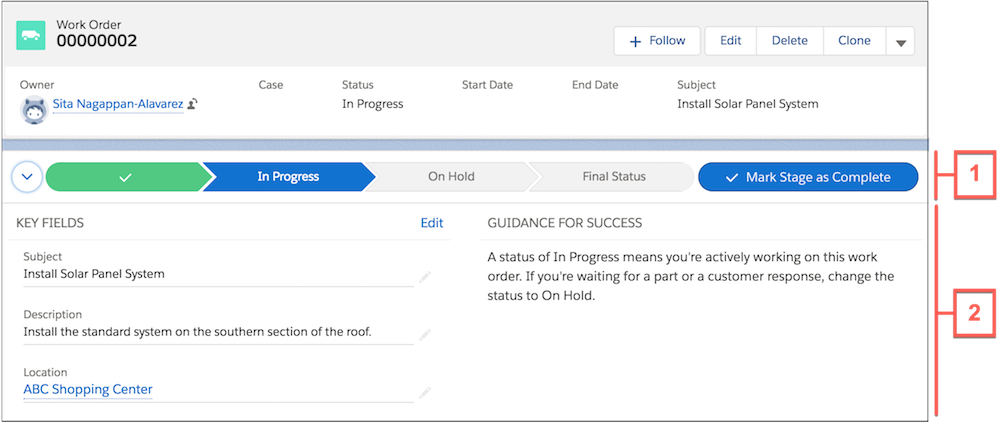
You can set up one path per record type. The steps in a path (1) correspond to the Status picklist values. Help users succeed by displaying up to five key fields and handy step-specific guidance beneath each path step (2).
Several statuses can represent the record’s conclusion: Canceled, Cannot Complete, Completed, and Closed. Therefore, the last stage of the path displays as Final Status when the record is open. Users are prompted to select a final status from these values when they try to close the record, and the path then shows the selected final status. The order of the path steps is based on the order of the values in the Status picklist, though statuses representing conclusion are grouped in the final step.
Path is available for work orders, work order line items, and service appointments in Lightning Experience and Experience Builder sites. It isn’t available in Salesforce Classic, the Salesforce mobile app, or the Field Service mobile app.
- On the Path Settings page in Setup, enable Path. Select Remember User's Path Preferences to let users decide whether the path remembers its previous state or is always closed when the page loads.
-
If you plan to create a path based on the Status field for a field service
object, assign a status category to each status. From the field settings for the
object’s Status picklist field in Setup, click Edit next
to a value. Select the corresponding status category and save your changes.
Status categories determine which statuses are grouped in the Final Status stage
on the path, and are also used in scheduling.
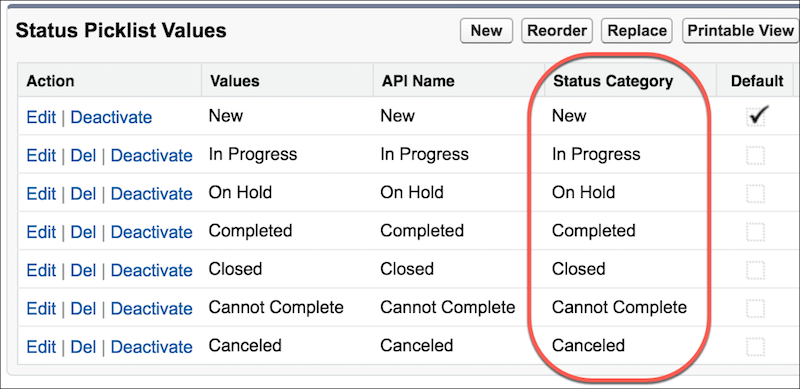
- From the Path Settings page in Setup, follow the prompts to create a path for the Work Order, Work Order Line Item, or Service Appointment object. Paths can be based on the Status field or a custom picklist. Optionally, select key fields or add guidance for each step in the path.
- To add your path to record detail pages in your org, drag the Path component onto the object detail page in Builder.
- To add your path to an Experience Builder site, drag the Path component onto the object detail page in Experience Builder.
