
Create Flexible Work Shifts
Create shifts that define availability for your mobile workers in Field Service. Shifts can vary from day to day or week to week so that you can assign workers for time periods that don’t follow a rigid pattern, such as rotating on-call duties or occasional overtime.
Required Editions
| Available in: Lightning Experience |
| The Field Service core features, managed package, and mobile app are available in Enterprise, Unlimited, and Developer Editions. |
| User Permissions Needed | |
|---|---|
| To view, create, and update shifts: | View, create, and edit on Shifts, Service Territories, Service Resources, Service Territory Memberships |
| To add job profiles to shifts: | View on Job Profiles |
| To add recordset filter criteria to shifts: | View on Recordset Filter Criteria |

Note When using Enhanced Scheduling and Optimization, you can enable
continuous 24-hour availability for resources via
shifts. For capacity-based resources, create one continuous shift. For individual resources
and crews, define either one continuous time period or shifts that cover both standard and
extended hours. For details on setting up recordset filter criteria to assign work during
extended hours, see Define Which Appointments Can Be Scheduled During
Shifts.
- From the App Launcher, click Shifts.
-
Do one of the following.
- Click New.
-
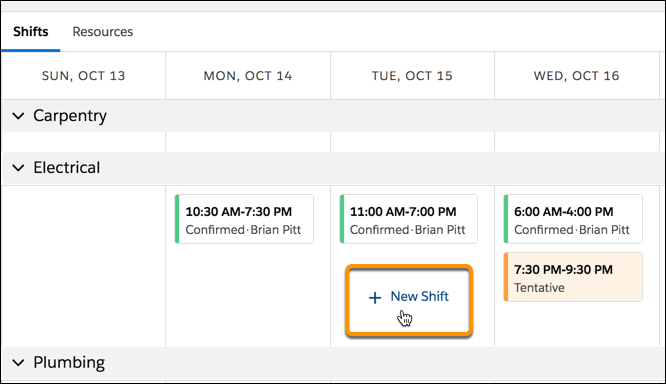
From the schedule view, hover in an empty space and click +
New Shift.
-
Define the settings for the shift.
- Enter a label for the shift.
- Enter dates and times for the shift's start and end. A second set of time fields show the shift’s start and end in the time zone of the service territory.
-
To provide coverage for a specific service territory, define the name
of the service territory. A service resource assigned to a shift within
a defined territory is available for work during the shift hours only
within that territory. If the territory is left empty, the resource
assigned to the shift can be assigned appointments in all the
territories they’re a member of during the shift time frame.
If you assign a service territory to the shift, the assigned service resource must be a member of the service territory.
- For Time Slot Type, select the type of working hours for the shift. Select Normal if the service resource can be assigned to any appointment during the time period. Select Extended if the resource can be assigned appointments during the shift time period only if the scheduling policy used to schedule appointments has a Resource Availability work rule that allows overtime.
- If only certain resources can should be able to be assigned to the shift, choose a job profile that defines the skills required to work during this shift. If a Match Skills work rule is defined in Setup, only service resources that have the skills associated with the job profile on the shift are eligible to be assigned the shift when you’re using automated shift scheduling tools.
- Optionally, choose a Background Color.
- Optionally, mark the shift Non-Standard.
- Optional: Optionally, choose a filter in the Recordset Filter Criteria field to limit which service appointments can be scheduled during the shift.
- If you know which service resource you want to assign to the shift, you can select this resource in the Service Resource field on the Shift record. If you want shift scheduling tools to automatically find a service resource that can work the shift, leave the Service Resource field blank. This field is automatically populated when the shift is scheduled.
- Select a status.
Tentative The shift is tentatively defined. This is a good status to use when the time period for when coverage is needed is defined on the shift but you haven’t yet decided on or assigned a service resource. Published The shift manager is ready to publish the shift to service resources. This status is optional and can be helpful if you’ve assigned a service resource to the shift but you aren't ready for the scheduling engine to consider the shift as the resource’s availability to be assigned a service appointment. Confirmed The shift has an assigned service resource. The scheduling engine considers confirmed shifts. This status is correct when you’re ready for the scheduling engine to consider the shift as the resource’s availability to be assigned a service appointment. - Save your changes.
Did this article solve your issue?
Let us know so we can improve!
