
Work Capacity Availability Calculations
Work capacity availability calculations enable setting limits on work capacity as a percentage of the total work capacity.
Required Editions
| Available in: both Salesforce Classic (not available in all orgs) and Lightning Experience |
| The Agentforce Field Service and Operations core features, managed package, and mobile app are available in Enterprise, Unlimited, and Developer Editions. |
Work Capacity Availability (WCA) represents the availability in service territories that have a work capacity limit, for each day in the defined time horizon.
Let’s assume three workstreams in New York on August 14 and a total availability of 400 hours. You can set the limit as 25% for the breakfix work type, 10% for the installs work type, and 50% for the maintenance work type. You can then keep the business considerations indicated by these percentages if the total availability decreases to 300 hours.
The work capacity availability is calculated periodically at scheduled times, for example, daily at a certain time. In addition, specific events trigger an automatic recalculation.
- Service territory membership changes(for example, a service resource was moved in or out of a relevant service territory)
- Service resource absences changes (for example, a service resource added or removed an absence)
- Shift changes (for example, adding or removing a shift).
This recalculation keeps the work capacity availability for the service territory within the defined time horizon up to date.
The availability for a regular service resource is calculated using this equation: (Normal Hours + Overtime Hours - Absences - Breaks).
- Normal Hours: Hours in time slots of type Normal in the service resource’s operating hours and confirmed shifts minus holiday hours(optional)
- Overtime Hours: Hours in time slots of type Extended in the service resource’s operating hours
- Absences: Hours of the service resource approved absences
- Breaks: Hours of the service resource absences of type Break. For breaks of the Lunch Break type, the duration is added based on the default scheduling policy set for the Dispatcher Console UI in Field Service Settings.
The total availability on a specific day for a service territory is composed of:
- The availability of all service resources where the service territory is the primary or secondary territory.
- The hours per time period of capacity-based resources belonging to the service territory.
- The operating hours of an active crew belonging to the service territory are added as one resource. The operating hours of service resources that are allocated to a crew are excluded from the calculation.

When work capacity availability calculations are enabled, a Work Capacity Availability record is created for service territories with defined work capacity limits for each day in the configured time horizon.
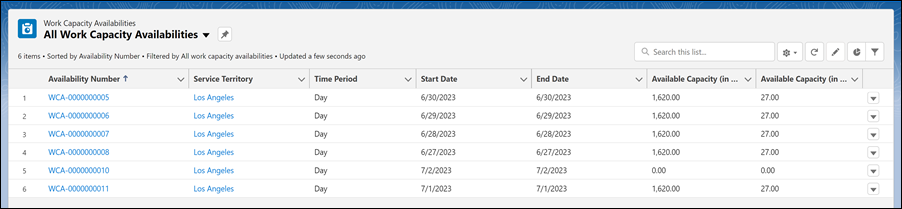
To show the Work Capacity Availabilities list view, from the App Launcher, find and select Work Capacity Availabilities.
The list view shows the daily availability in minutes and in hours for all service territories that have defined limits in the time horizon (the default is 30 days). For example, if WCLs exist for New York and Miami, 60 availability records are shown.
- Set Up Availability Calculations in Field Service Settings
Configure the availability calculations. - Set Up Availability Calculations in the Field Service Admin App
When setting up work capacity availability calculations, you must enable the availability calculations job. - Monitoring Workstream Usage in Summary View
The Summary view shows the consumption relative to the defined limits for the service territory if a service territory limit is defined and for all limited workstreams in selected territories for a specific day or week. - View Workforce Availability in the Work Capacity Dashboard
The dashboard includes two reports related to work capacity availability. - Work Capacity Considerations and Limitations
When you set up work capacity, there are some considerations and limitations to keep in mind.
