Keep stakeholders and leadership teams in the loop when an incident occurs with
broadcast Slack messages. A broadcast Slack message is visible to all users who have access to the
associated Slack channel.
Customer Service Incident Management must be enabled.
Broadcast Slack messages must be enabled.
Broadcast topics must be assigned to Slack channels.
Go to the incident related lists and find the Broadcast Communications related list.
Click New Broadcast Slack Message.
Select the relevant broadcast topic and template, and click
Next.
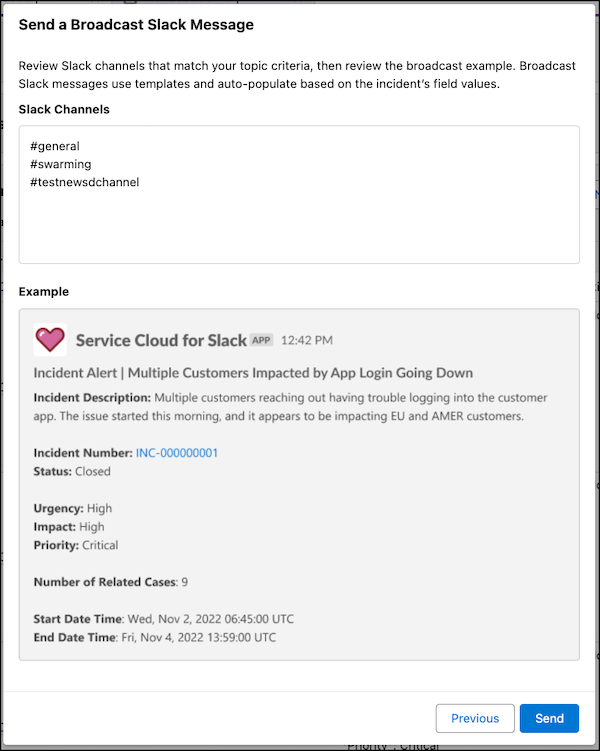
Before sending a message, review the list of channels where the message will be sent. To
send the broadcast message to a different channel, choose a different broadcast topic.
If applicable, review the message
preview
and click Send.
To ensure that what you’re sending is appropriate to share, your admin might have a
broadcast topic that sends messages to a test channel. You can use a test broadcast topic and
Slack channel to ensure that your content is safe to share.
Confirm that the content is appropriate and click Send Anyway.
We use three kinds of cookies on our websites: required, functional, and advertising. You can choose whether functional and advertising cookies apply. Click on the different cookie categories to find out more about each category and to change the default settings.
Privacy Statement
Required Cookies
Always Active
Required cookies are necessary for basic website functionality. Some examples include: session cookies needed to transmit the website, authentication cookies, and security cookies.
Functional Cookies
Functional cookies enhance functions, performance, and services on the website. Some examples include: cookies used to analyze site traffic, cookies used for market research, and cookies used to display advertising that is not directed to a particular individual.
Advertising Cookies
Advertising cookies track activity across websites in order to understand a viewer’s interests, and direct them specific marketing. Some examples include: cookies used for remarketing, or interest-based advertising.