
You are here:
Verify Migrated Articles in the Activation Stage
Verify articles during migration from Salesforce Classic to Lightning Knowledge. Verification steps are recommended for orgs with multiple article types.
Required Editions
| Available in Salesforce Classic and Lightning Experience. View supported editions. |
| User Permissions Needed | |
|---|---|
| To view articles: | View All Records on Knowledge |
| To use the Lightning Knowledge Migration Tool: | Knowledge User AND Customize Application |
The MigratedToFromArticle and MigratedToFromArticleVersion fields used to verify articles are available in API version 45.0 and later.
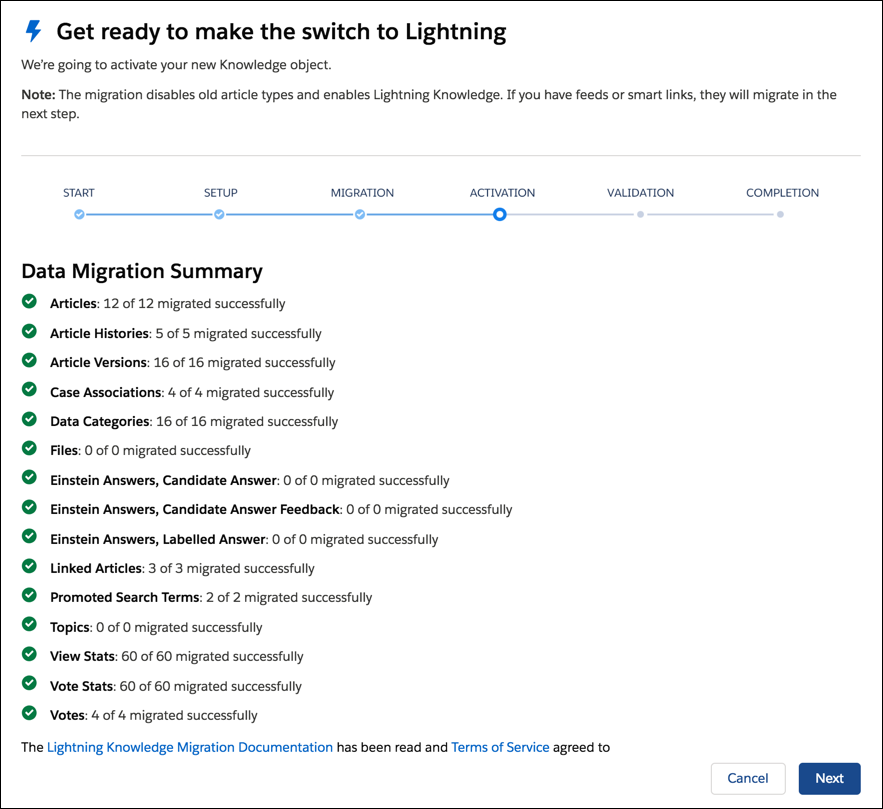
To perform these steps, you must have started the Activation stage of migration. Check that the Lightning Knowledge Migration Tool is on the Activation stage and shows the Data Migration Summary page.
-
Create a list of pre-migration article IDs and URL names.
- In Salesforce Classic, go to the Article Management or Knowledge tab
- Open each article and locate the Article ID and URL Name fields. Note the values.
If you already have the article version ID, you can find the article ID and URL name using the following query.
SELECT KnowledgeArticleId , urlname FROM KnowledgeArticleVersion WHERE Id = ‘YourArticleVersionID’ - Log in to any tool that can make SOQL API calls with your org credentials.
-
To find new or old article IDs, run the
appropriate
SOQL query.
-
If you’re using the known ID for the old article type, query the KnowledgeArticle object
to find the new article ID in the MigratedToFromArticle.
SELECT id, MigratedToFromArticle FROM KnowledgeArticle WHERE id = ‘kA2R00000004N1i’
-
If you’re using the new ID for the new Knowledge object, query the KnowledgeArticle
object to find the old article ID.
SELECT id , MigratedToFromArticle FROM KnowledgeArticle WHERE MigratedToFromArticle = ‘kA3R00000004JwnKAE’
-
If you’re using the known ID for the old article type, query the KnowledgeArticle object
to find the new article ID in the MigratedToFromArticle.
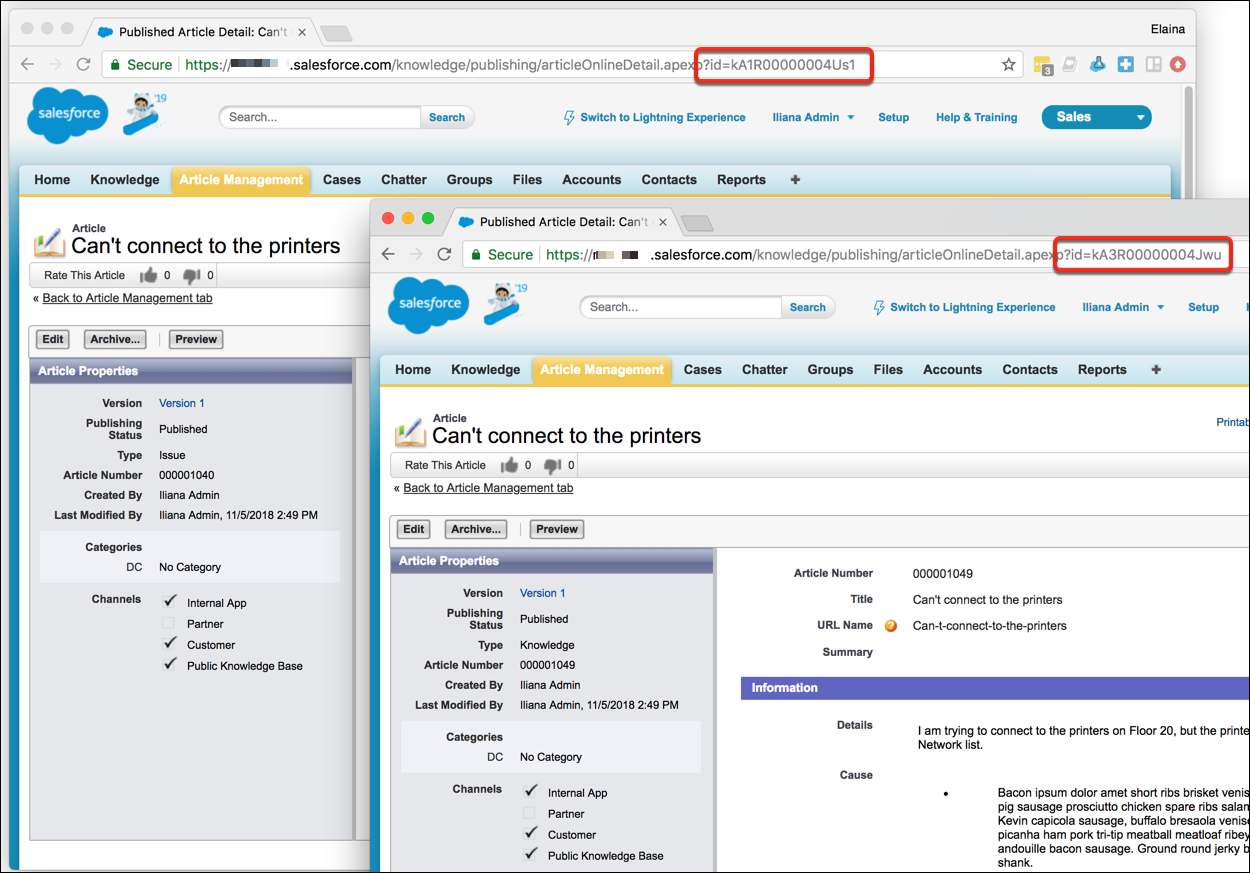
- Open two browser windows, and log in to your org in each window. Go to the home page in Salesforce Classic.
-
Verify articles side by side. For each page and URL you want to verify, use the old article
ID in one window, and the new article ID in the other. Verify that both browsers show the same
article, contents, and data.
App Page URL Format Article management pages Draft articles mySalesforceDomain/knowledge/publishing/articleDraftDetail.apexp?id=ArticleID
Example: https://cunning-robot.lightning.salesforce.com/knowledge/publishing/articleDraftDetail.apexp?id=kA1R00000004Us1
Published articles mySalesforceDomain/knowledge/publishing/articleOnlineDetail.apexp?id=ArticleID Archived articles mySalesforceDomain/knowledge/publishing/articleArchivedDetail.apexp?id=ArticleID Article previews Draft, published, and archived articles mySalesforceDomain/knowledge/publishing/articlePreview.apexp?id=ArticleID&popup=true&pubstatus=d&preview=true Knowledge tab Published articles mySalesforceDomain/articles/ArticleTypeName/URL_Name?popup=false Draft articles mySalesforceDomain/knowledge/publishing/articleDraftDetail.apexp?id=ArticleID  Important Verifying feeds and verifying articles using URL redirect isn’t possible in this stage. Continue to the Validation stage of migration before verifying feeds and redirects.
