
You are here:
Verify Migrated Articles in the Validation Stage
After verifying the articles in the Activation stage, verify the articles again during the Validation stage of the Lightning Knowledge Migration Tool. During this stage, you verify the articles in Lightning Experience.
Required Editions
| Available in Salesforce Classic and Lightning Experience. View supported editions. |
| User Permissions Needed | |
|---|---|
| To view articles: | View All Records on Knowledge AND Knowledge User |
| To use the Lightning Knowledge Migration Tool: | Knowledge User AND Customize Application |
The MigratedToFromArticle and MigratedToFromArticleVersion fields used to verify articles are available in API version 45.0 and later.
You accepted the results of migration, and you already verified that the new Article IDs open the right articles in Salesforce Classic.
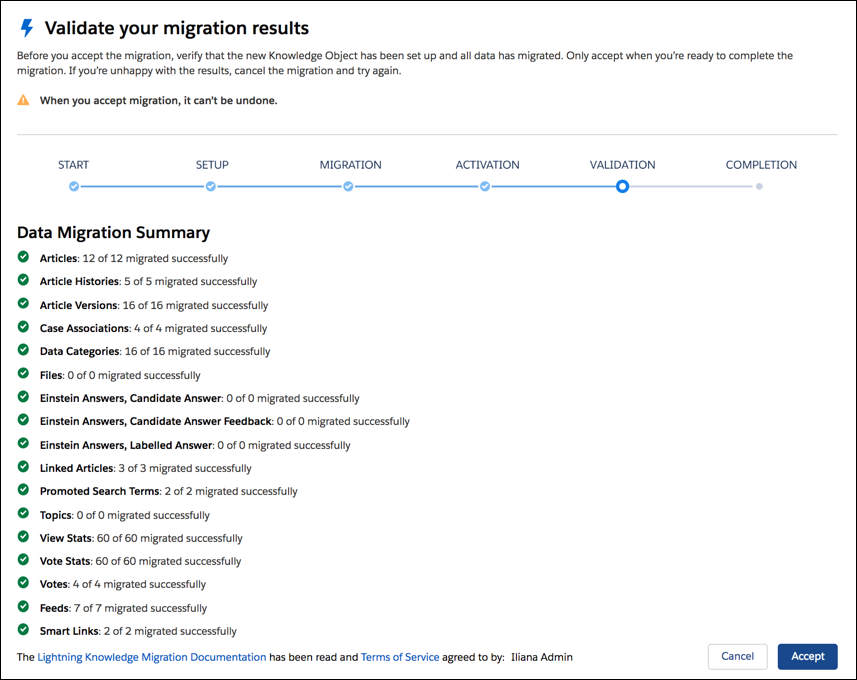
Finish the verification process during the Validation stage. The Lightning Knowledge Migration Tool shows the Validation stage and shows the Data Migration Summary page.
-
Check that the Lightning Knowledge Migration Tool is in the Validation stage. From Setup,
in the quick find box enter migration and select Lightning
Knowledge Migration Tool. Refresh the page if necessary.
-
In Salesforce Classic, on the Article Management or Knowledge tab, open the article you
want to verify.
- Locate the new knowledge article ID in the URL. For instance, if your article URL is yourSalesforceDomain/knowledge/publishing/articleOnlineDetail.apexp?id=kA3R00000004Jwu&lang=en_US, the ID is kA3R00000004Jwu.
-
To find the old ID, log in to Workbench with your org credentials at workbench.developerforce.com.
 Tip If you created a list of article ID mappings during the Activation stage or you already have the old ID that corresponds to the new article, you can skip this step.
The following query on the KnowledgeArticle object returns the old ID.
SELECT MigratedToFromArticle FROM KnowledgeArticle WHERE Id = ‘NewArticleID’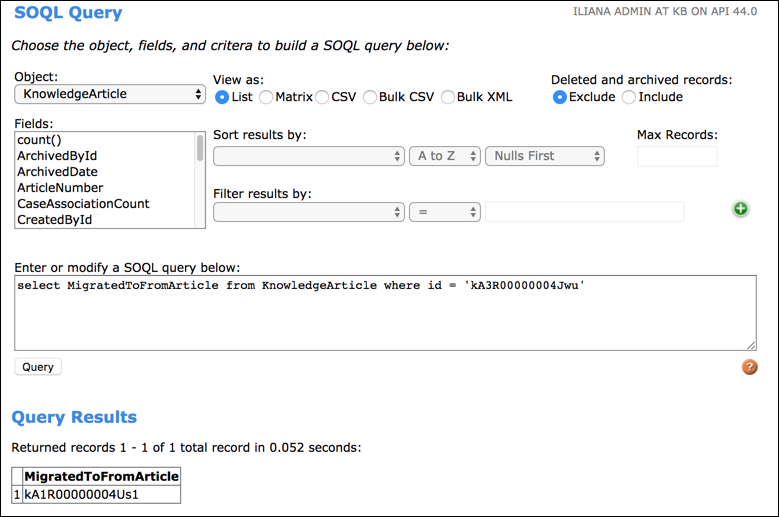
-
Overwrite the ID in the URL with the corresponding ID from the old knowledge base
version.
For example, change the URL yourSalesforceDomain/knowledge/publishing/articleOnlineDetail.apexp?id=NewArticleID to yourSalesforceDomain/knowledge/publishing/articleOnlineDetail.apexp?id=OldArticleID
- To see the pre-migration article, refresh the page. The Type field shows the old article type, not Knowledge.
-
Open the same article in Lightning Experience. In a new browser window, log in to your org
and switch to Lightning Experience.
- From the App Launcher, find and open the Knowledge tab.
-
Open the article with the same name as the one in your other browser window.
Tip Try switching to a different list view, like Published Articles or Draft Articles, to find the article.
-
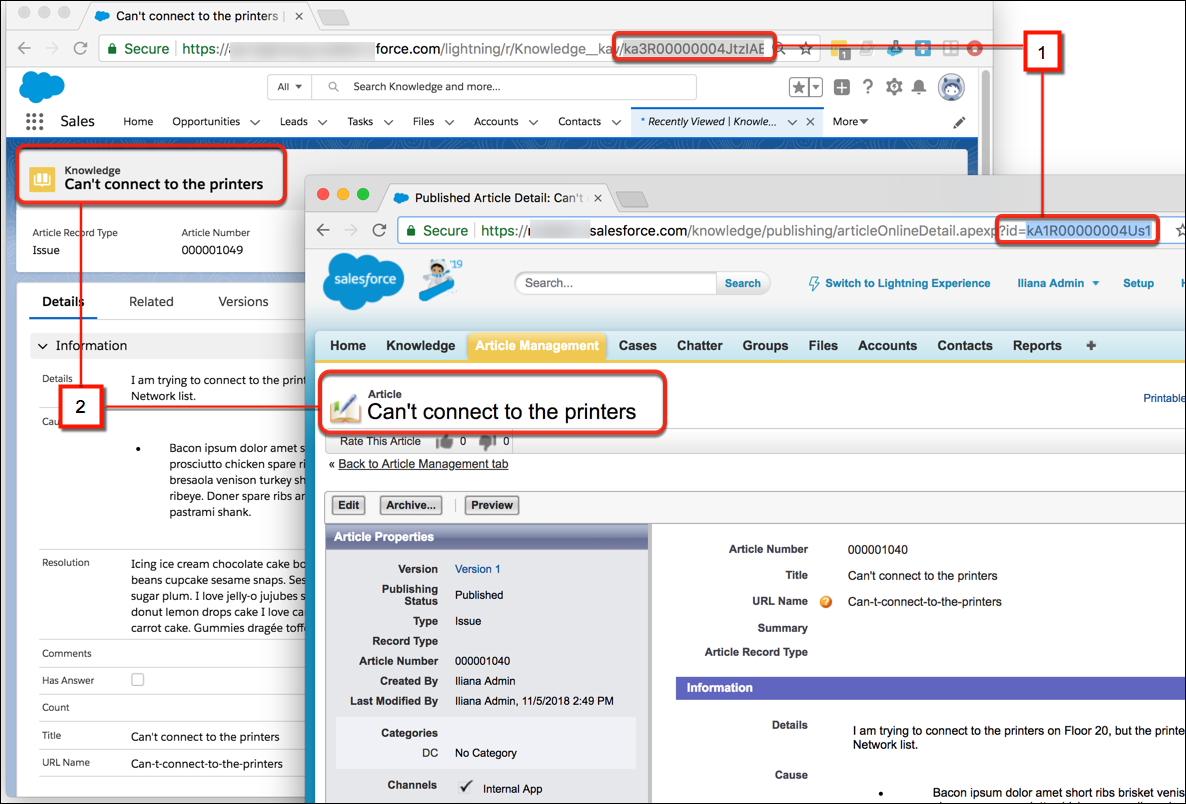
Place the two windows side by side and review them.
The article in Salesforce Classic uses the old ID, and the article in Lightning Knowledge shows the new ID (1). The article’s title and other details are the same (2).
-
Review and verify the following items.
 Note Page layouts differ between the old and new knowledge bases, so the fields don’t always match exactly. If you don’t see related lists, standard fields, or custom fields, verify that they are on the page layout in Lightning Knowledge.
To modify the layout, go to Setup | Object Manager | Knowledge | Page Layouts and edit the appropriate layout for the article’s record type. Drag files, cases, or work orders to the Related Lists section, make other desired changes, and save.
Item Notes Details Section: Title, URL name, Smart Links, custom fields File fields in the old article don’t appear in Lightning Knowledge. For the new article, files appear in the Files related list. Related lists: cases, work orders, promoted search terms, files Verify that the appropriate records and files appear in related lists like files, cases, and work orders. Feeds Feeds migrate completely to the new object, so you don’t see feeds in the old article after migration.
Verify the following feed items in new articles: posts, comments, attachments, mentions, topics, and likes. If you subscribed to the article before migration, you also see Following.
Smart Links From an old article, Smart Links go to the old version of the linked article. While viewing an article with the Lightning Knowledge ID, clicking Smart Links directs you to the new version of the article.
URL redirects A redirect URL using the old ID, either the KnowledgeArticle (ka) ID or the KnowledgeArticleVersion (kav) ID opens the new article.
