
You are here:
Transfer a Messaging Session
Increase your capacity to accept incoming messaging sessions by transferring an existing messaging session. Service reps can transfer a messaging session to another qualified service rep, queue, or routing flow. Service reps in a partner contact center can also transfer to contacts external to your Salesforce organization if routing is controlled by a partner vendor.
Required Editions
| View supported editions. | |
 This article applies to:
|
Enhanced In-App Chat, Enhanced Web Chat v1, Enhanced Web Chat v2, Enhanced WhatsApp, Enhanced Facebook Messenger, Enhanced SMS, Enhanced Apple Messages for Business, Enhanced LINE, and Bring Your Own Channel |
 This article doesn’t apply to:
|
Standard Facebook Messenger and Standard SMS channels |
| User Permissions Needed | |
|---|---|
| To transfer enhanced messaging sessions to flows: | Run Flows |
| To receive transferred messaging sessions or end your own messaging sessions in Enhanced Chat: | Enhanced Chat User permission set license AND Enhanced Chat Rep user permission |
| To receive transferred messaging sessions or end your own messaging sessions in enhanced messaging channels: | Messaging User permission set license AND Messaging Agent user permission |
So that you can transfer sessions to other service reps, make sure that your admin has selected Enable Skills-Based and Direct-to-Agent Routing on the Omni-Channel Settings page in Setup.
- In an active messaging session, click the transfer icon in the lower-left corner of the Conversation component.
-
Select a recipient type: Agent, Queue, or Flow, or Others (Bring Your Own Channel for
CCaaS only). Only service reps (agents) who are online with a Messaging presence status
appear in the list.
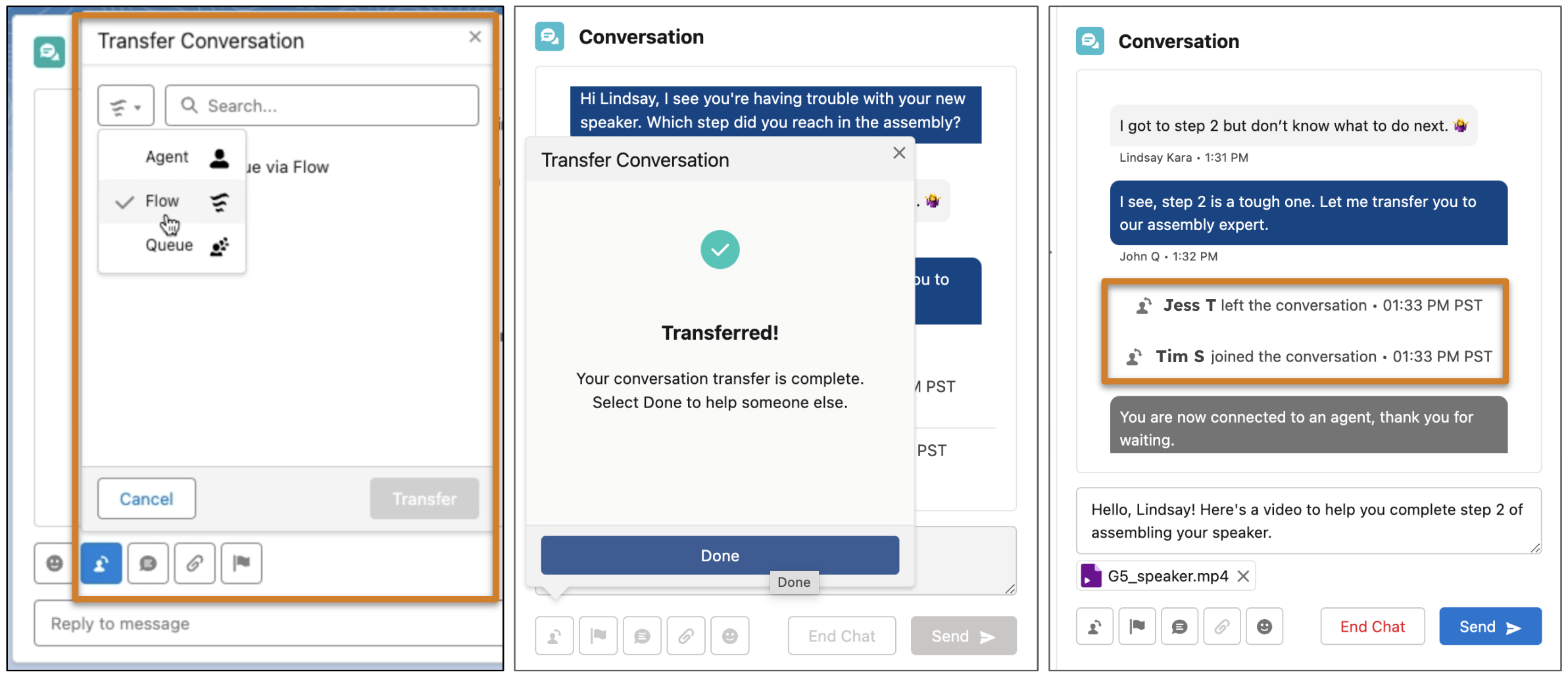
 Tip The Agent list shows only service reps who are online with a Messaging presence status and who have the Messaging User or Messaging for In-App and Web User permission set license. You can see each service rep's capacity percentage, including those at full capacity. The Queue list shows each queue’s estimated wait time, but no wait time is shown unless service reps accepted at least 10 messaging requests in the queue in the last 10 minutes. The Others list shows contacts external to your Salesforce organization. Others is an option for Bring Your Own Channel for CCaaS if routing is controlled by a partner vendor.
 - Select a recipient and click Transfer.
- When the selected service rep accepts the transfer, the original rep is removed from the conversation and their tab closes automatically. After a service rep clicks Transfer, the transfer can’t be canceled.
Service reps can’t decline transfers, even if the option to let service reps decline work requests is selected in your Omni-Channel presence configuration settings. If a service rep is at 100% capacity and a session is transferred to them, the session enters a waiting state in which the original service rep is removed. The transfer completes when the recipient service rep is available to accept it.
