Contacting Customers in Apple Messages for Business
If you want customers to message you in Apple Messages for Business, it’s helpful to
understand the ways that they can do so. To make it easy for your customers to contact you, take
advantage of both native Apple and business-controlled entry points.
Enhanced In-App Chat, Enhanced Web Chat v1, Enhanced Web Chat v2, Enhanced
WhatsApp, Standard and Enhanced Facebook Messenger, Standard and Enhanced SMS,
Enhanced LINE, and Bring Your Own Channel
What's an Entry Point?
An entry point is a way
for customers to start a conversation with your business. Think of it as the digital equivalent
of walking into a store and being greeted by a friendly staff member. When a customer uses an
Apple Messages for Business entry point, it launches the Messages app on their device with the
compose screen open.
Each entry point is powered by a URL that includes your Messages for
Business ID. You can customize this URL by including parameters that route inquiries to a qualified service rep or queue.
Native Apple Entry Points
Apple provides these built-in features to let customers contact you. They include:
Place Card: A digital business card that appears when customers search for your business in
Apple Maps.
Business Card: Similar to the Place Card, but it can appear in other Apple apps such as
Contacts.
Message Suggest: Suggests your business as a contact when customers enter text in the
Messages app or conduct a Google search.
Business-Controlled Entry Points
You, as a
business, can create and control other entry points to Apple Messages for Business. Here are
some examples.
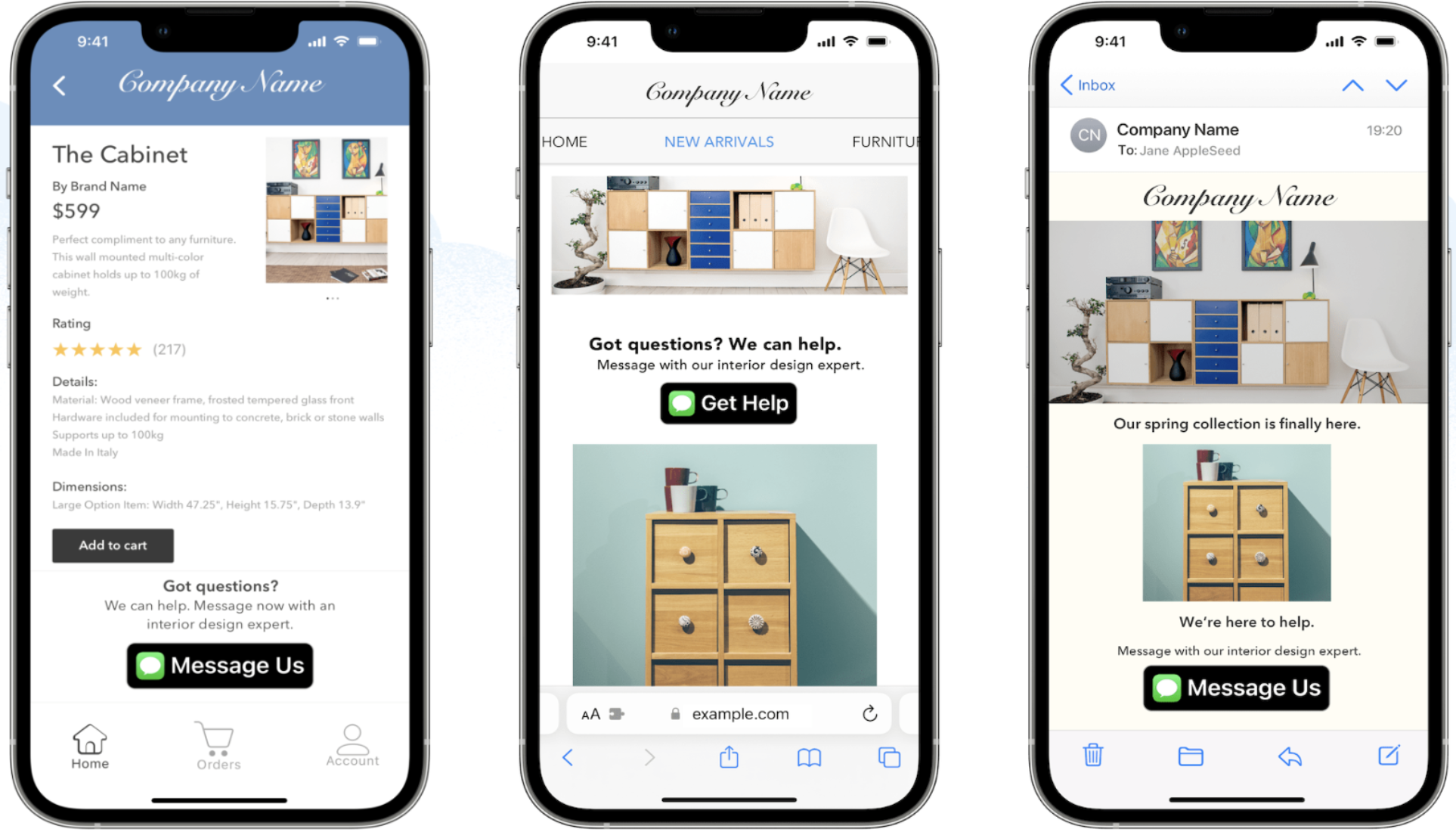
In your business’s mobile app or website, provide a link that opens the Messages app.
In your emails and social media profiles or posts, provide a link that opens the Messages
app.
Generate a QR code that opens the Messages app.
Use Near Field Communication (NFC) tags that customers can tap with their devices to open
the Messages app.
This image shows Apple Messages for Business entry points in a mobile app,
website, and email. These entry points include the Apple Messages icon and custom text, such as
Message Us.
We use three kinds of cookies on our websites: required, functional, and advertising. You can choose whether functional and advertising cookies apply. Click on the different cookie categories to find out more about each category and to change the default settings.
Privacy Statement
Required Cookies
Always Active
Required cookies are necessary for basic website functionality. Some examples include: session cookies needed to transmit the website, authentication cookies, and security cookies.
Functional Cookies
Functional cookies enhance functions, performance, and services on the website. Some examples include: cookies used to analyze site traffic, cookies used for market research, and cookies used to display advertising that is not directed to a particular individual.
Advertising Cookies
Advertising cookies track activity across websites in order to understand a viewer’s interests, and direct them specific marketing. Some examples include: cookies used for remarketing, or interest-based advertising.