
You are here:
Creating Interactive Content for Apple Messages for Business
Learn how to create a rich, interactive messaging experience in your Apple Messages for Business channel. Apple requires business channels to include interactive content, and in Salesforce, you meet this requirement by creating messaging components.
Required Editions
| View supported editions. | |
 This article applies to:
|
Enhanced Apple Messages for Business channels |
 This article doesn’t apply to:
|
Enhanced In-App Chat, Enhanced Web Chat v1, Enhanced Web Chat v2, Enhanced WhatsApp, Standard and Enhanced Facebook Messenger, Standard and Enhanced SMS, Enhanced LINE, and Bring Your Own Channel |
Save Time with Messaging Components
With messaging components, your support team can efficiently request payments, verify a customer’s identity, or gather customer details and preferences during messaging sessions. Users with permission create one or more components in the Messaging Component Builder in Setup. Service reps can then send them during messaging sessions. You can also send components automatically at certain times—for example, when an order ships—and configure Einstein bots or AI agents to send them.
These messaging components are uniquely suited to Apple Messages for Business.
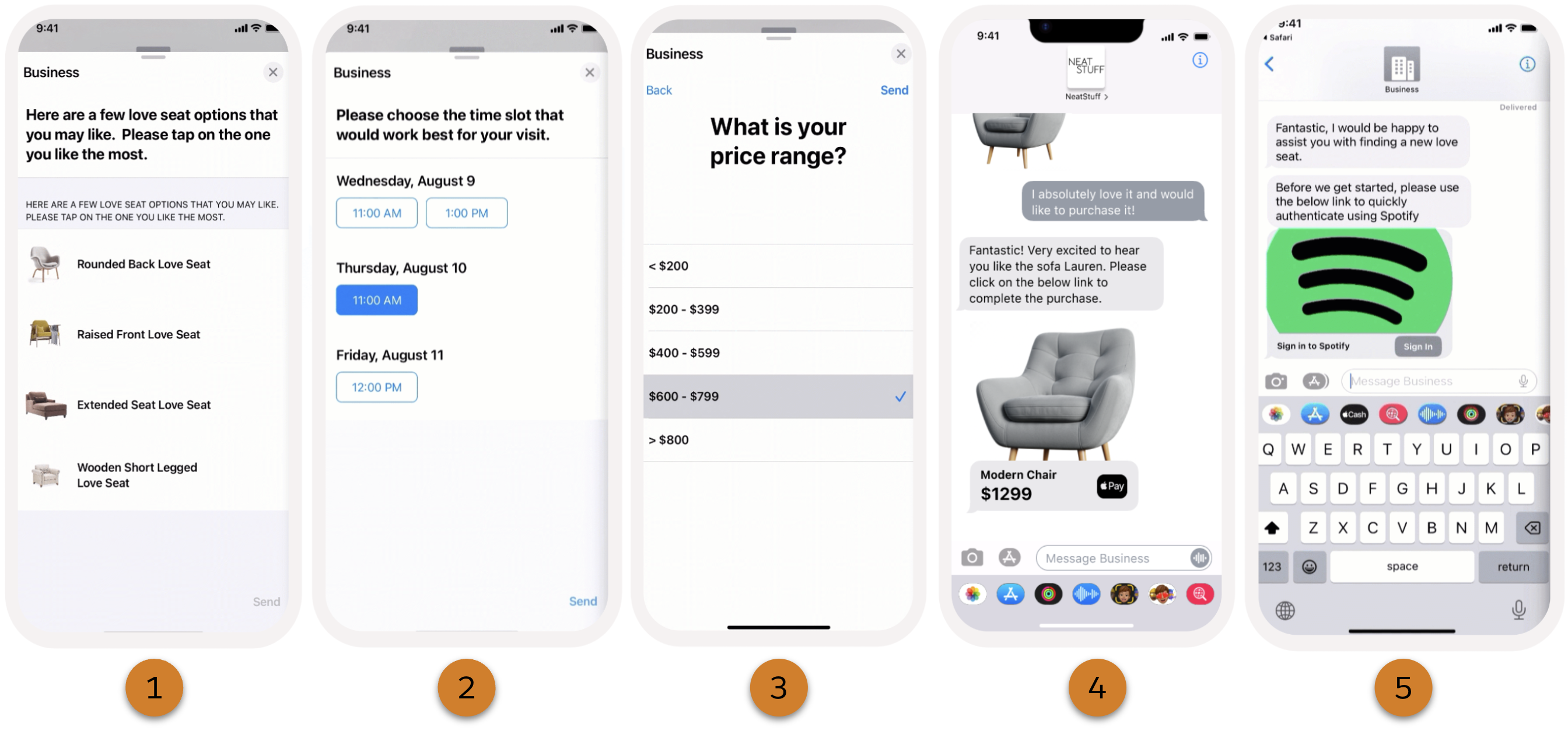
- Question with options (1)
- To standardize the way you gather information from customers, send a question with multiple clickable options. You can make these options the same for everyone (static), or customer-specific (dynamic).
- Time selector (2)
- To reduce scheduling back-and-forth, send a question with a clickable list of your business’s available time slots. A custom Apex class that you create provides the time slots.
- Form (3)
- To save customer preferences, send a secure form with a welcome screen, one or more questions, and a confirmation screen. Submitted responses are captured in a Salesforce record.
- Payment (4)
- To prompt customers to make a payment during a messaging session, send an Apple Pay request.
- Authentication (5)
- To verify a customer’s identity, send a prompt to log in to an authentication provider.
- Enhanced link
- To share links in a familiar format, send a link with a custom image and link text.
- Notification
- To keep customers updated on their inquiries without occupying service reps’ time, use a flow to send a link or text-only message at specific times. For example, send a shipping update or notify a customer that their case is in progress.
- Custom
- Share an external app in messaging sessions, such as your business’s mobile app.
