
You are here:
Route Apple Messages Inquiries by Intent and Group
Provide more efficient, personalized service by routing inquiries sent in Apple Messages based on their origin. For example, if your mobile app includes two buttons—”Get Tech Support” and “Get Help Changing Plans”—route customers to your support team if they click the first button, and to your sales team if they click the second button.
Required Editions
| View supported editions. | |
 This article applies to:
|
Enhanced Apple Messages for Business channels |
 This article doesn’t apply to:
|
Enhanced In-App Chat, Enhanced Web Chat v1, Enhanced Web Chat v2, Enhanced WhatsApp, Standard and Enhanced Facebook Messenger, Standard and Enhanced SMS, Enhanced LINE, and Bring Your Own Channel |
| User Permissions Needed | |
|---|---|
| To open, edit, or create a flow in Flow Builder: | Manage Flow |
| To set up and edit Messaging channels: | Configure Messaging |
| To view channels: | View Setup and Configuration |
When you add a custom button to a mobile app or website that lets customers contact you in Apple Messages, you can add variables to the button link that give Salesforce clue’s about the conversation’s origin. The intent variable represents the customer’s intent (such as getting tech support), while the group variable represents the department that’s best qualified to handle the inquiry. You can then reference one or both of these variables in an Omni-Channel flow so that messaging sessions with a particular intent are routed to a particular queue or bot experience.
Step 1: Set Up Your Links
Configure a link that leads to your Apple Messages for Business channel, and add the link to a website or mobile app.
Here’s an example link: https://bcrw.apple.com/urn:biz:9c231233-d943-482a-b913-7c625ba19988?biz-intent-id=tech_question&biz-group-id=general_support&body=Get%20Tech%20Support
This example link includes the following variables.
| Variable | Value | Variable Purpose |
|---|---|---|
| body | Get%20Tech%20Support | Defines the link text—in this case, Get Tech Support. |
| biz-intent-id | tech_question | Represents the customer’s intent. |
| biz-group-id | general_support | Represents the department that’s best qualified to handle the inquiry. |
For details, see the Apple documentation: Group and Intent ID-based Routing.
Step 2: Configure Your Omni-Channel Flow
Design an Omni-Channel flow that routes messages based on intent ID, group ID, or both.
- When creating your Apple Messages for Business channel, select a routing type of Omni-Flow and select the flow that will control routing for your channel.
-
Update the Omni-Channel flow to include intent- or group-based routing.
-
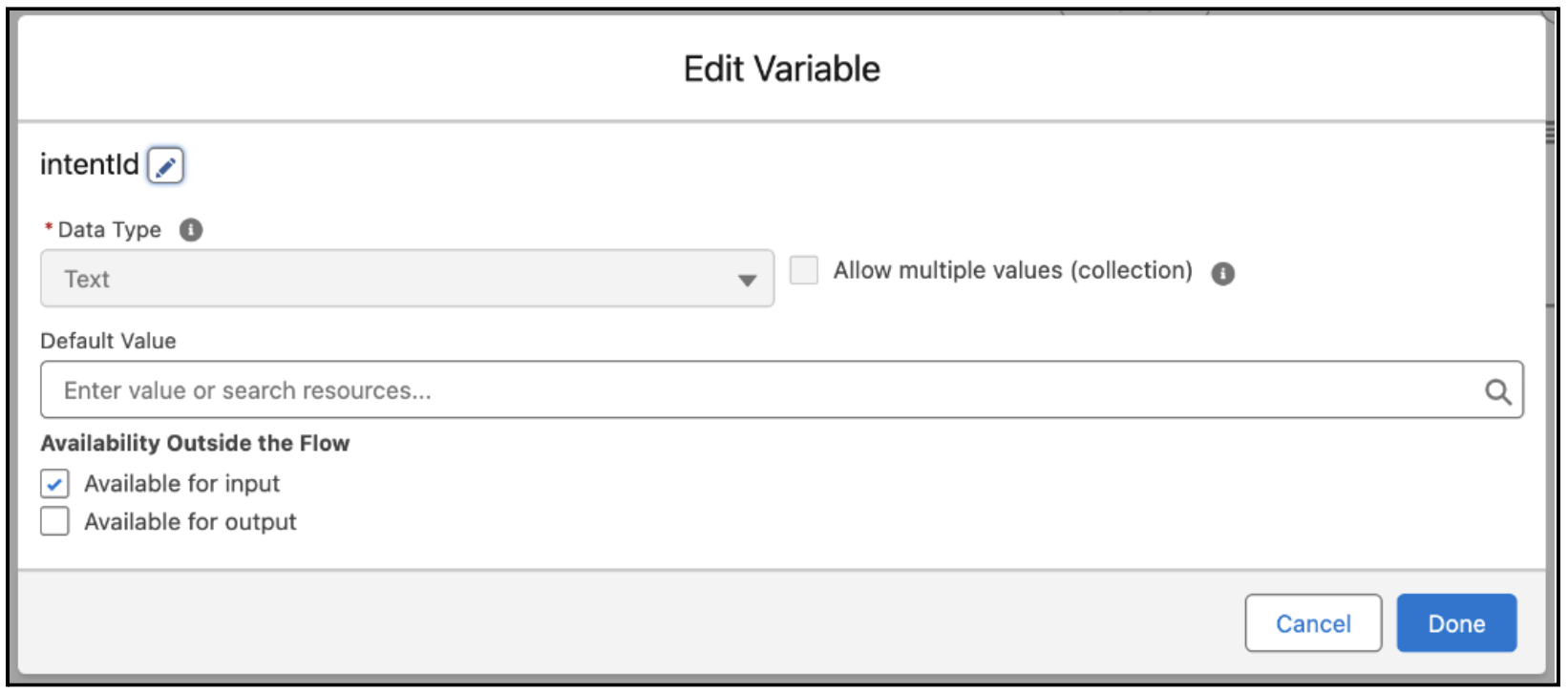
Add two flow input variables named intentId and groupId.
-
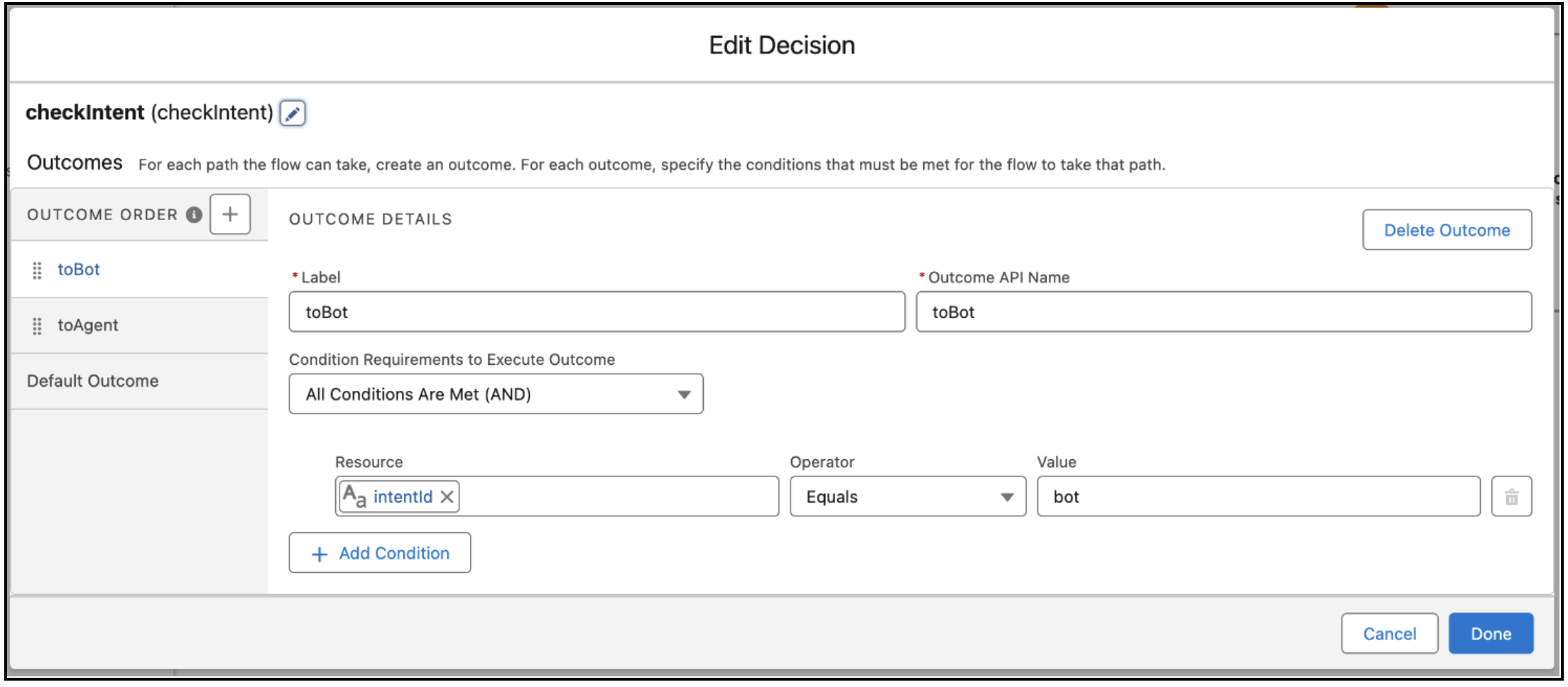
Add flow decisions that reference these variables. For example, this decision is based
on the intentId variable. The Default Outcome can handle scenarios where the intentId is
blank.
-
Add two flow input variables named intentId and groupId.
Step 3: Map the Variables to Your Channel
Map the Intent and Group parameters to your flow variables.
- On the Messaging Settings page, click the name of your Apple Messages for Business channel.
- In the Parameter Mappings section, click New.
- For Parameter, select Intent or Group, which are automatically available as standard parameters.
- For Flow Variable Name, enter the name of the flow variable you created: intentId or groupId.
- Save your changes.

When an Apple Messages for Business session is created in your channel in the future, it will be routed according to your flow’s logic.
