
You are here:
Ending or Inactivating Messaging Sessions Automatically
In certain circumstances, a messaging session’s status can automatically change to Inactive or Ended. Learn when and how these automatic updates occur.
Required Editions
| View supported editions. | |
 This article applies to:
|
Messaging for In-App, Messaging for Web channels, enhanced WhatsApp, enhanced Facebook Messenger, enhanced SMS, enhanced Apple Messages for Business, enhanced LINE, and Bring Your Own Channel |
 This article doesn’t apply to:
|
Standard WhatsApp, standard Facebook Messenger, and standard SMS channels |
Automatically Inactivating Sessions
In Enhanced Chat and Bring Your Own Channel, you can set a time limit for customer inactivity. If this limit is reached, the messaging session’s status changes to Inactive. This setting isn't available in other channels.
You can configure this limit in your channel settings, on the Messaging Settings page in Setup. In the Customer Inactivity section, select the checkbox and set a timeout limit between 5 and 30 minutes.

Customer Inactivity doesn’t work if you have Status-Based Capacity enabled.
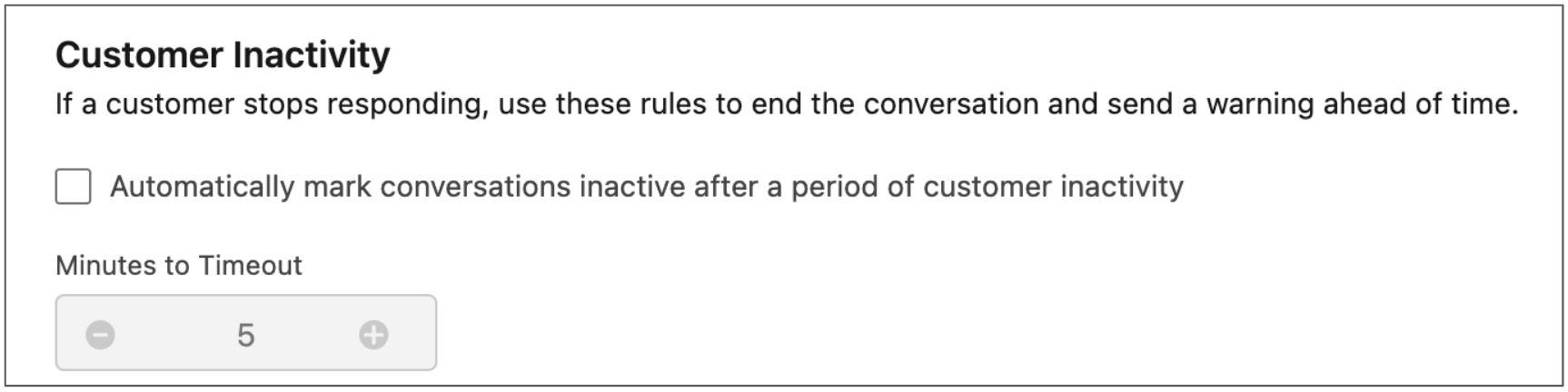
This time begins counting down after the service rep's first response to the customer’s last message. Here’s an example where the timeout limit is 5 minutes:
Customer: “I think so, let me check.”
Service rep: “Hello, were you able to find the ID?” (Timer starts)
Service rep: “Hello? Is it me you’re looking for?”
If the customer doesn’t respond, the session status updates to Inactive 5 minutes after they sent “Hello, were you able to find the ID?”
If the service rep needs to send another message after the session is inactive, they can start a new session if it's supported in the channel. If the customer sends a message after a session is inactive, the messaging session status switches to Waiting and the session is routed to your support team.
Automatically Ending Inactive Sessions
In enhanced Messaging channels, Enhanced Chat, and Bring Your Own Channel, if a service rep or automation changes a messaging session’s status to Inactive, the session ends 24 to 30 hours later.
Automatically Ending New Sessions
If a service rep initiates a messaging session and the customer doesn't respond for a certain amount of time, the session status changes to Ended. The status change occurs:
- 24 hours after the service rep's message in standard channels.
- 48 to 54 hours after the service rep's message in enhanced channels, Messaging for In-App and Bring Your Own Channel. Enhanced Web Chat doesn't support business-initiated messaging.
When you use the Send Conversation Messages flow action to send automated notification messages to customers, the session is ended immediately after the message is sent by default. However, you can set the Session Longevity field in the flow action to keep the session open for 48 hours to allow the customer time to respond.
