
You are here:
Create and Assign a Broadcaster Permission Set for SMS
Give broadcasters permission to send one-to-many messages in a standard SMS messaging channel. Optionally, set them up with Messaging and Omni-Channel permissions to have one-to-one conversations with recipients.
Required Editions
| View supported editions. | |
 This article applies to:
|
Standard SMS channels |
 This article doesn’t apply to:
|
Enhanced In-App Chat, Enhanced Web Chat v1, Enhanced Web Chat v2, Enhanced WhatsApp, Standard and Enhanced Facebook Messenger, Enhanced SMS, Enhanced Apple Messages for Business, Enhanced LINE, and Bring Your Own Channel |
| User Permissions Needed | |
|---|---|
| To create permission sets: | Manage Profiles and Permission Sets |
| To assign permission sets: | Assign Permission Sets |

Important Standard SMS channels were retired on February 14, 2026. To avoid
service interruptions, upgrade your standard SMS channels to enhanced channels now. Enhanced
SMS offers many of the standard SMS
features you love plus session transfers and AI agent support. See Upgrading from Standard to Enhanced Messaging.
-
Create a permission set for broadcasters.
- From Setup, in the Quick Find box, enter Permission Sets, and then select Permission Sets.
- Click New.
- For Label, enter a name for the permission set. The API Name is automatically filled.
- Skip the section about user licenses. If you select a user license, App Permissions aren't available.
- Save your changes.
- In the details page, select Object Settings | Messaging Sessions.
- Click Edit, give view access to all, and then give the appropriate access for your users or roles.
- Click Save.
- Go back to the Object Settings page and select Messaging Users.
- Click Edit, give view access to all, and then give the appropriate access for your users or roles.
- Click Save.
- Go back to the Permission Set Overview page and select App Permissions.
- Click Edit, then enable Agent Initiated Outbound Messaging, Messaging Agent, and Send One-to-Many Messages.
- Click Save.
-
Assign the permission set you created.
- From Setup, in the Quick Find box, enter Users, and select Users.
- Select the name of the user that you want to assign the permission set to.
- Under Permission Set Assignments, click Edit Assignments.
- Move the permission set that you created to the Enabled Permission Sets list.
-
Save your changes.
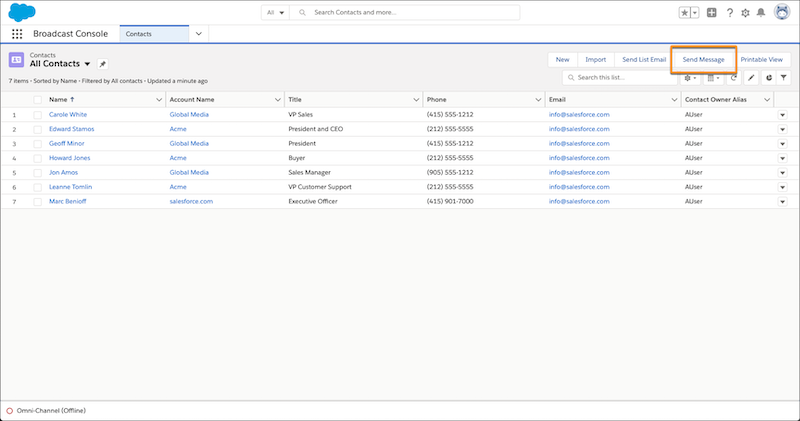
Users with the broadcaster permission set see the Send Message button in any contact, person account, employee, and messaging user list view.

Note Users with these permissions can send one-to-many SMS and one-to-one SMS, assuming that
Omni-Channel is enabled and your broadcasters are added to a messaging queue. If you want your
broadcasters to send one-to-one messages, in addition to these steps, you must set up Service
Presence Status Access and enable End Messaging Session.
Did this article solve your issue?
Let us know so we can improve!
