You are here:
Create and Send Enhanced Links in Messaging Sessions
An enhanced link is a web page link that includes an image and custom link text. They're ideal for sharing frequently visited web pages, such as the home page of your website. Create enhanced link messaging components that service reps can send to customers in supported enhanced Messaging channels or Enhanced Chat.
Required Editions
| View supported editions. | |
 This article applies to:
|
Enhanced In-App Chat, Enhanced Web Chat v1, Enhanced Web Chat v2, Enhanced Facebook Messenger, Enhanced Apple Messages for Business, and Bring Your Own Channel |
 This article doesn’t apply to:
|
Enhanced WhatsApp, Standard Facebook Messenger, Standard and Enhanced SMS, and Enhanced LINE channels |
| User Permissions Needed | |
|---|---|
| To create messaging components: | Customize Application AND View Setup and Configuration OR System Administrator |
| To send and receive messages in Messaging: | Messaging Agent |

In Bring Your Own Channel and Bring Your Own Channel for CCaaS, if your Messaging or CCaaS partner supports Link Previews, reps paste a URL into the message field to send it as a rich link. You don’t need an enhanced link messaging component.
Step 1: Create an Enhanced Link
To get started, create your enhanced link on the Messaging Components page in Setup.
- From Setup, enter Messaging Components in the Quick Find box, and then select Messaging Components.
- Click New Component, and then click Next.
- Select Enhanced Link.
-
Enter your link text and URL, and then upload an image.
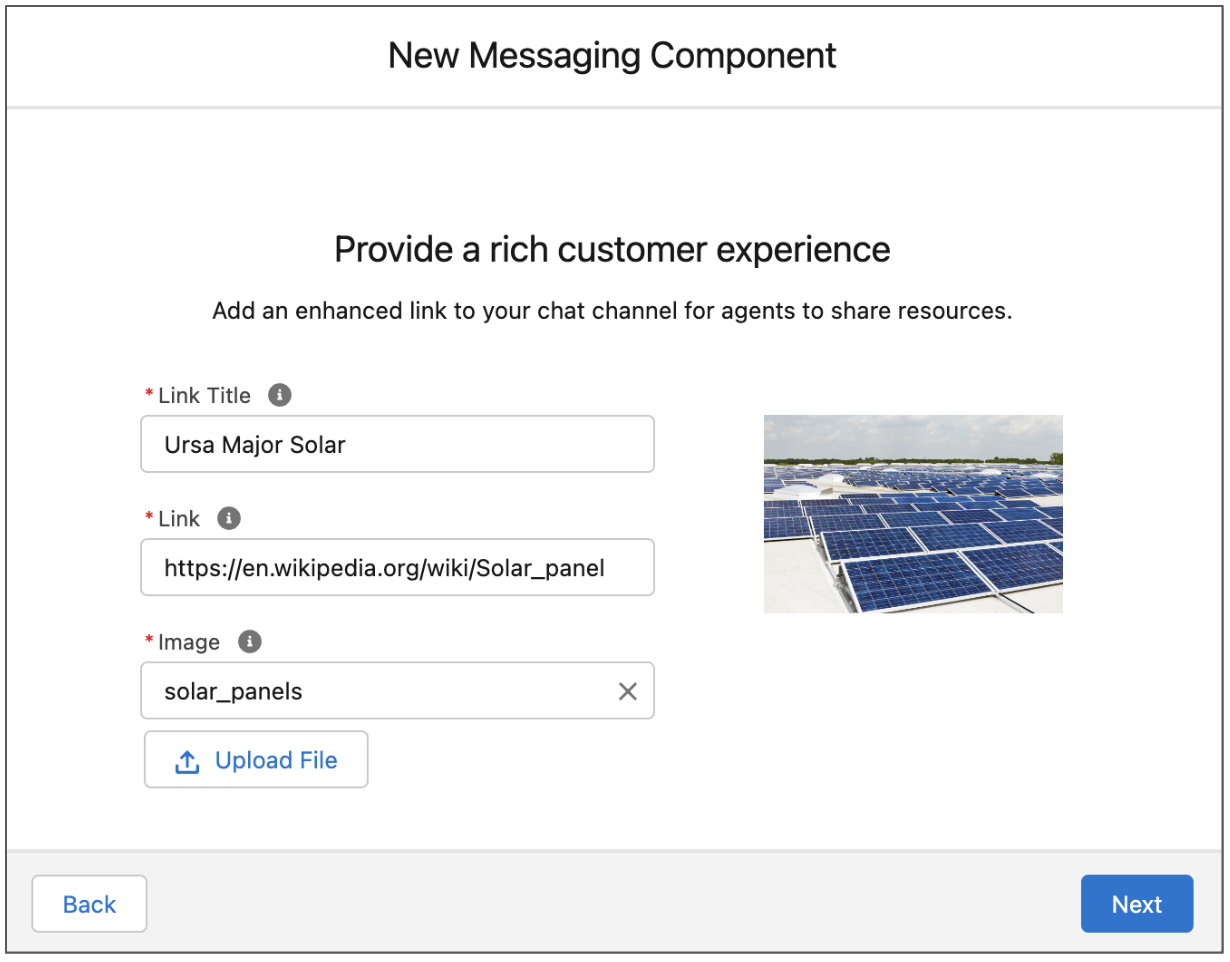
-
Enter a name and description for your enhanced link—for example, Company
Home Page or Services Website.
These values aren’t visible to customers, but service reps see the name in the list of messaging components in the Service Console. Assign a name that indicates the link’s destination and purpose so service reps know when to use it.
-
Click Done.
The Messaging Component Builder opens.
-
On the Component Details page, further customize your component.
-
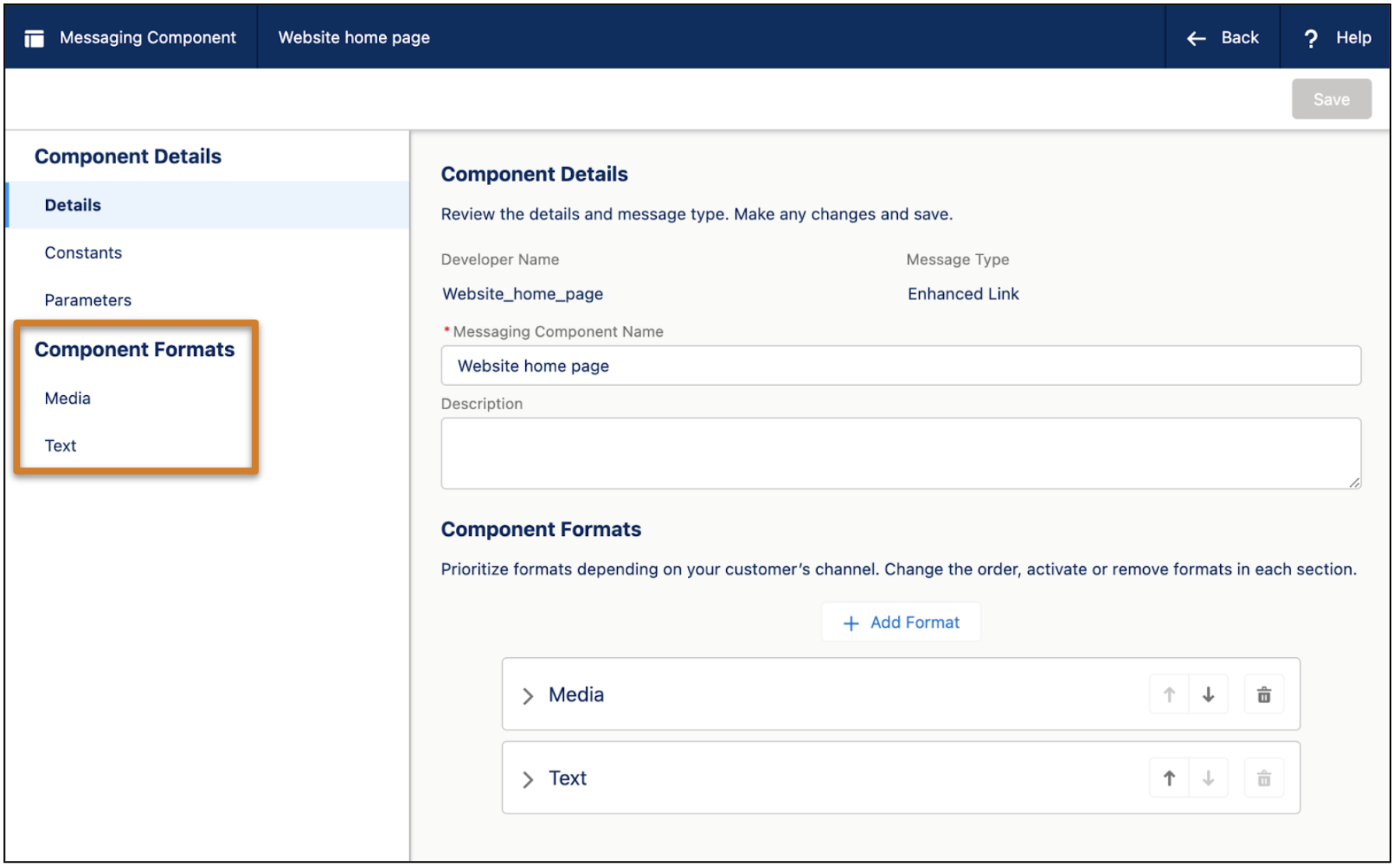
In the Component Formats section, control the way your link appears in each type of
Messaging channel. Click Add Format, select a format, and then
click Done.
Note Each messaging component is available in one or more formats, such as Media, and some formats work only in certain channels. For a list of formats that each channel supports, see Messaging Component Types and Formats. It’s a good idea to add at least one supported format for each channel where the component will be sent. If no formats are added, the component uses the default text format.
-
In the left-hand sidebar, click a format type to customize its properties.
-
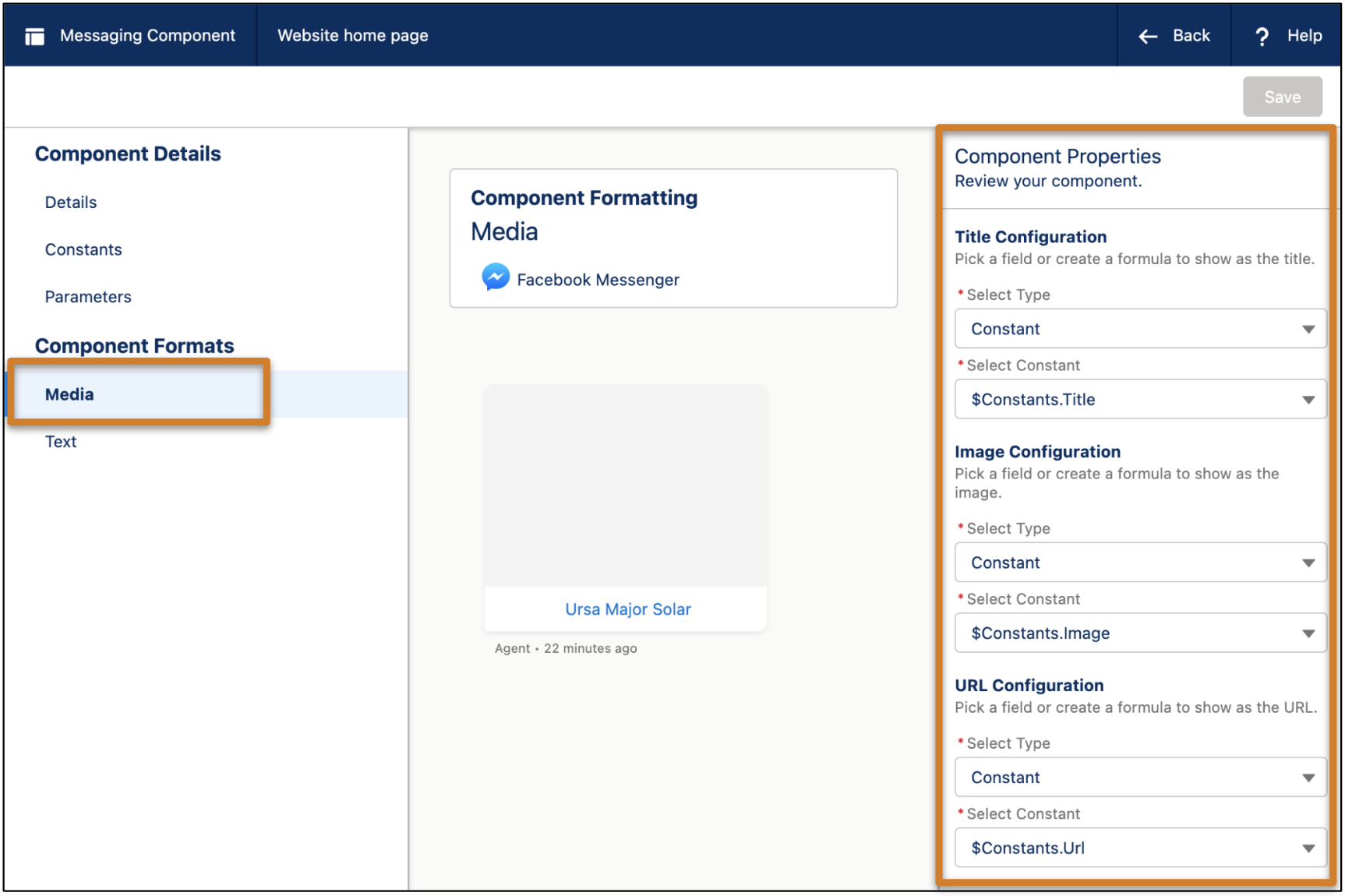
In the Component Properties pane, configure your title, image, and URL for each
format. To keep it simple, select Constant for each Type field
and select the only available constant, which comes from the information that you
entered a few steps ago. Then, click Save.
 You can configure an enhanced link component to use dynamic inputs—for example, to show different images or lead to different URLs depending on the nature of the messaging session. However, using constants is more straightforward. To view, edit, or create constants, click Constants in the left-hand sidebar.
 - Arrange the formats you selected in priority order. If a component can’t be shown in the highest-priority format, the next format is used.
-
In the Component Formats section, control the way your link appears in each type of
Messaging channel. Click Add Format, select a format, and then
click Done.
- When you’re done editing your component, click Save.
- Your component is saved in a draft state. When you're ready to make it available to your support team, click Activate at the top of the page.
If you ever need to take the component offline—for example, to give you time to reconfigure it—open it in the Messaging Component Builder and click Deactivate. When you're ready, activate it again.
Step 2: Send an Enhanced Link in a Messaging Session
You can send enhanced links to customers in enhanced Messaging channels and Messaging for In-App and Web.
-
During an active messaging session, click the messaging component action in the messaging
window.
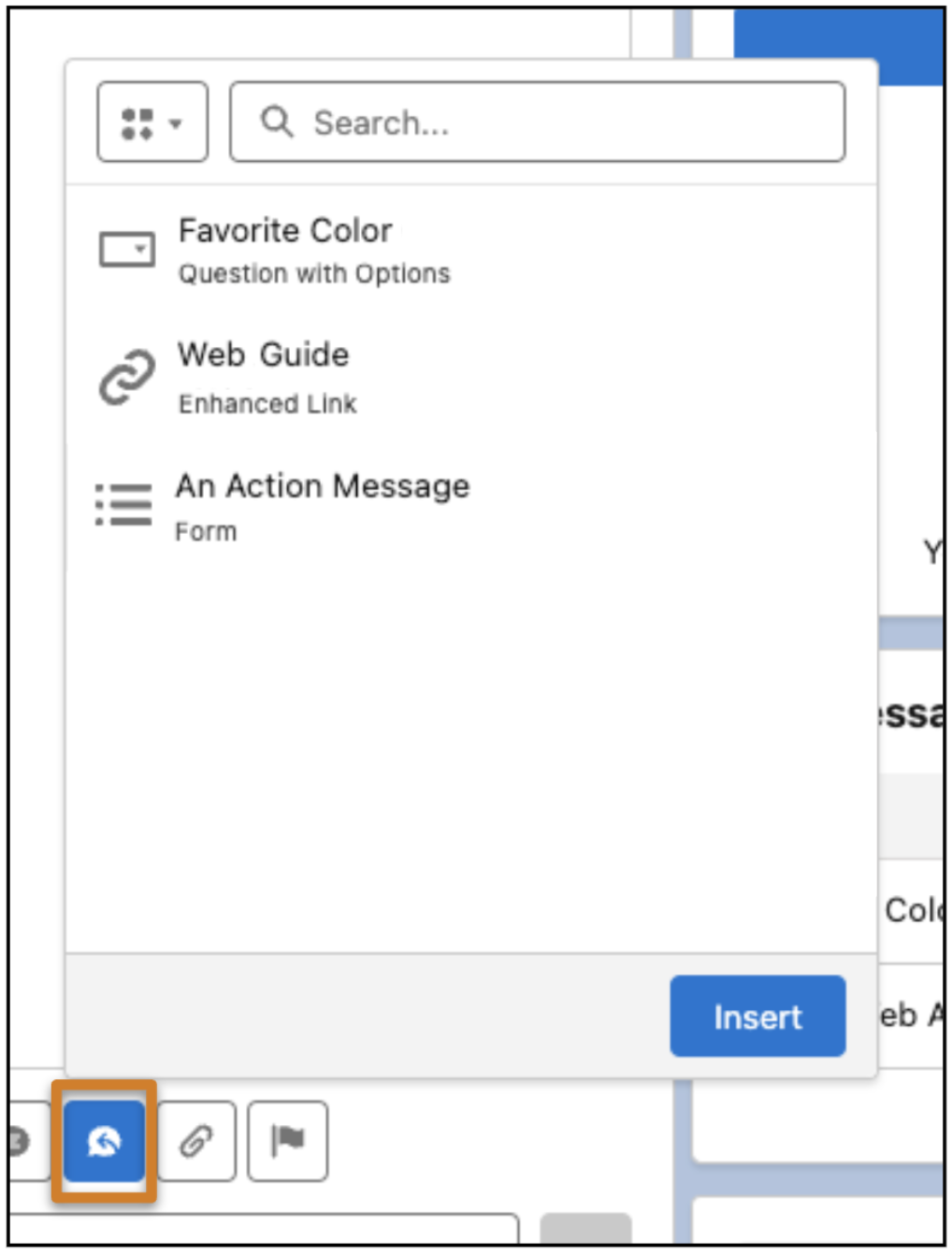
- Optionally, use the filter at the top to show only enhanced links.
-
Select the link you want to share and click Insert.
A placeholder appears below the message field. No preview of the component is available.
- Click Send.

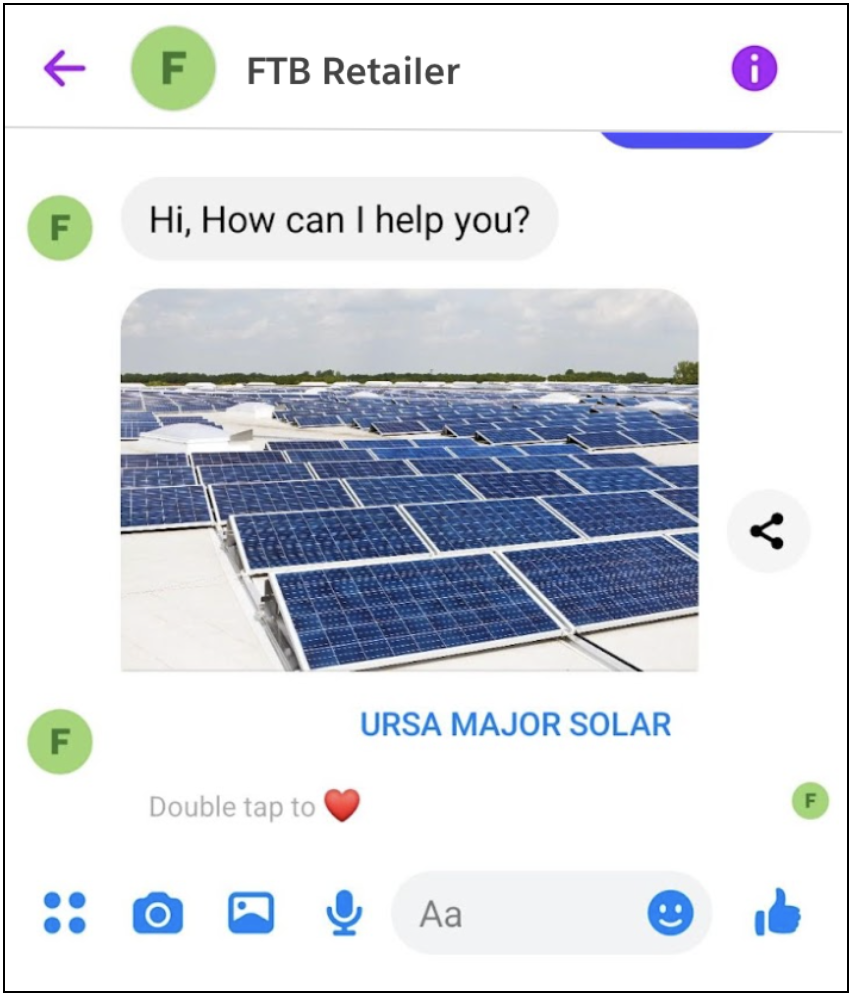
When a service rep sends an enhanced link component in an enhanced Facebook Messenger channel, the rep sees:
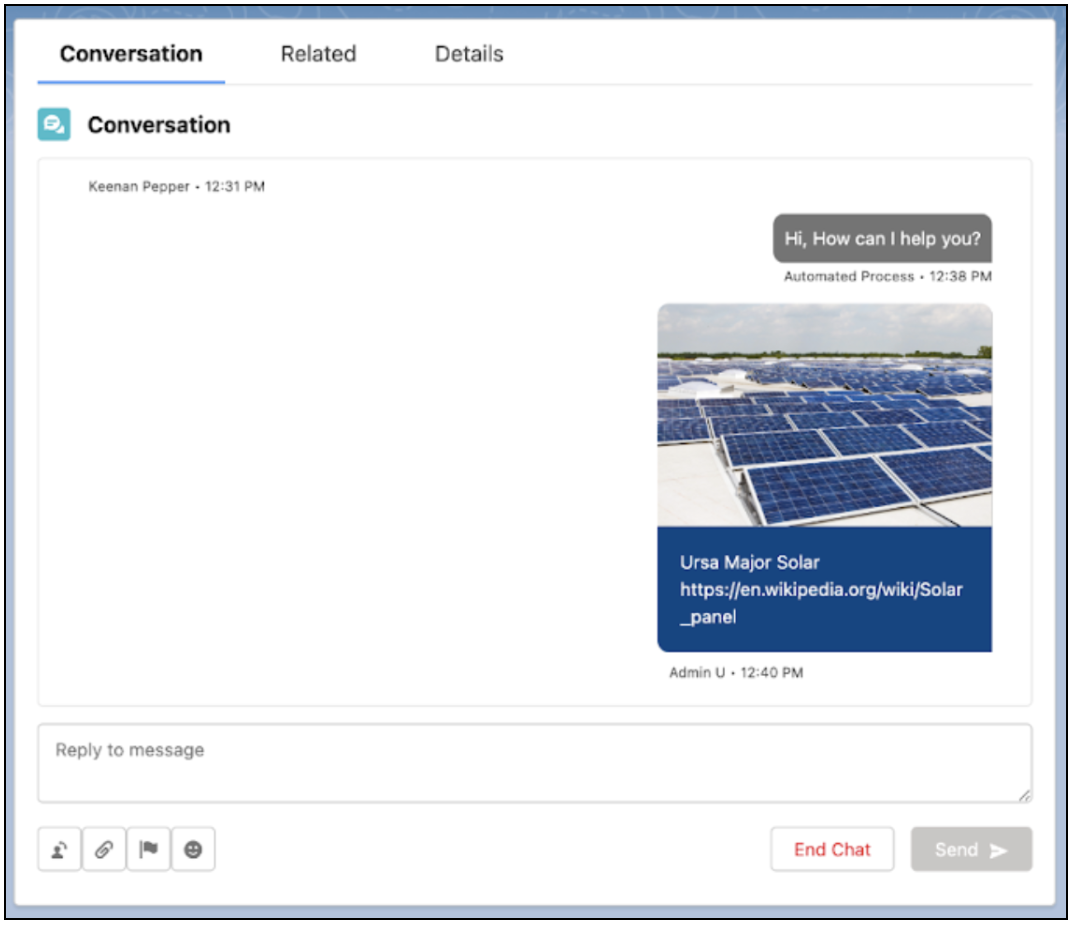
The customer sees: