Set Up a Flow to Send Time Selectors in Messaging Sessions
Let service reps send time selector components in supported enhanced Messaging channels
and Enhanced Chat. Create a screen flow, associate it with a messaging component
and an Apex class, and add it to the Service Console.
Enhanced In-App Chat, Enhanced Web Chat v1, Enhanced WhatsApp, Enhanced Facebook
Messenger, and Enhanced Apple Messages for Business, and Bring Your Own
Channel
This article doesn’t apply to:
Enhanced Web Chat v2, Standard Facebook Messenger, Standard and Enhanced SMS, and
Enhanced LINE
User Permissions Needed
To open, edit, or create a flow in Flow Builder:
Manage Flow
To create or edit a console app:
Customize Application
AND View Setup and Configuration
Note If you plan to create multiple messaging components that are linked to flows, here are
two ways to help service reps quickly find the flow they need in the Service Console:
Group the Flow components in an Accordion component. To help service reps understand
the purpose of the accordion component, enter a custom section label—for example,
Messaging Components (Dynamic).
Group all messaging component flows as sub-flows within one larger flow. When a
service rep runs the flow, they select the relevant sub-flow to insert the messaging
component they need.
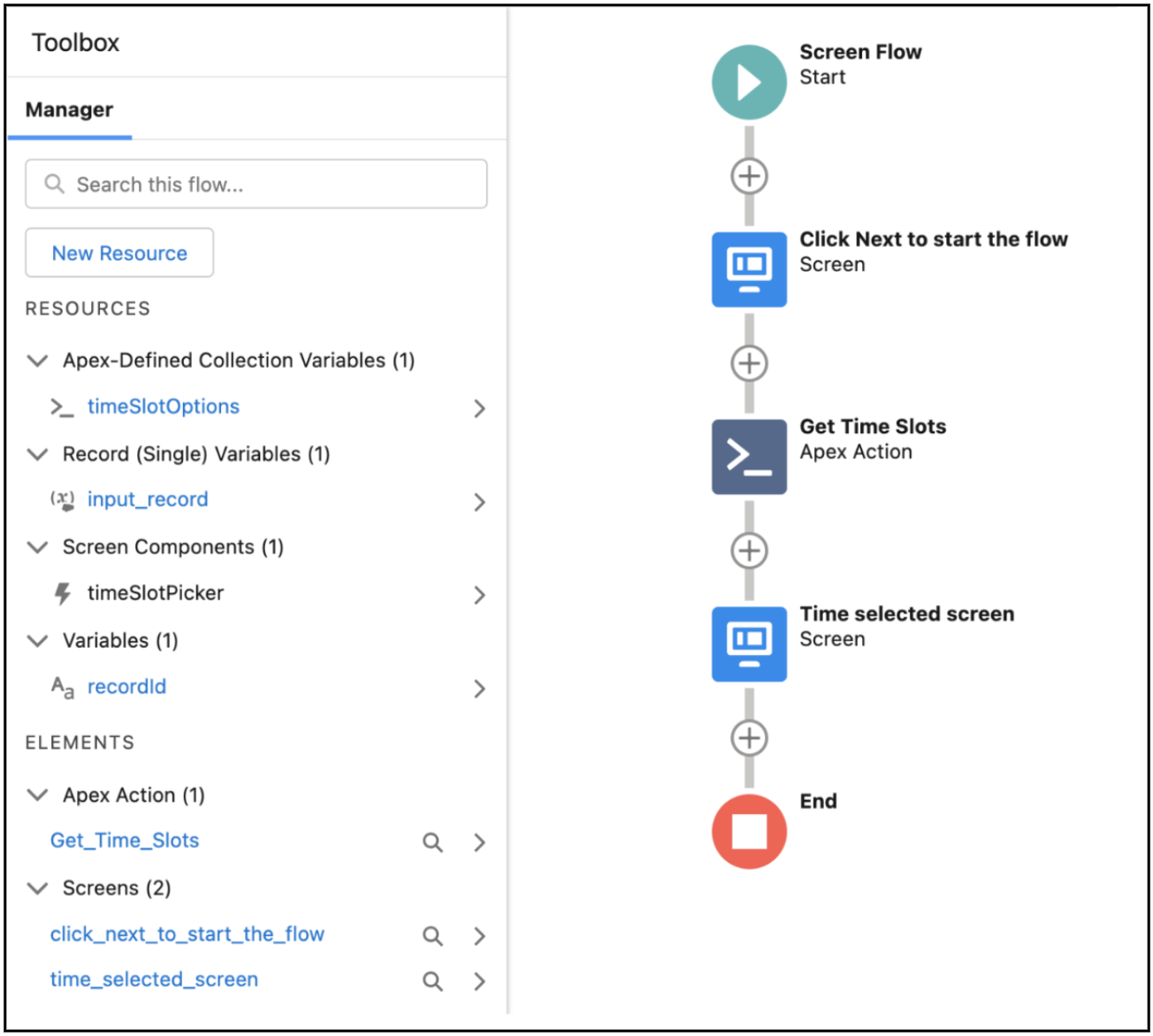
In Flow Builder, create a screen flow. See the example for guidance.
Send the time selector in enhanced Messaging channels or Enhanced Chat.
During an active messaging session, in the Service Console, find the Flow component
that’s linked to the time selector.
Run the flow to insert the component into the message field.
Click Send.
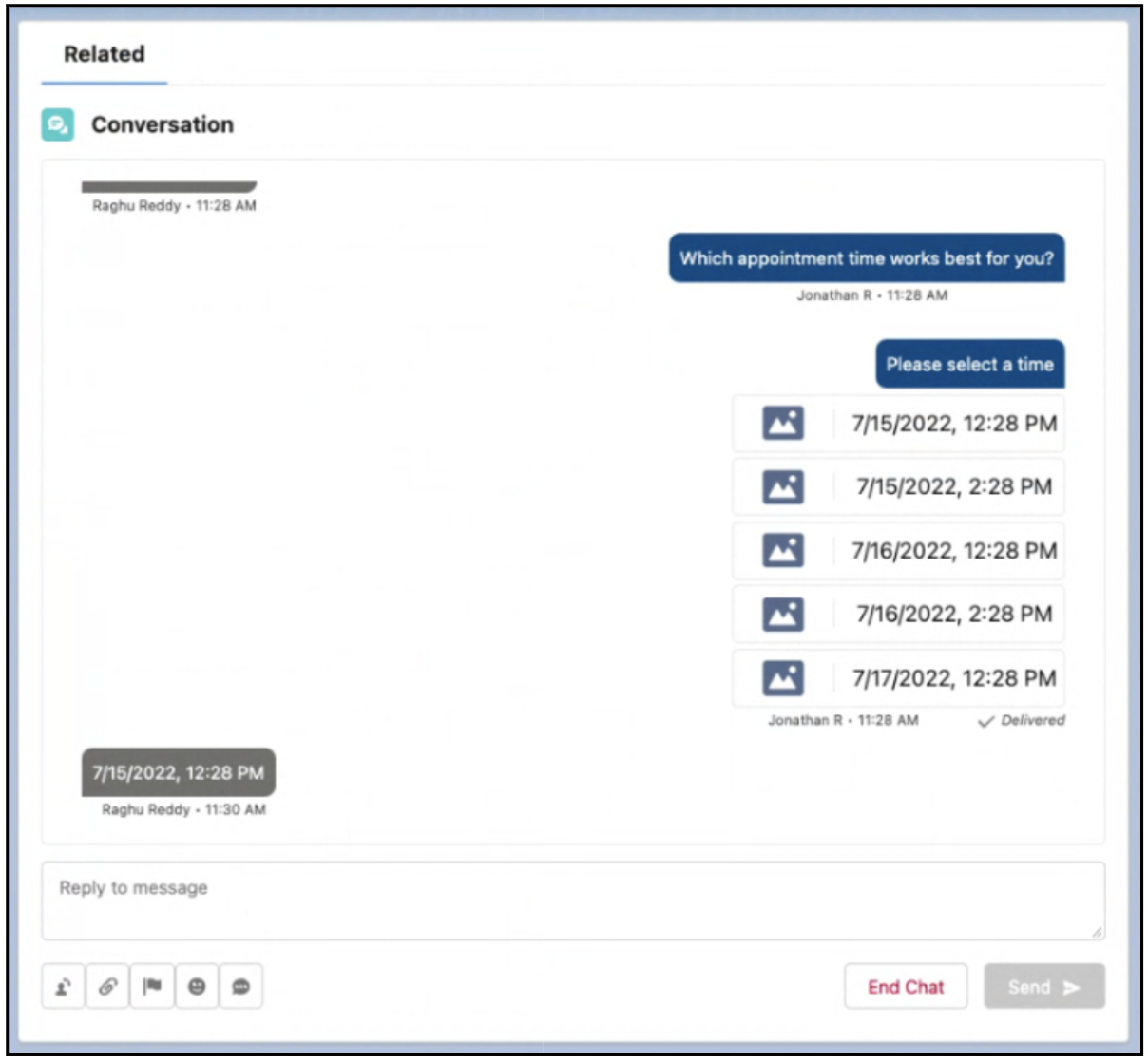
In this enhanced Facebook Messenger channel, the service rep sees:
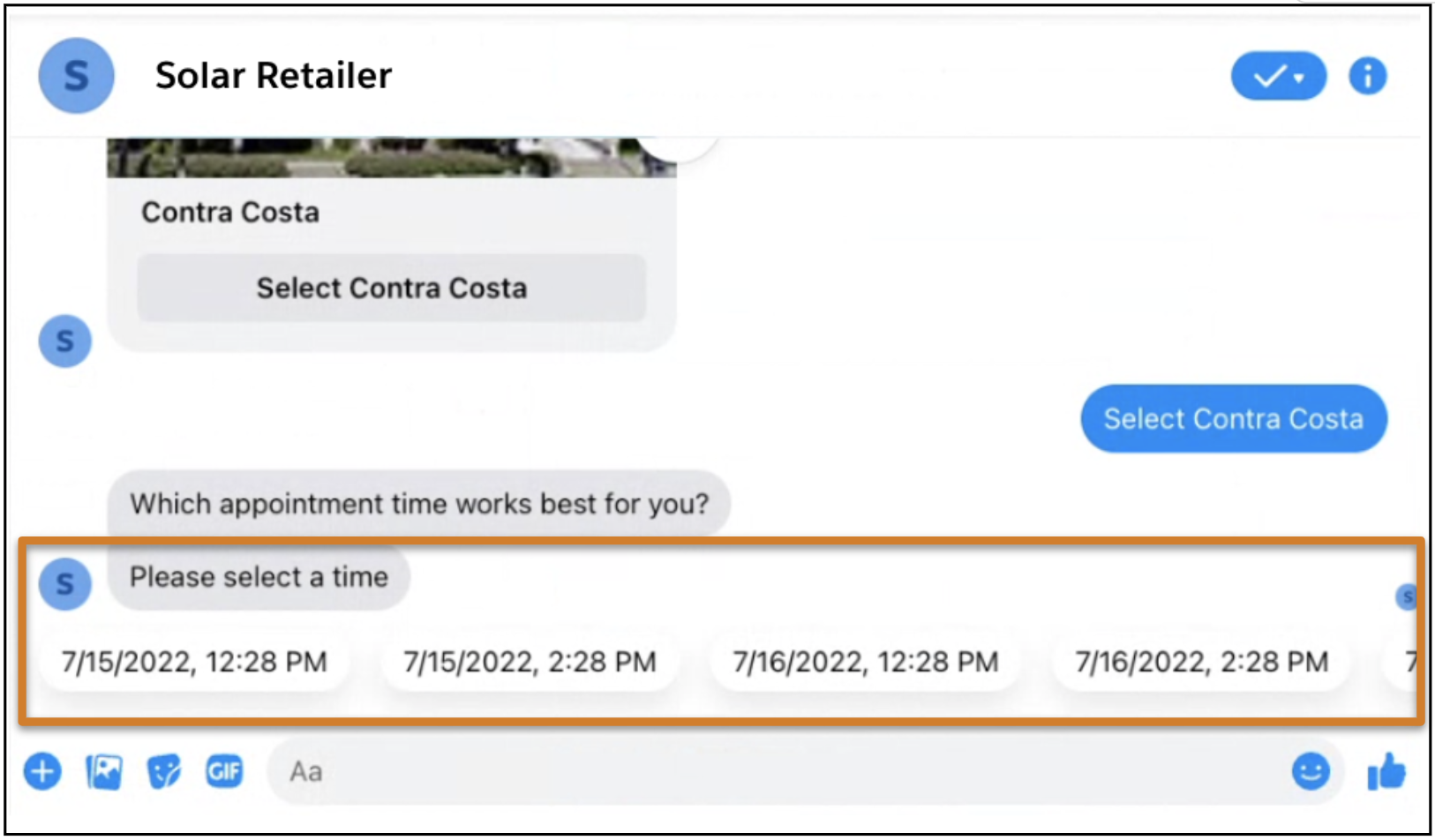
The customer sees:
Example This flow sends a time selector component and asks the customer to select a time slot for
an appointment. The component is linked to the flow on the screen labeled Time selected screen.
We use three kinds of cookies on our websites: required, functional, and advertising. You can choose whether functional and advertising cookies apply. Click on the different cookie categories to find out more about each category and to change the default settings.
Privacy Statement
Required Cookies
Always Active
Required cookies are necessary for basic website functionality. Some examples include: session cookies needed to transmit the website, authentication cookies, and security cookies.
Functional Cookies
Functional cookies enhance functions, performance, and services on the website. Some examples include: cookies used to analyze site traffic, cookies used for market research, and cookies used to display advertising that is not directed to a particular individual.
Advertising Cookies
Advertising cookies track activity across websites in order to understand a viewer’s interests, and direct them specific marketing. Some examples include: cookies used for remarketing, or interest-based advertising.