
You are here:
Interactive Messaging Components
Help service reps and customers exchange information faster in enhanced Messaging channels and Enhanced Chat. Share links, questions with predefined options, time slots, post-conversation surveys, and more.
Required Editions
| View supported editions. | |
 This article applies to:
|
Enhanced In-App Chat, Enhanced Web Chat v1, Enhanced Web Chat v2, Enhanced WhatsApp, Enhanced Facebook Messenger, Enhanced Apple Messages for Business, Enhanced LINE, and Bring Your Own Channel |
 This article doesn’t apply to:
|
Standard Facebook Messenger, and Standard and Enhanced SMS channels |
You can create several types of messaging components for service reps to send: questions with static (predefined) options (1), questions with dynamic options (2), auto-responses (3), payment requests (4), time selectors (5), enhanced links (6), authentication requests (7), custom components (8), forms (9), and notifications.
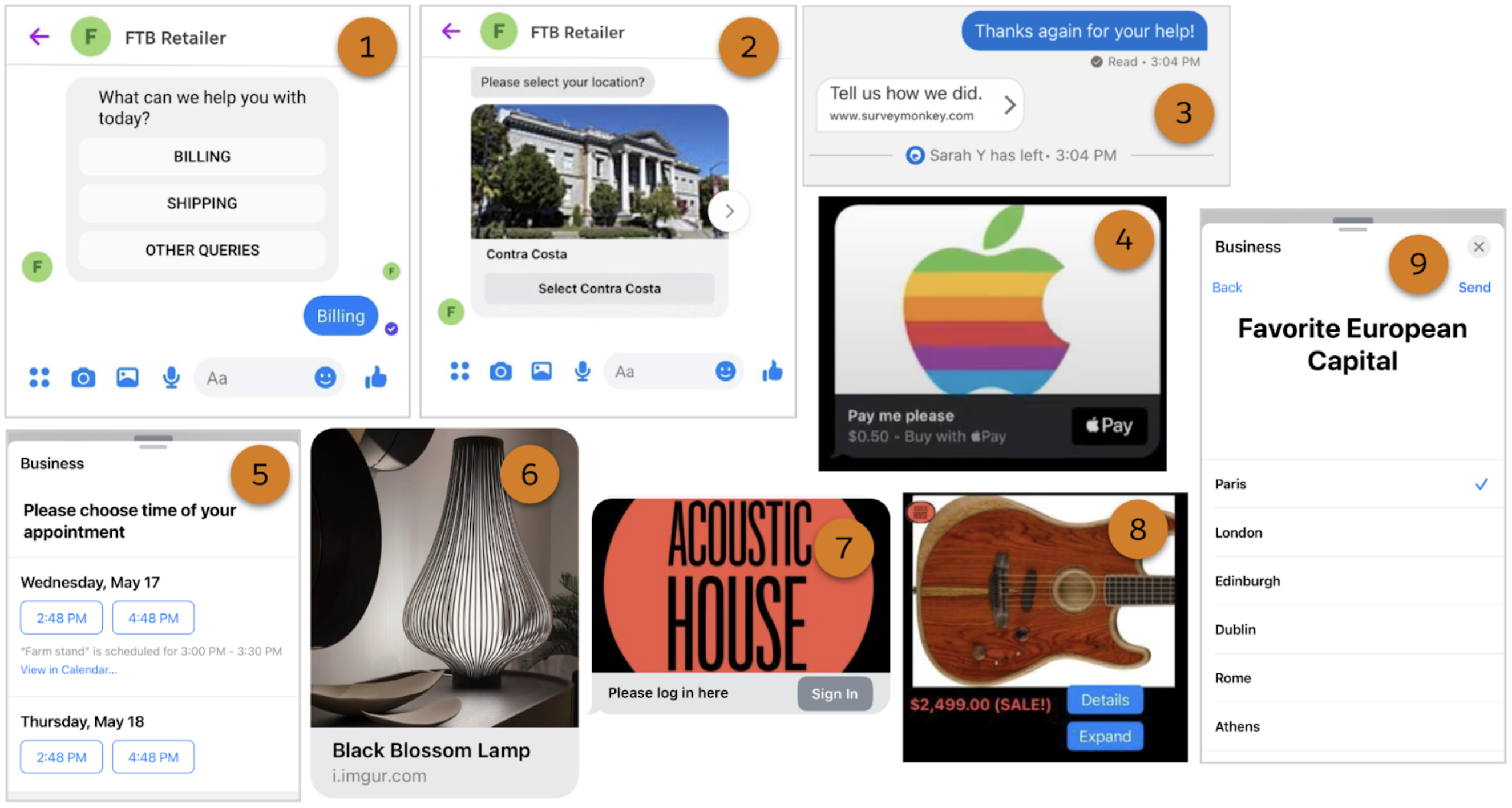
Here are some ways that messaging components can help you create a consistent, familiar, and fast service experience for customers.
| Rep's Goal | Solution | Rep Experience |
|---|---|---|
| Direct the customer to a web page that describes your newest service. | Create an enhanced link component with an appealing image and link to the page. | Use the messaging component action in the messaging window to select and send the component. |
| Find out what the customer needs help with. | Create a question with static options component that shows the customer a list of common contact reasons to choose from. | Use the messaging component action in the messaging window to select and send the component. |
| Determine which order the customer is inquiring about. | Create a question with dynamic options component that shows the customer a list of their recent orders to choose from. | Run a flow to send the component. |
| Find an open appointment time that works for the customer. | Create a time selector component that shows the customer a list of available time slots to choose from. | Run a flow to send the component. |
| At the end of a messaging session, automatically send a link to a customer satisfaction survey. | Create an auto-response component that includes a personalized survey link. | No service rep action needed. In the settings of an Enhanced Chat channel, admins select an auto-response component in the Conversation Acknowledgment, Start Conversation, Inactive Conversation, and End Conversation fields. The appropriate component is sent automatically when the customer sends an opening message, the service rep joins, the session is marked inactive, or the session ends. |
| Quickly gather information from customers by having them respond to a series of questions. | Create a form component that generates a record, such as a contact or work order, from a customer’s responses. | Use the messaging component action in the messaging window to select and send the component. |
| Request payments using Apple Pay. | Create an Apple payment component that sends customers a payment request. | Run a flow to send the component. |
| Verify a customer’s identity using a third-party authentication provider such as Google. | Create an authentication component that prompts customers to log into Google. | Use the messaging component action in the messaging window to select and send the component. |
| Share an external app in messaging sessions, such as your company mobile app. | Create a custom component that lets customers access your mobile app’s functionality, such as product browsing, from within the messaging session. | Use the messaging component action in the messaging window to select and send the component. |
| Send automated messages to notify customers about case updates, product shipments, or something else. | Create a notification component that a flow sends to customers when certain criteria are met. | No service rep action needed. Admins create a flow that sends the component when specific criteria are met. |
Create and manage messaging components on the Messaging Components page in Setup.
- Messaging Component Types and Formats
With messaging components, you can send structured content such as questions with options in enhanced Messaging channels and Enhanced Chat. Learn the purpose, format, and setup process of each component type. - Get to Know the Messaging Component Builder
The Messaging Component Builder is your workshop where you can customize and preview all types of messaging components. Learn where and how to get things done in the Builder. - Considerations for Messaging Components
Before creating messaging components for service reps to send in messaging sessions, review important considerations. - Create and Send Enhanced Links in Messaging Sessions
An enhanced link is a web page link that includes an image and custom link text. They're ideal for sharing frequently visited web pages, such as the home page of your website. Create enhanced link messaging components that service reps can send to customers in supported enhanced Messaging channels or Enhanced Chat. - Create and Send Questions with Static Options in Messaging Sessions
Create questions with static options to standardize the way that service reps gather information from customers. For example, create a question that asks customers to select the reason for their inquiry. Reps can send the question component to customers in supported enhanced Messaging channels and Enhanced Chat. - Create and Send Questions with Dynamic Options in Messaging Sessions
To quickly locate the record that a customer is inquiring about, let service reps send customers a question with a dynamic list of records to choose from. For example, ask customers to choose from a list of their recent orders or cases. Create your question and options in Setup, and then add a flow that service reps run to send the question to customers in a messaging session. - Create and Send Time Selectors in Messaging Sessions
Prompt customers to select from a list of time slots during messaging sessions. For example, ask customers to select a time for a service visit or delivery. Create a time selector messaging component, and then link it to a flow and an Apex class. Service reps run the flow to send the time selector to a customer, and the Apex class provides the list of time slots. - Create and Send Auto-Response Components in Messaging Sessions
Create a text or link response that’s sent automatically when a customer initiates a messaging session, a service rep joins, a customer stops responding, or a session ends. Auto-response messaging components are supported only in Enhanced Chat and Bring Your Own Channel. - Create and Send Secure Forms in Messaging Sessions
To let service reps send secure forms to customers in supported messaging channels, create a form messaging component. Forms let you quickly gather sensitive information from customers, such as network passwords or credit card information. - Create and Send Authentication Requests in Messaging Sessions
Let service reps verify a customer’s identity during an enhanced Apple Messages for Business messaging session. Using an authentication messaging component and an Apex class, prompt the customer to log into an authentication provider such as Google. - Create and Send Payment Requests in Messaging Sessions
Request payments from customers during messaging sessions with a payment messaging component. Service reps can send the component to prompt the customer to make a payment with Apple Pay. - Share External Apps in Messaging Sessions
Create a custom messaging component so service reps can embed an external mobile app in enhanced Apple Messages for Business messaging sessions. Customers can then access the app’s capabilities, such as search functionality, within their Apple Messages chat. - Add Custom Messaging Components to a Third-Party Messaging Channel
Customize the out-of-the-box Messaging surface so that an AI agent can render custom messaging components—such as forms—in legacy chat and third-party messaging channels, alongside the out-of-the-box response formats. - Add Dynamic Content to Messaging Components
When you create messaging components for service reps to use in enhanced Messaging channels or Enhanced Chat, you can use formulas to add dynamic, session-specific content to the component. - Translate Messaging Components into Your Customer’s Language
Show messaging components in a customer’s preferred language with the help of Translation Workbench. For example, when you send a French-speaking customer a question with three options, show the question and options translated into French. - Add Images to Messaging Components with Constants, Parameters, and Formulas
Many types of messaging components can include images, such as enhanced links, forms, and questions with options. Images in messaging components give your customers helpful visual cues, reinforce company branding, and add some color—literally and figuratively—to everyday service interactions. Learn how to control which images are shown in a messaging component that a service rep or bot sends to a customer.
