
You are here:
Set Up a Flow to Send Payment Requests in Messaging Sessions
Create Apex classes and a screen flow that service reps can run to send payment messaging components to customers in messaging sessions. The flow executes the Apex classes and passes the transaction details into the payment messaging component.
Required Editions
| View supported editions. | |
 This article applies to:
|
Enhanced Apple Messages for Business channels |
 This article doesn’t apply to:
|
Enhanced In-App Chat, Enhanced Web Chat v1, Enhanced Web Chat v2, Enhanced WhatsApp, Standard and Enhanced Facebook Messenger, Standard and Enhanced SMS, Enhanced LINE, and Bring Your Own Channel |
| User Permissions Needed | |
|---|---|
| To open, edit, or create a flow in Flow Builder: | Manage Flow |
| To create or edit a console app: | Customize Application AND View Setup and Configuration |
- Go to the Apex Classes page in Setup.
- Create a series of Apex classes that determine the content of payment requests using your own product information. For reference documentation, see RichMessaging Namespace.
- In Flow Builder, create a screen flow that service reps can run to send a payment messaging component to customers in messaging sessions.
- Add the flow to the Messaging Session page layout so service reps can run it during messaging sessions. See Add Messaging to the Service Console.
-
Send the component in enhanced Apple Messages for Business channels.
- During an active messaging session, in the Service Console, find the Flow component that’s linked to the question with options.
-
Run the flow that’s linked to your payment component. The admin configures the flow’s
steps, start button label, and location, so it may look different from our example.

-
Insert the message and finish the flow.
A placeholder appears below the message field. No preview of the component is available.
-
Click Send in the message field. The component is sent to the
customer and appears in the conversation transcript.
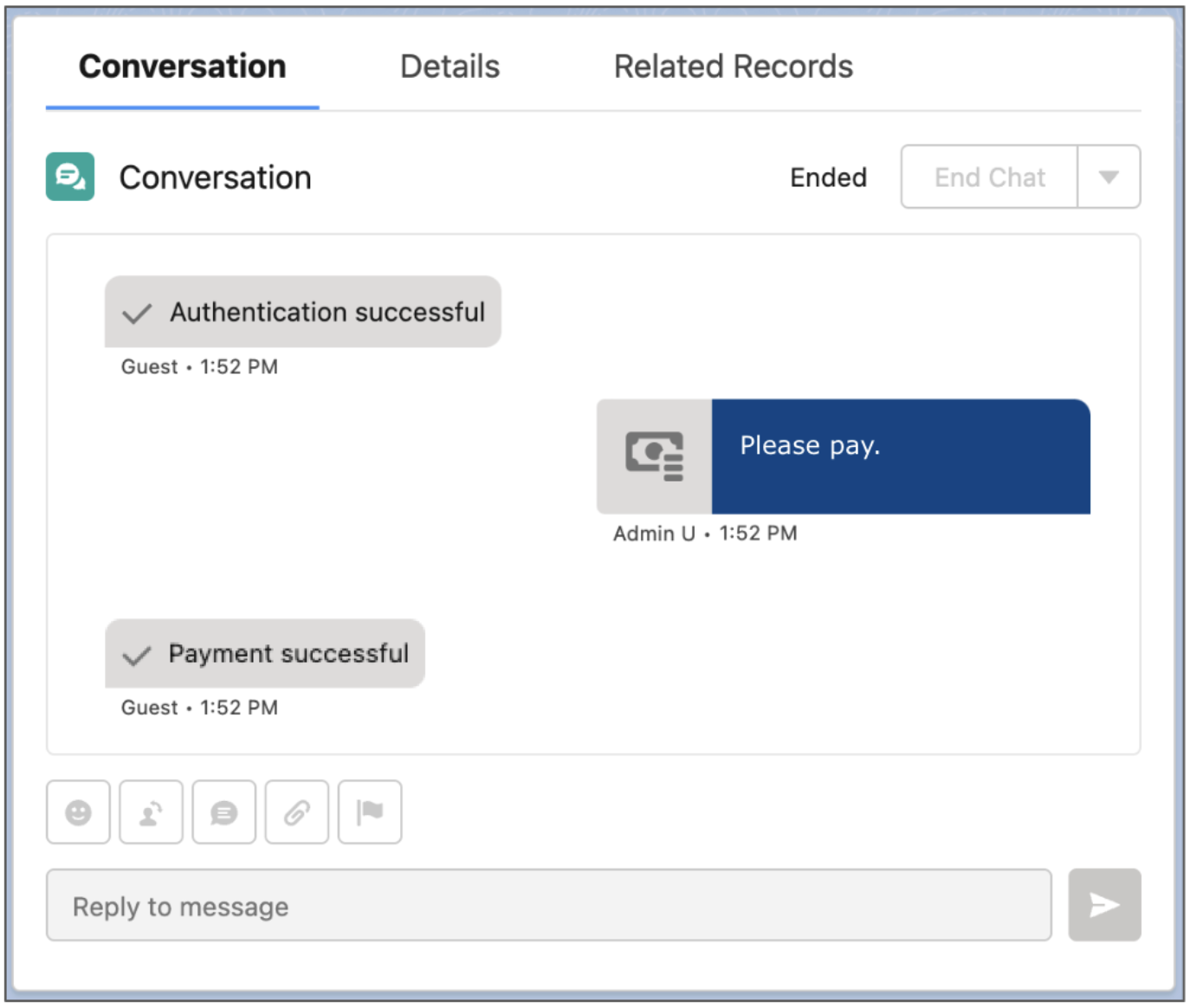
- If a message indicates that the payment was not successful, service reps can try again by resending the payment component. Payment requests expire after 5 minutes.

Example
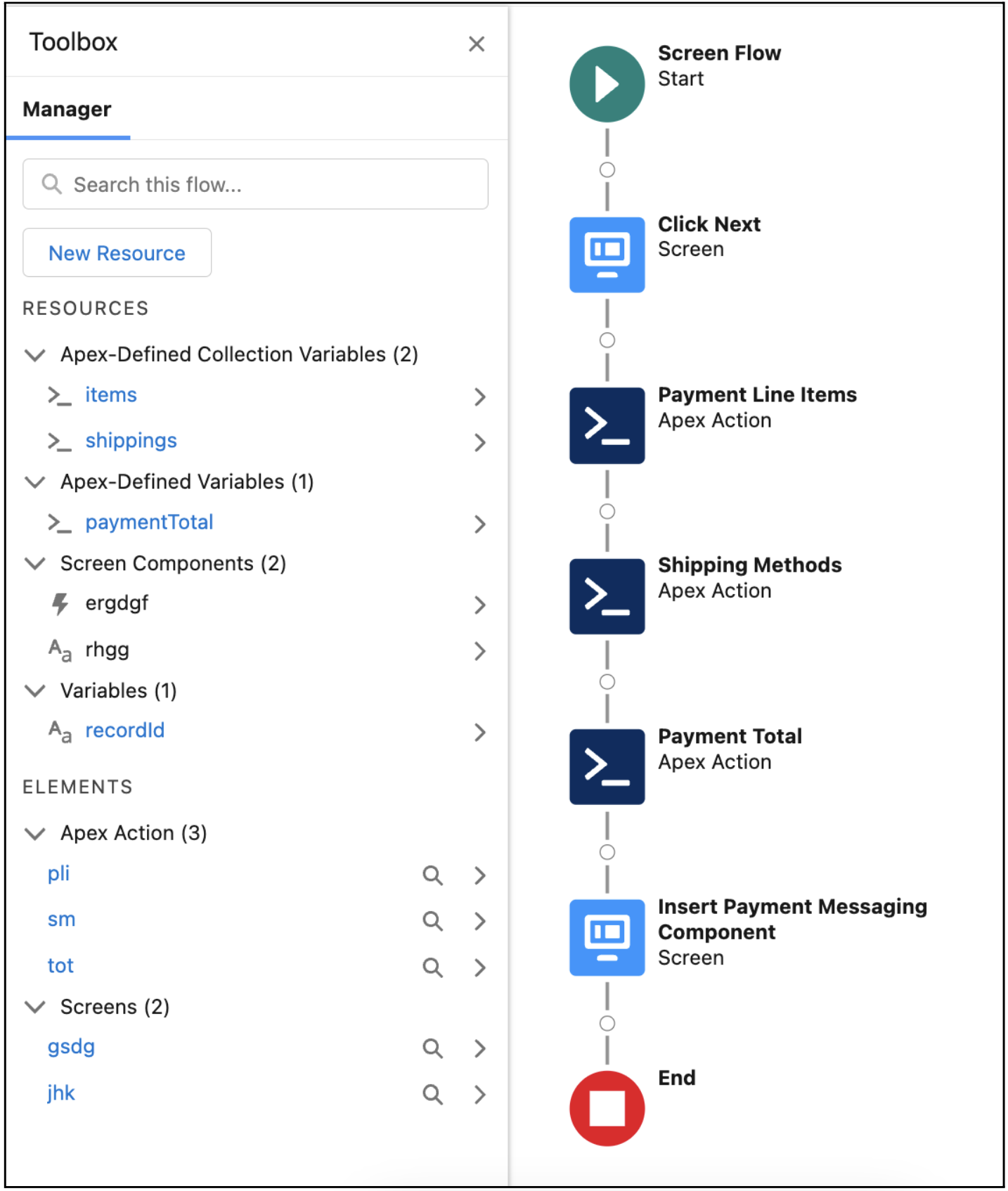
In this example flow, after a starting screen prompts the service rep to click Next, three Apex actions execute the payment line items, shipping methods, and payment totals Apex classes. A final screen inserts the payment messaging component into the message body to be sent by the rep.
Did this article solve your issue?
Let us know so we can improve!
