
You are here:
Set Up a Flow to Send Questions with Options in Messaging Sessions
To let service reps send a question with dynamic options in supported enhanced Messaging channels or Enhanced Chat, create a flow and associate it with your question component. Then, add the flow to the Service Console.
Required Editions
| View supported editions. | |
 This article applies to:
|
Enhanced In-App Chat, Enhanced Web Chat v1, Enhanced Web Chat v2, Enhanced WhatsApp, Enhanced Facebook Messenger, Enhanced Apple Messages for Business, Enhanced LINE, and Bring Your Own Channel |
 This article doesn’t apply to:
|
Standard Facebook Messenger, and Standard and Enhanced SMS channels |
| User Permissions Needed | |
|---|---|
| To open, edit, or create a flow in Flow Builder: | Manage Flow |
| To create or edit a console app: | Customize Application AND View Setup and Configuration |

Note If you plan to create multiple messaging components that are linked to flows, here are
two ways to help service reps quickly find the flow they need in the Service Console:
- Group the Flow components in an Accordion component. To help service reps understand the purpose of the accordion component, enter a custom section label—for example, Messaging Components (Dynamic).
- Group all messaging component flows as sub-flows within one larger flow. When a service rep runs the flow, they select the relevant sub-flow to insert the messaging component they need.
- In Flow Builder, create a screen flow.
- Create a Variable resource of data type Text, called recordId, and make it available for input. This resource stores the ID of the messaging session.
-
Add your own custom flow logic.
- To add a Record Collection Variable and show a collection of records, select Allow multiple values (collection). The flow must populate the variable with the same object type that the messaging component needs. For example, if your messaging component shows a list of cases, your flow should produce a variable that is a collection of Case records.
- Add a Get Records element and define conditions to get the records of interest. For example, if your messaging component shows a list of cases, create an element that gets cases with a high priority and a status of New.
-
Add a Screen flow component. Within that screen, add an Enhanced Message component.
- For Messaging Session ID, enter the recordId Variable that you created in step 2.
- Select the messaging component that you want to use.
- For Record Variable, enter the Record Collection Variable described in step 3.
- Save and activate the flow.
- Add the flow to the Service Console so service reps can send the component during messaging sessions. See Add Messaging to the Service Console.
-
Send the question with options in enhanced Messaging channels or Enhanced Chat.
- During an active messaging session, in the Service Console, find the Flow component that’s linked to the question with options.
- Run the flow to insert the component into the message field.
- Click Send.
In this enhanced Facebook Messenger channel, the service rep sees: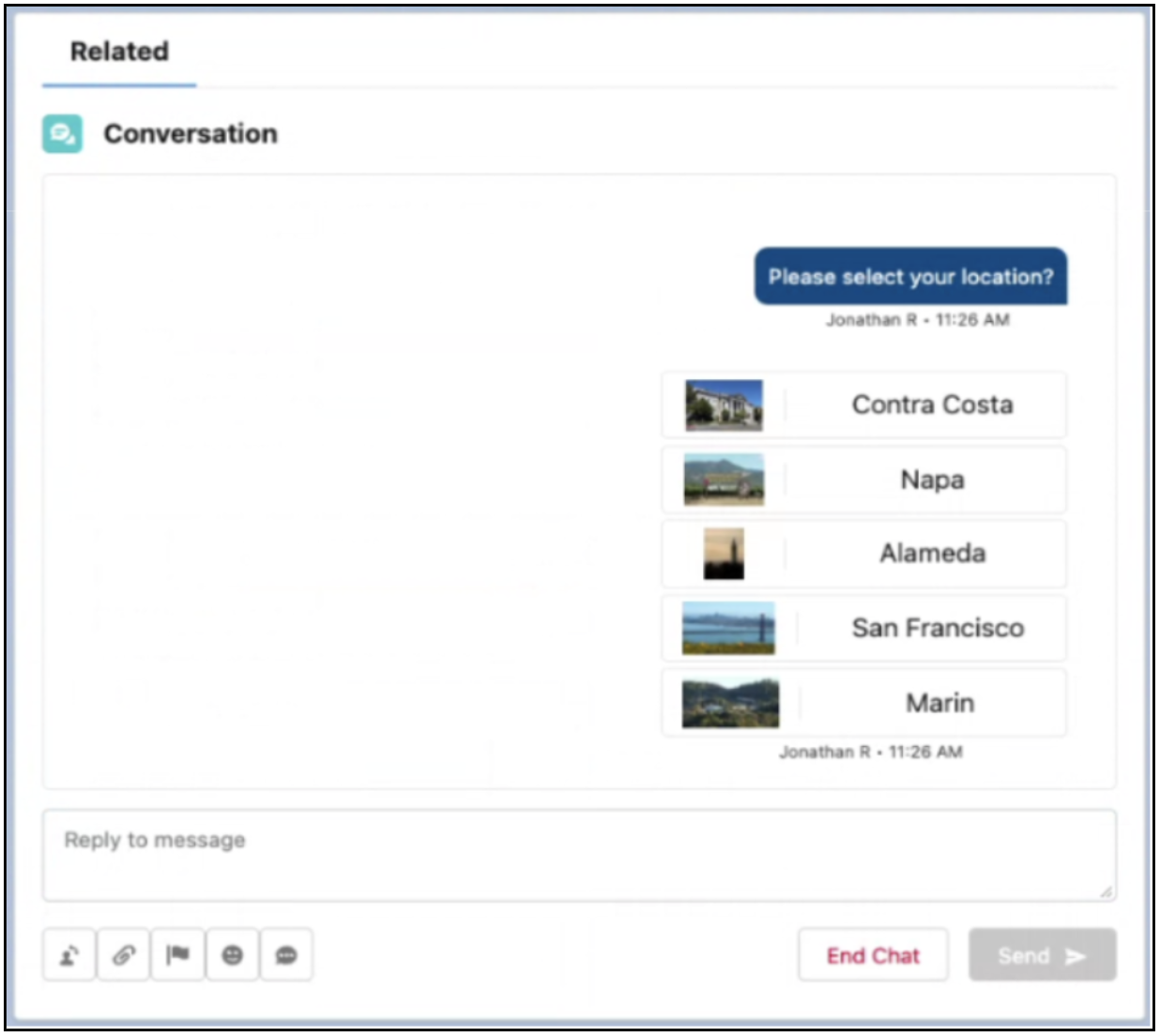
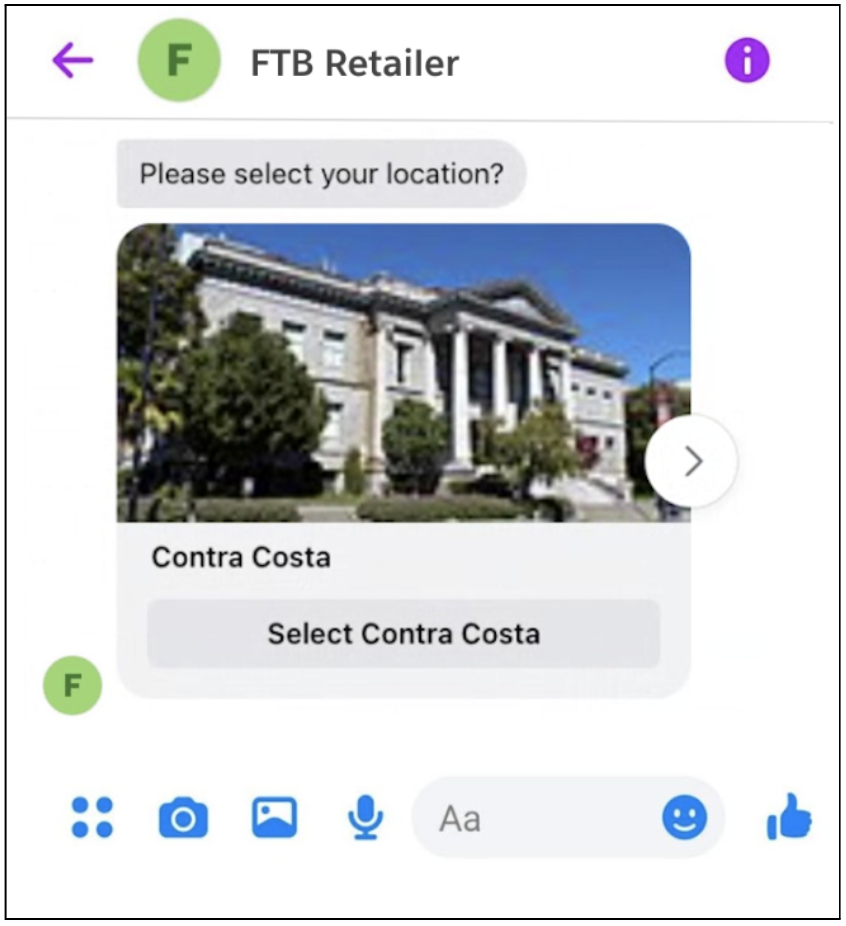
The customer sees:

Example
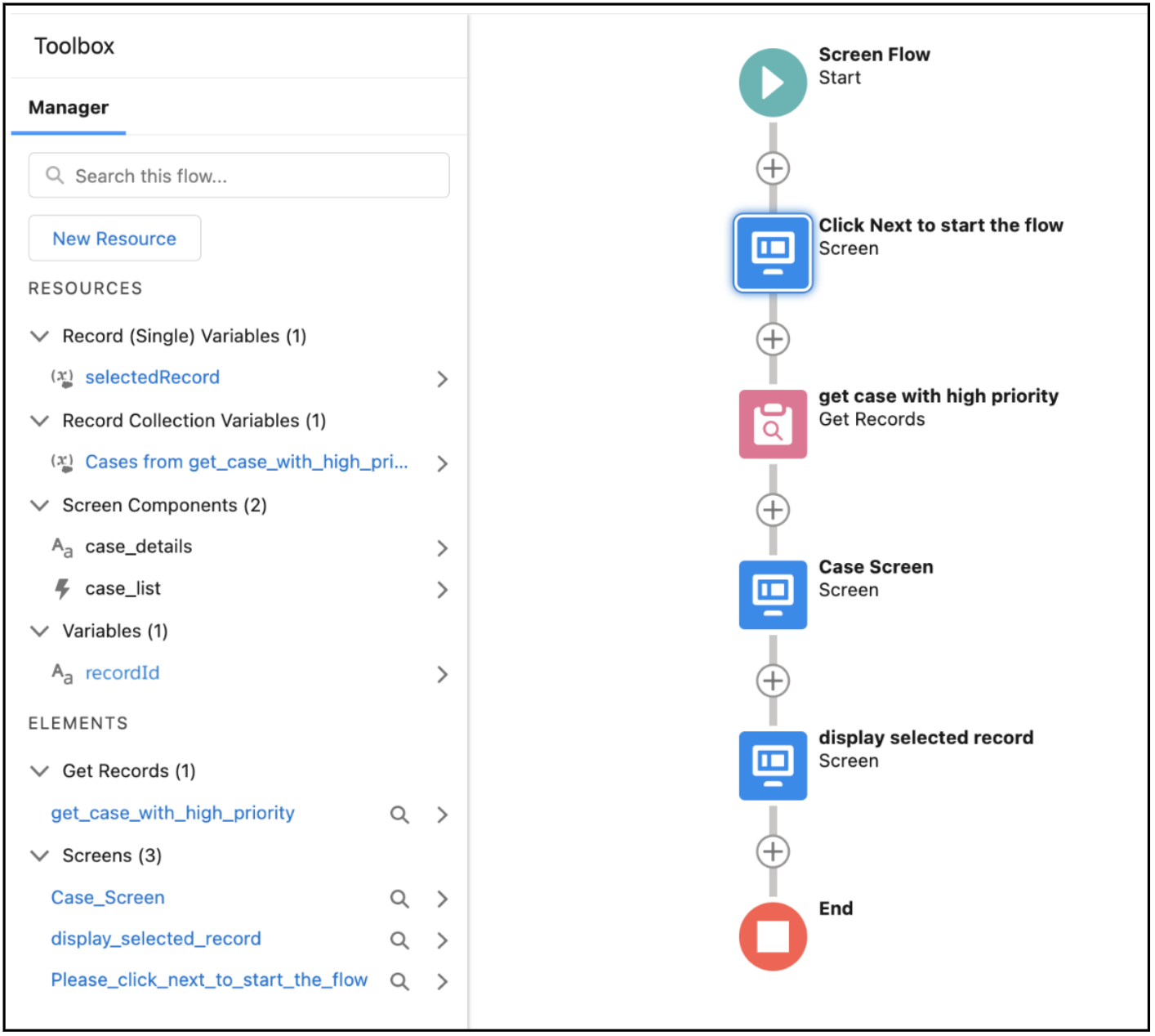
This flow sends a question with options component that prompts the customer to select the case that they’re inquiring about. The component is linked to the flow on the screen labeled Case Screen.
Did this article solve your issue?
Let us know so we can improve!
