If a customer is more comfortable with spoken instruction, honor their preference.
Record and send audio messages, also called voice messages or voice notes, up to 1 minute long
in supported Enhanced Messaging channels.
Enhanced WhatsApp, Enhanced Facebook Messenger, Enhanced SMS, and Enhanced Apple
Messages for Business channels
This article doesn’t apply to:
Enhanced In-App Chat, Enhanced Web Chat v1, Enhanced Web Chat v2, Enhanced LINE,
Standard Facebook Messenger, Standard SMS, and Bring Your Own Channel
User Permissions Needed
To send and receive messages in Enhanced Messaging channels:
Messaging Agent
Create Public Links
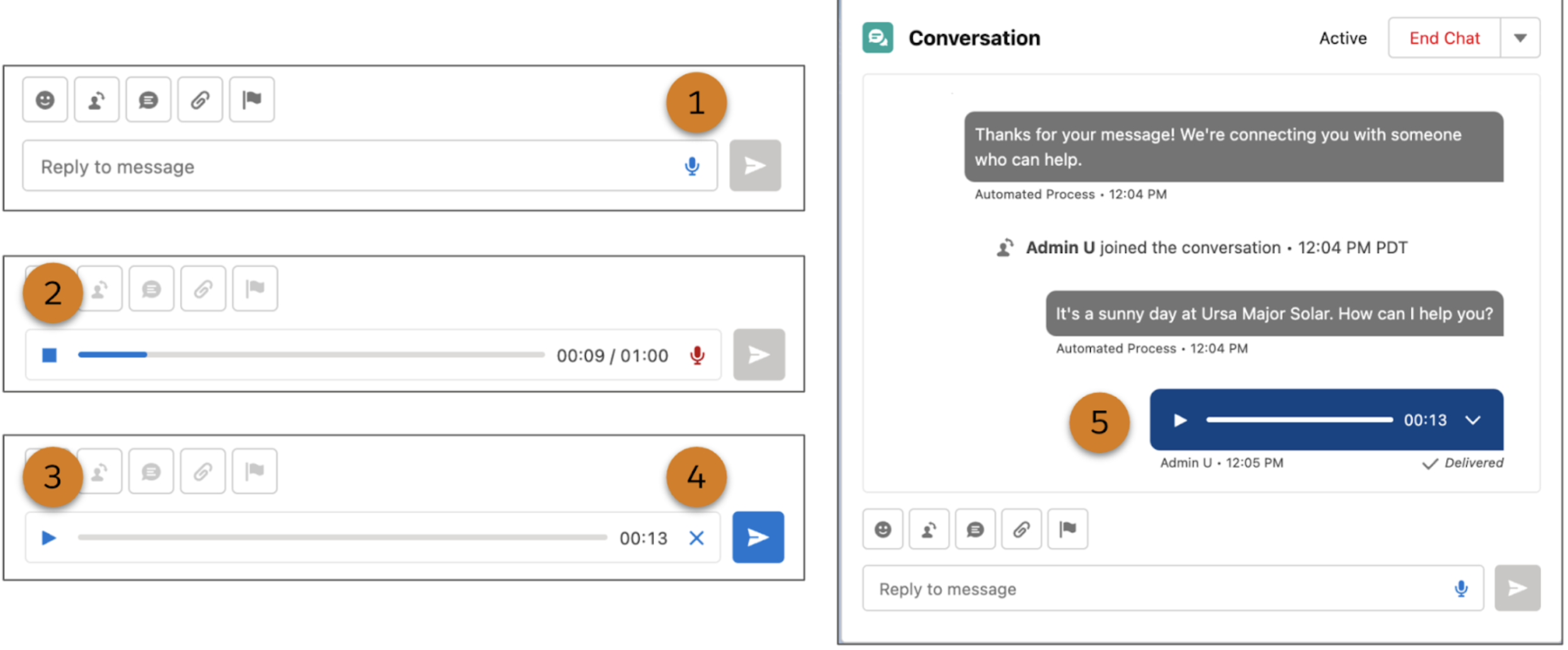
In an active messaging session, click the microphone icon in the message field (1).
If you’re prompted, give your web browser access to your microphone.
Speak your message for up to 1 minute.
Click the stop icon (2) when you’re done.
Optionally, play back your message (3) or delete it (4).
When you’re ready, send it to the customer (5).
After you send an audio message, the customer can access it for 30 days. Audio messages are
included in the conversation transcript just like any other message.
Did this article solve your issue?
Let us know so we can improve!
Loading
Salesforce Help | Article
Cookie Consent Manager
Cookie Consent Manager
General Information
Required Cookies
Functional Cookies
Advertising Cookies
General Information
We use three kinds of cookies on our websites: required, functional, and advertising. You can choose whether functional and advertising cookies apply. Click on the different cookie categories to find out more about each category and to change the default settings.
Privacy Statement
Required Cookies
Always Active
Required cookies are necessary for basic website functionality. Some examples include: session cookies needed to transmit the website, authentication cookies, and security cookies.
Functional Cookies
Functional cookies enhance functions, performance, and services on the website. Some examples include: cookies used to analyze site traffic, cookies used for market research, and cookies used to display advertising that is not directed to a particular individual.
Advertising Cookies
Advertising cookies track activity across websites in order to understand a viewer’s interests, and direct them specific marketing. Some examples include: cookies used for remarketing, or interest-based advertising.