
You are here:
Send Messaging Components in Messaging Sessions
Messaging components let you send structured content, such as a question with clickable options, to customers in enhanced Messaging channels and Enhanced Chat. Admins create messaging components ahead of time so that service reps can quickly select and send them during messaging sessions.
Required Editions
| View supported editions. | |
 This article applies to:
|
Enhanced In-App Chat, Enhanced Web Chat v1, Enhanced Web Chat v2, Enhanced WhatsApp, Enhanced Facebook Messenger, Enhanced SMS, Enhanced Apple Messages for Business, Enhanced LINE, and Bring Your Own Channel |
 This article doesn’t apply to:
|
Standard Facebook Messenger and Standard SMS channels |
| User Permissions Needed | |
|---|---|
| To send and receive messages in Enhanced Chat: | Enhanced Chat User permission set license AND Enhanced Chat Rep user permission |
| To send and receive messages in standard and enhanced messaging channels: | Messaging Agent |

Send Static Messaging Components
To send messaging components with static content, use the messaging component action in the messaging window.
-
During an active messaging session, click the messaging component action.
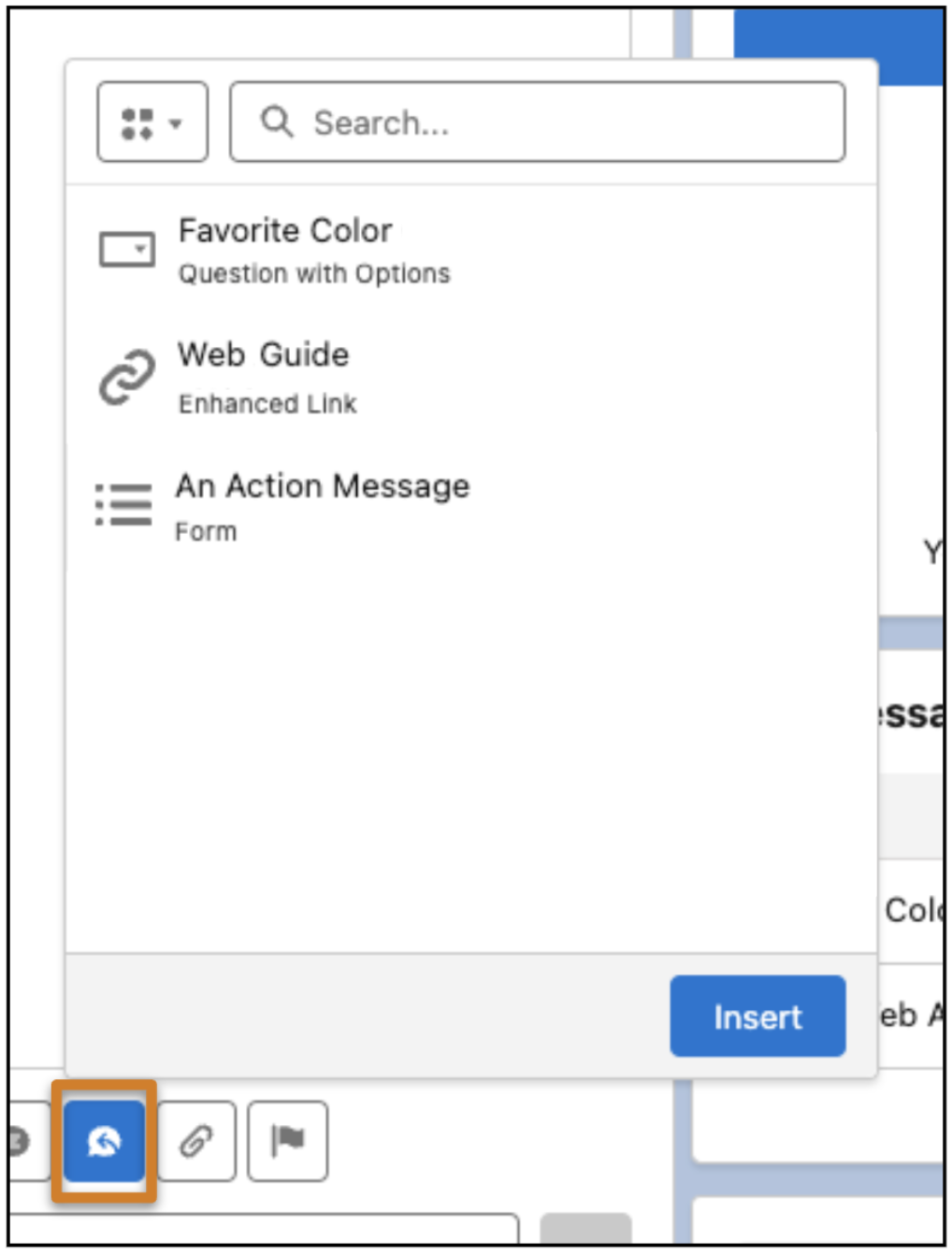
- Optionally, use the filter at the top to show a particular type of component.
-
Select the component that you want to share and click Insert.
A placeholder appears below the message field. No preview of the component is available.
- Click Send.
The component is sent to the customer and appears in the conversation transcript. The component’s appearance varies depending on the channel type, component type, and how the component was configured.
Send Dynamic Messaging Components
To send messaging components with dynamic content, such as time selectors, run a flow in the Service Console. Your admin may group messaging component flows into one section to make them easier to find.
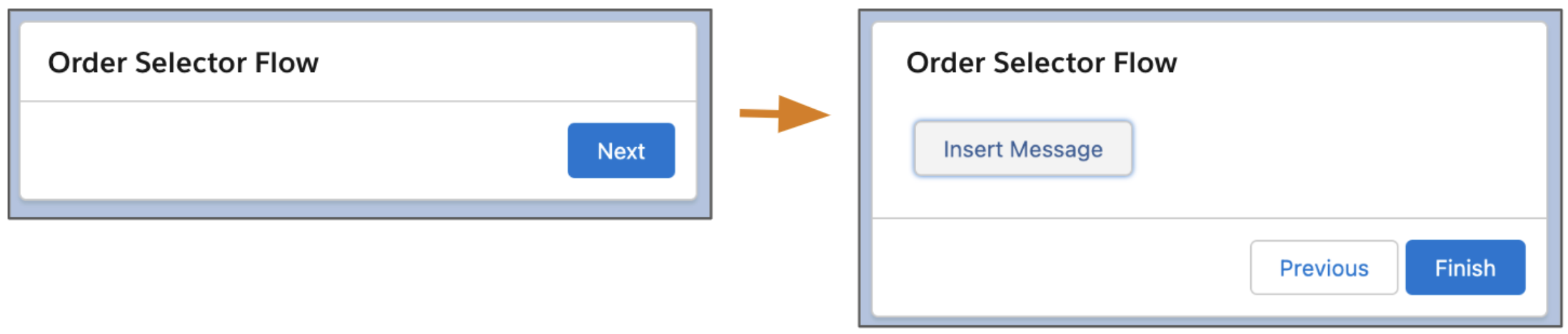
Your admin configures the flow’s steps, start button label, and location in the Service Console, so it may look different from our example.
-
On the messaging session page, find and run the flow to send the component.
-
Finish the flow.
A placeholder appears below the message field. No preview of the component is available.

-
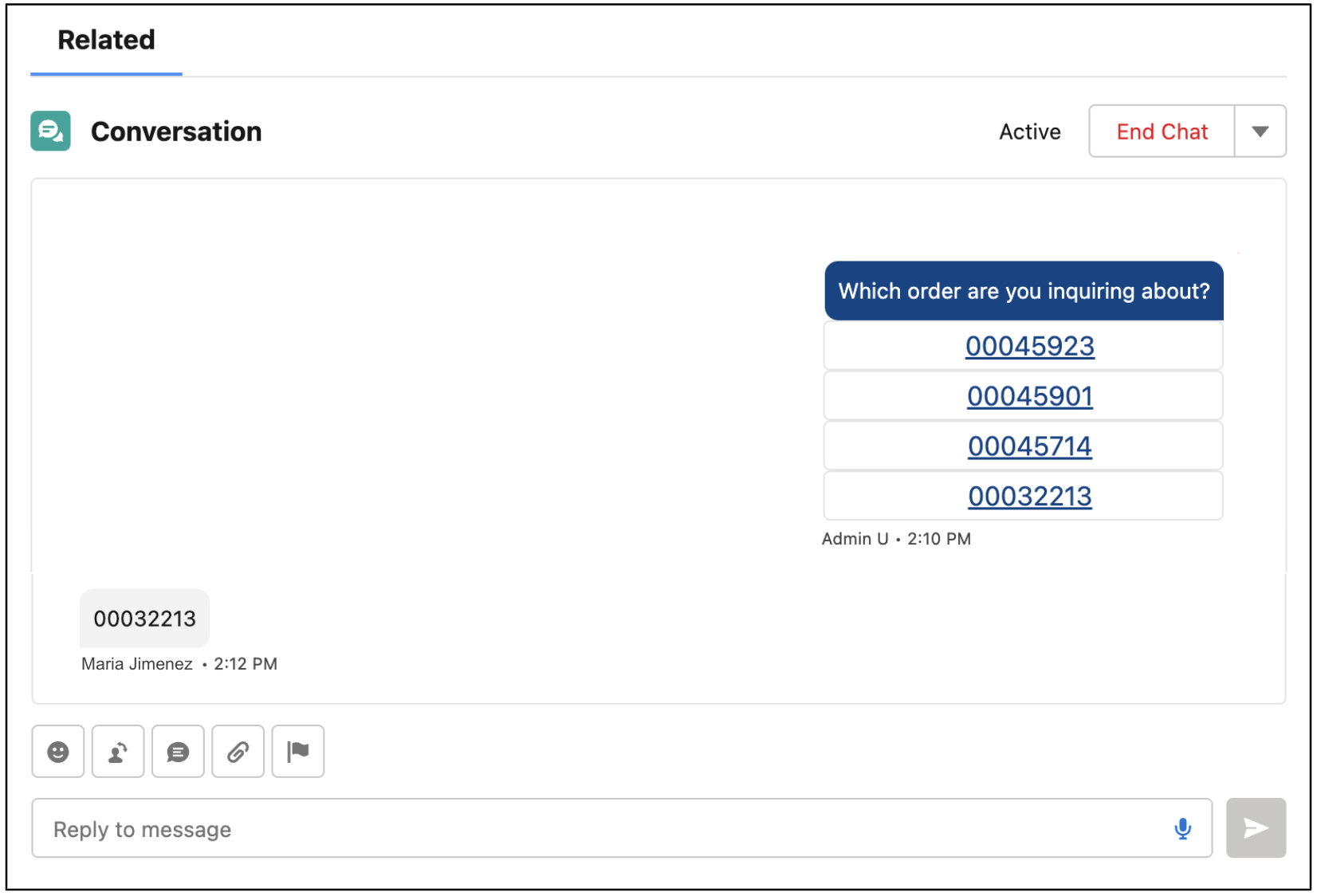
Click Send in the message field.
The component is sent to the customer and appears in the conversation transcript.
See Also
- Create and Send Enhanced Links in Messaging Sessions
- Create and Send Questions with Static Options in Messaging Sessions
- Create and Send Questions with Dynamic Options in Messaging Sessions
- Create and Send Time Selectors in Messaging Sessions
- Create and Send Secure Forms in Messaging Sessions
- Create and Send Authentication Requests in Messaging Sessions
- Create and Send Payment Requests in Messaging Sessions
- Share External Apps in Messaging Sessions
